
How to reset the Audio Track Mixer?
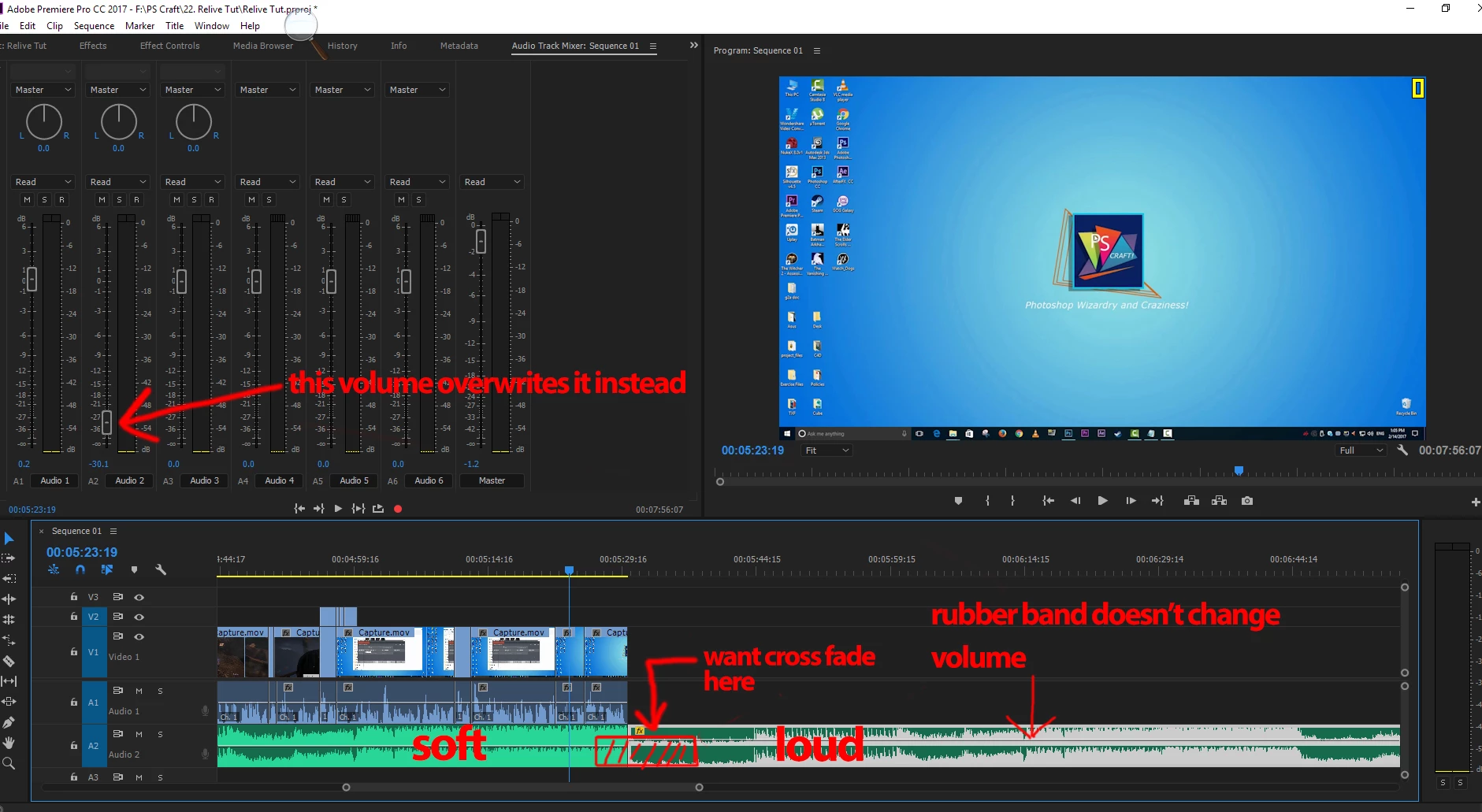
So I was editing one of videos and I have messed up the Audio Mixer. I set one of the tracks to "Read" then made some adjustments which was all crazy and now I I want to reset but PRPro won't let me and would move the fader up and down all by itself. I tried deleting the audio from the timeline and inserting it back again but it didn't work as the fader still animates itself. Is there any way to rest the fader and clear all the written adjustments?
Another problem that i just noticed is that the audio mixer is overriding the rubber band controlled volume (the line on the audio clip itself). I have a cut in the audio clip and now I just simply want to increase the volume with the rubber band after the cut and crossfade it with the previous clip. I have done this previously without touching the audio mixer but this time it doesn't seem to work.(see screenshot). Pulling up the rubber band only makes a small difference.
Edit - I have solved this now, I have set the fader of Audio 2 to 0dB and controlled the volume of the clips using the rubber bands and now I have achieved my desired effect. Well I don't know what went wrong this time after messing the Audio Mixer  Also it seems that the fader has stopped animating itself after double clicking on it several time while in "Write " mode. I would still like to know if there's anyway to reset a messed Audio Mixer so that I can revert quickly if something like this ever happens again.
Thanks,
I am using Premiere Pro 2017
 AdChoices