
EduardoAyres
Known Participant
September 16, 2020
Question

I can't move certain sequences into bins

  • September 16, 2020
  • 5 replies
  • 5057 views

I am am having this issue for a couple of months now, but I finally decided to be vocal about it. I am working on a project with several sequences, and I like to organize those into a folder. However, the premiere doesn't let me move certain sequences into bins, doesn't matter which bin is.


In this picture, I am trying to move the sequence SizzleReel_v7 to the folder 03. SEQUENCE, but premiere doesn't let me.
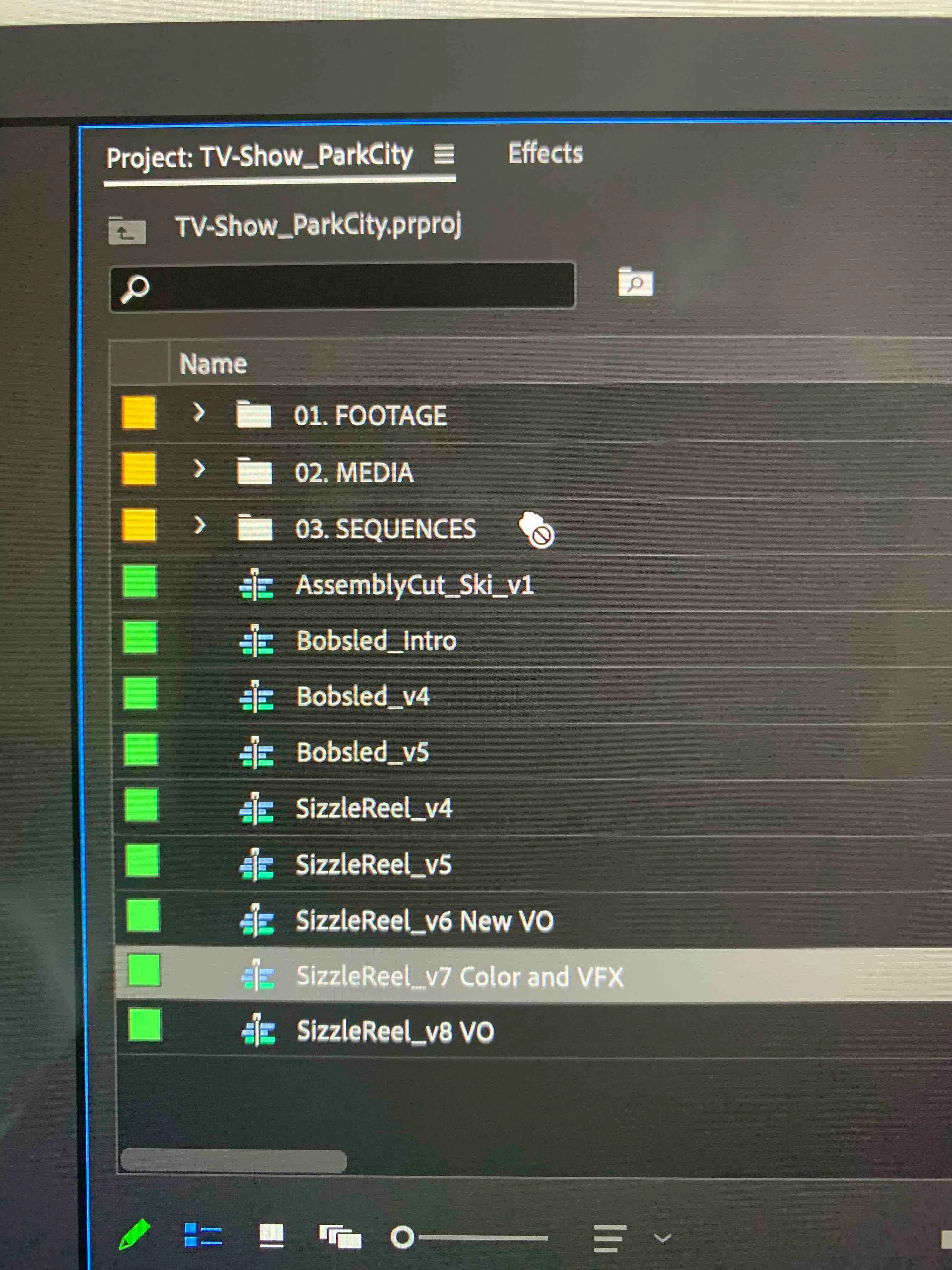
I noticed the same issue on this post here,  but it was not solved at all, the answer there is wrong and doesn't work.

I really need a solution for this issue and I would like Adobe or someone out there to help me fix this.


My settings:

Premiere v14.4

System: macOS Cataline 10.15.6

Computer: iMac 2019 - 3.6 GHz 8-Core Intel Core i9


Best,

Ed.


5 replies

Participant
May 5, 2025

I think I just figured this out. If you drag your clip over the bin and line it up exactly hold it for a few seconds  you will see the bin under turn white and you release it and it will drop in. If you do it like you normally do it will look like its not working. you just have to hold it over and line it up exactly and hold it till the bin selects. I have linked sequences and it seems it just has to think about moving the clip for a second or 2 before moving it.

Path 88 Productions
Known Participant
February 23, 2024

HERE IS A SOLUTION TO THE ISSUE:


Your sequence most likely has a dynamically linked element in it which locks the sequence from being moved around your project.  Like, you've got some Aftrer Effects dynamically linked in your Premiere timeline, right?  


Best work-around I've found is to do a Render-Replace of your .aep section and then move your sequence to elsewhere.  


If ya want, you can "Restore Unrendered" the troublesome section and switch it back to being the .aep file once the sequence is moved.


Alternatively, you can copy the .aep clip.  Delete it.  Move your sequence to a new bin.  Then paste the .aep bit back into your timeline. 


Weeeeeee.  Fun, ain't it?


Personally, I hate the advice of "Delete Preferences". "Delete your Cache!"  "Reset the OS". "Re-install!" "Burn Sage!"  "Genuflect upon the alter of subscription services"!  Pffffffssssstttt.  


ID the bug.  Work around the bug.  This is Adobe Premeire.  I've found it's the only way to be productive with it.

Mike Goubeaux
Participant
February 23, 2024

Appreciate the insight - once we all sorted out that sequences can't be moved if they contain dynamic links, it's pretty straight forward to just delete them, or render and replace, but it's hardly a SOLUTION. It's a real shame Adobe still hasn't sorted this. Sorry, this isn't a constructive reply - your input will certainly help someone. But it's kind of insane how broken the software is. The promise of dynamically linked comps from AE becomes this enticing thing that you can't reliably use in a professional project - unless of course you are fine being unable to organize your project. 

Legend
February 23, 2024

Premiere is Premiere.

Dynamic Linking AE projects is a cool feature.   The workaround for me is bothersome, but not troublesome.

"Just when I thought I was out, they pull me back in!"


I was working on a restoration of a film for a client that needed extensive stabilization and made the mistake of saving the multiple comps to a single ae project.  At a certain point, Premiere could no longer maintain the links...  Luckily I was pretty good about naming the ae project and the comps so it was not a big deal to relink them.    Lesson learned...  And everyonceinawhile we see posts here about dll functionality failing...    but yeah, it's a great feature and the options and control of stabilization is much better in AE than within premiere...   at least they were when I was working on this specific project about 3 years ago...    But unfortunately (in some ways) we live in a capitalist society where profit is almost all so decisions are made to a great extent on the basis of costs and making changes to such a complex program are not simple and can have unintended consequences...     I still haven't forgiven apple for abandoning FCP7 for the wormhole of FCPX, but that's the way the world works...  I can whine about it (like I just did) or move on to a different program...  which I did...  

Participant
June 8, 2022

I know this is an old post, but I found this as I am troubleshooting the same issue. For me, it has to do with dynamically linked comps. For sequences that do not have any dynamiclly linked comps, I am able to move those. The issue starts with the sequences that have linked comps to After Effects. If I delete them out of my sequence, I can then move the sequence. 


I do not know the solution though.

Participant
June 28, 2022

I'm having the same problem.

Working on Mac OS 12.4. and Premiere 22.5

Legend
June 28, 2022

Please tell us your system specs: amount of RAM, Hardware specs including graphics card and your source properties and sequence settings.   A recent post said the problem was with sequences with linked AE comps in their timeline.  Is this true for you?

Participant
December 29, 2020

Bumping this. I'm having this issue right now working on a feature doc. Very frusterating when trying to keep an organized project structure.

R Neil Haugen
Legend
December 29, 2020

Which version of Premiere? There was one back one or two that did this, you had to be in List view to move things.


The current 14.7 version shouldn't do this. We hope.


Neil

Everyone's mileage always varies ...
Peru Bob
Community Expert
Community Expert
September 16, 2020

Try resetting the preferences:
https://community.adobe.com/t5/premiere-pro/faq-how-to-reset-trash-preferences-in-premiere-pro/td-p/8236158?page=1

If that doesn't work, try resetting the Workspaces:
Reset a workspace
Reset the current workspace to return to its original, saved layout of panels.
1. Do one of the following:
• Click the Workspace menu icon and select Reset to Saved Layout.
• Choose Window > Workspace > Reset to Saved Layout.
from here:
https://helpx.adobe.com/premiere-pro/using/workspaces.html


EduardoAyres
Known Participant
September 16, 2020

I reset the preferences and it didn't work. Also, I deleted the Media Cashe, which also didn't work. Resetting the workspace didn't work also. Sorry, none of the options had any effect on it. What else do you think could be?