

Exit
  • Global community
    • Language:
      • Deutsch
      • English
      • Español
      • Français
      • Português
  • 日本語コミュニティ
  • 한국 커뮤니티
0

Image animation jittery / shaky after export

Community Beginner ,
Feb 10, 2024 Feb 10, 2024

Hi everyone,


Urgent: I'm having a serious issue and I absolutely need to finish this project within the next couple of days. I use Premiere Pro quite sporadically so I'm no expert. I created an audio-visual artwork with only layered images (PNG with transparency), simulating a parallax effect. However, when I export, the animation is not smooth at all, it's very jittery/shaky.

Link to a small extract: https://youtu.be/FfEm85S5dYo


I already tried several potential solutions that have been shared on the internet, but nothing worked.

Here's what I already tried:

- Exporting in 4K (3840x2160) and in HD (1920x1080)

- Changing the encoding settings to Software instead of Hardware

- Changing the renderer to Software only, instead of GPU

- Changing the Time interpolation to optical flow

- Reducing the image size from 16 000 pixels long (I have to zoom in a lot and then zoom out, part of the artistic intention) to 4500 pixels 

- I'm using less than 50% of my RAM while exporting

- I have about 140 GB free space on my OS and about 1 TB free on the disk where the project file is saved.


Here are my sequence settings:
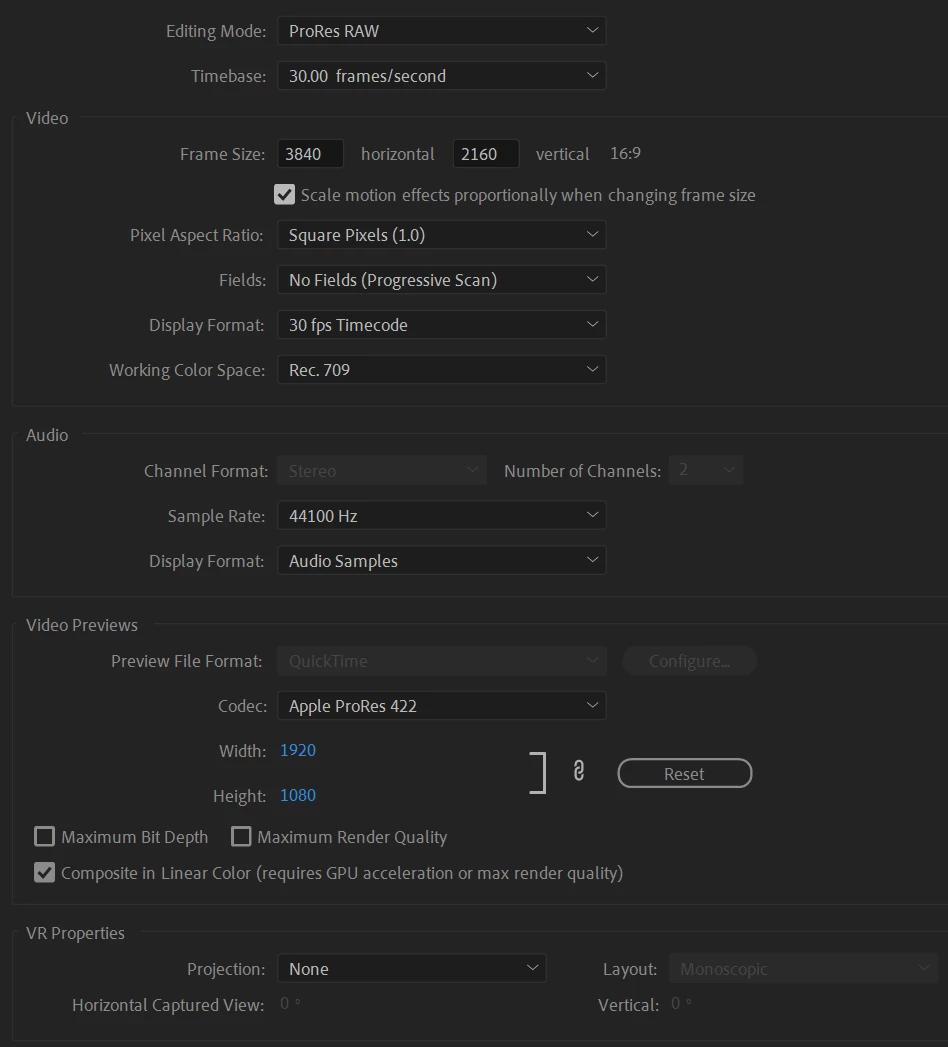
NizarBredan_0-1707596791516.png

I have an NVidia Geforce RTX 2070 Super, running on Windows 11, and my adobe Premiere is updated.


Any help will be highly appreciated!

I hope someone will see this message and suggest something before my deadline.


TOPICS
Error or problem , Export
736
Translate
Report
Community guidelines
Be kind and respectful, give credit to the original source of content, and search for duplicates before posting. Learn more
community guidelines
Community Expert ,
Feb 10, 2024 Feb 10, 2024
Translate
Report
Community guidelines
Be kind and respectful, give credit to the original source of content, and search for duplicates before posting. Learn more
community guidelines
Community Beginner ,
Feb 10, 2024 Feb 10, 2024
LATEST

Thank you for the link to that discussion Ann.
I read it all, but it's more of a technical explanation rather than a practical solution to apply.


Here's the conclusion of that thread:

  • THE SOLUTION: So how do you make sure your project always looks it's best? You follow the rules:
    • Fine detail must move at an even number of pixels per frame to avioid the sub pixel problem.
    • Aviod critical speeds. The "Seven Second Rule" is a good place to start
    • Use motion blur. Use as much as it takes to hide problems.
    • Change the frame rate. Does your project benefit from or have to be 24fps?


1. I have no idea how to have my animation move at an even number of pixels per frame

2. I have no idea what the "seven second rule" is

3. I can't find any motion blur option and I don't even know where to look

4. Since I'm just animating still images, the frame rate can be anything. I just exported at 60 fps, I still have the problem.

Translate
Report
Community guidelines
Be kind and respectful, give credit to the original source of content, and search for duplicates before posting. Learn more
community guidelines