
Optimistic_buildB833
Inspiring
March 24, 2020
Answered

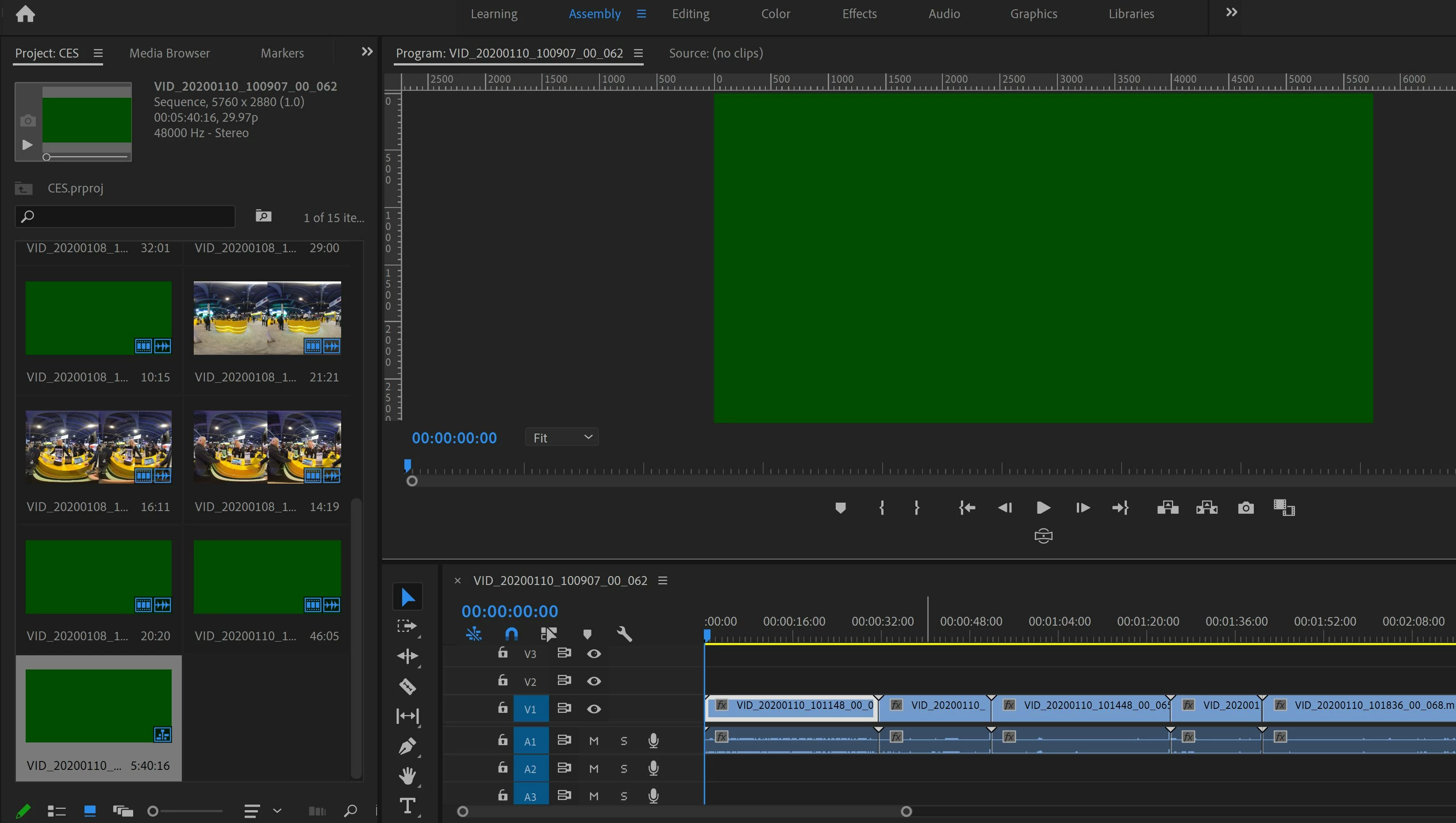
Imported videos showing up Green

  • March 24, 2020
  • 6 replies
  • 4629 views

I am having an issue with 180VR (3D) video only showing up as green in the viewer when using Premiere Pro 14.0.4.  It is making editing videos near impossible.  When I use other players (such as MS media player, etc.) the video plays just fine all the way through.  I have tried letting the video render but that doesn't seem to work either.  The other thing is that it is random (please see attached example). Some videos work just fine for viewing while editing but others do not.  Any help or advice that can be provided to get my videos in an editable state would be greatly appreciated. Thanks!
Correct answer Optimistic_buildB833

Thanks everyone for your input.  I was able to figure it out by changing my computer settings to be dedicated to the NVIDIA MX150 graphics card and changing some internal setting in the 3D video processing program.  Everything is importing great to Premiere now...no more green videos!!!

6 replies

Participant
January 17, 2023

I'm also having this issue and resetting workspace did not help. Also having an issue with AE. None of this happened until I updated my macbook pro to CC 2023

Optimistic_buildB833
Optimistic_buildB833AuthorCorrect answer
Inspiring
March 26, 2020

Thanks everyone for your input.  I was able to figure it out by changing my computer settings to be dedicated to the NVIDIA MX150 graphics card and changing some internal setting in the 3D video processing program.  Everything is importing great to Premiere now...no more green videos!!!

Participant
April 7, 2021

Hello! Glad to know you could fix it.


Do you mind sharing how did you do that? I am not very skilled with technology and I am having the same problem yoy had, but with Afer Effects.


Green media: I even exported the video and still green.

Optimistic_buildB833
Inspiring
April 7, 2021

Hi,


I have a PC so if you don't perhaps take this with a grain of salt:


From the main desktop screen, right click anywhere that doesn't have an icon.  You should see a window pop up with the ability to select "NVIDIA Control Panel".  When you select that, the control panel will pop up and you can then select "Manage 3D settings" and "Set PhysX Configuration" from the left hand ribbon.  There should be a drop down where you can select either "auto-select", "High Performance NVIDIA Processor" or "Integrated Graphics Card".  Select the High Perfromance option under both selections and this should do it.


If you have a different GPU make or a Mac, this is probably going to require different steps, but this is what worked for me.


Cheers,

Peru Bob
Community Expert
Community Expert
March 24, 2020

"I tried both but to no dice."


Did you try the third thing I suggested:

"If that doesn’t work, try updating or rolling back your graphics driver directly from the video card manufacturer’s site."

Optimistic_buildB833
Inspiring
March 24, 2020

haha, sorry missed that last one...I will try that.

Community Expert
March 24, 2020

Please make sure that your Graphics Card Drivers are up to date.

Optimistic_buildB833
Inspiring
March 24, 2020

I have a GeForce MX150 and from what I can tell, all drivers are up to date.

Ann Bens
Community Expert
Community Expert
March 24, 2020

Green usually means issue with the gpu.

Peru Bob
Community Expert
Community Expert
March 24, 2020

Try resetting the preferences:
https://community.adobe.com/t5/Premiere-Pro/FAQ-How-to-reset-trash-preferences-in-Premiere-Pro/td-p/8236158

If that doesn't work, try resetting the Workspaces:
Reset a workspace
Reset the current workspace to return to its original, saved layout of panels.
1. Do one of the following:
• Click the Workspace menu icon and select Reset to Saved Layout.
• Choose Window > Workspace > Reset to Saved Layout.
from here:
https://helpx.adobe.com/premiere-pro/using/workspaces.html

If that doesn’t work, try updating or rolling back your graphics driver directly from the video card manufacturer’s site.

Optimistic_buildB833
Inspiring
March 24, 2020

Thank you for the response.  I tried both but to no dice.