
jesselch
Participating Frequently
July 11, 2017
Question

Importing DJI Phantom 4 Pro Footage into Adobe Premiere Pro CC 2017.1.2(22) v11.0 Oasis

  • July 11, 2017
  • 7 replies
  • 10433 views

Hi,

I've shot a number of footages on my P4P a week ago and currently trying to compile them using Adobe Premiere Pro CC 2017.

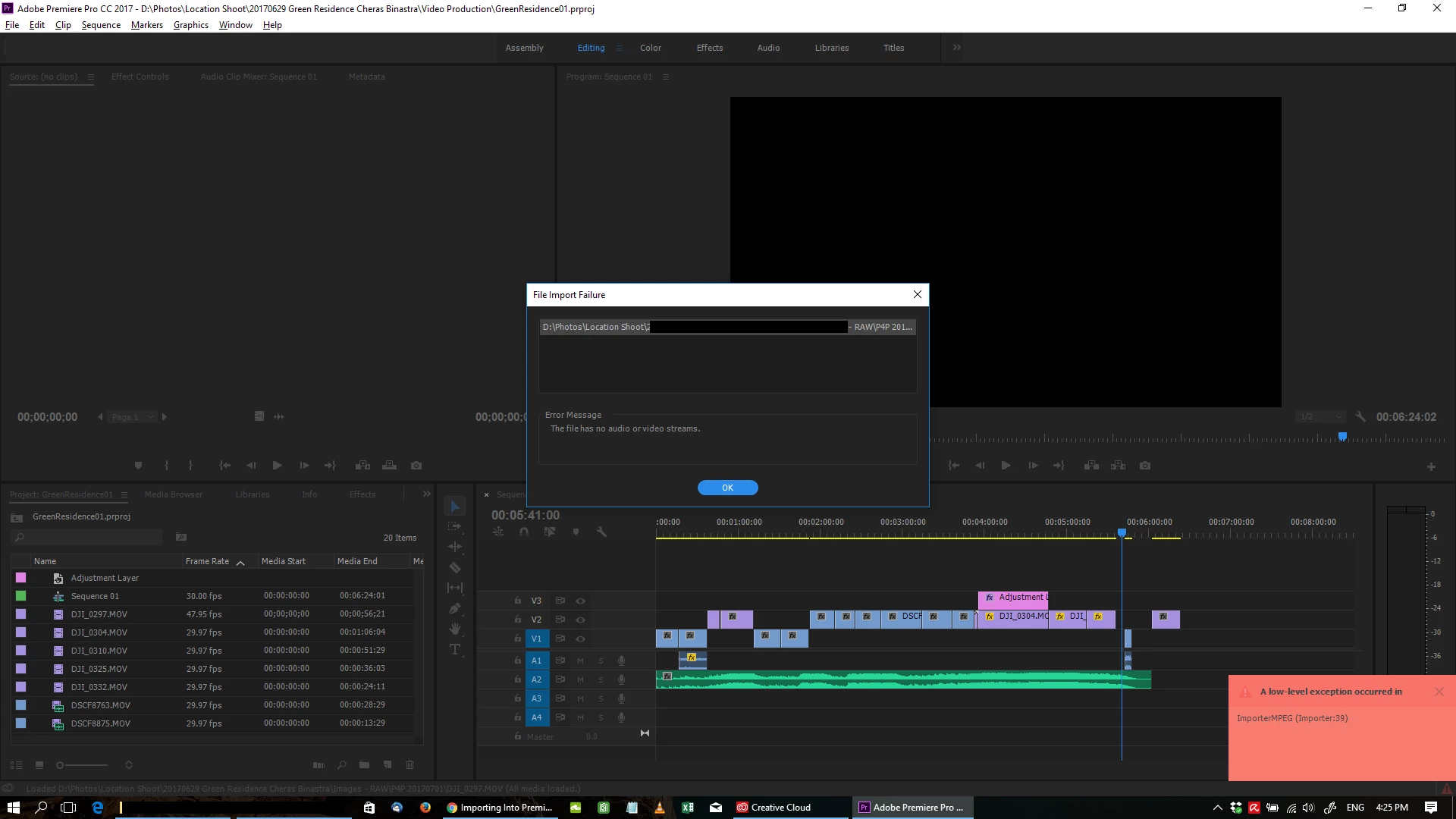
Some of the footage gets imported without issues, some have the File Import Failure : The File has no audio or video streams - (A low level exception occured in ImporterMPEG (Importer:39)) Please refer to the screenshot.

It seems to happen to certain files only, i have no idea why... All the videos are shot on the Phantom 4 Pro using h.264

Can anyone please advice?

I have tried using ffmpeg and handbrake to convert the MOV file to MP4 and then import into Premiere Pro again and it works... but the conversion process have degraded the video quality tremendously... from the 800++MB MOV file the converted MP4 file is less than 30MB...

I would prefer to import the original MOV file straight from the SD card into Premiere in order to retain the quality...

Please help!!!

Jesse
    This topic has been closed for replies.

    7 replies

    Participant
    February 21, 2023

    Adobe will you ever fix this importer 39 issue ive read threads dated by to 2016!! Few weeks back a tech supporter tried to help me remotely he had tried for 4 or so hours then logged off and never heard back.... very dissapointing. I still get issues with this but have now found a work around. Still annoying as its very time consuming.


    found the issue was with the sequences preview setting - originally it was set to preview at proRes but have changed that to mpeg 4. seems to work for now. Another work around was to change all MP4 to .MTS thats a 50/50 and the third one that worked 1/100 times was changing the media location to another drive. None of these prevent the error from coming up everytime you open the project but its a tedious work around.

    aarontassin
    Participant
    March 5, 2019

    I've experienced the same issue as you. I discovered my solution to be using a higher rated SD Card.

    I was able to import some videos, but the longer ones especially would not work. There are free programs that will allow you to test the speed of your SD cards. Anything under 50 Mbps write speed will give you issues recording 4K video.

    Another issue I ran into with the .mov files was having to transcode them before importing them. After many calls to ADOBE's worthless tech support I finally got someone to admit that they have compatibility issues with DJI codecs, and there isn't anything they can do other than use a third party converter program that left my videos looking pixelated.  

    SD Card                                      Read/Write

    Samsung EVO 64 GB - - - - - - - 84.59/64.93 Mbps

    SanDisk Ultra Plus HC1 - - - - -  43.88/24.77 Mbps

    chrislognion
    Participating Frequently
    August 3, 2018

    THIS IS THE FIX...   I completely re-installed my operating system and software twice before finding the simple fix.   Just uncheck that box.

    Participant
    June 27, 2018

    Hi guys.

    To fix the problem right click to file and rename and write avi after dot. (samplevideo.avi)

    Thats all. After that you can import DJI files properly without any convertion.

    Take care.

    Owl311
    Participating Frequently
    June 27, 2018

    I figured it out... just took 5 mins with somebody that knew what the heck. video is perfect and no issues.... 5 minuets.. lol wow

    Sent from my iPhone

    Participating Frequently
    October 12, 2017

    I'm having the same problem. Most of the video files from the P4P will import properly, but there's sometimes one or two that fail in the same way you describe. I'm suspecting that shooting a still while recording video on the Phantom may do something to the video file that causes Premiere to not accept that video clip (while other editors don't have a problem with it). But I have to do more testing to find out. For now I'm importing problem clips into another editor and rendering them. Premiere accepts the re-rendered files but I'm not happy because they are reduced quality from the originals.

    R Neil Haugen
    Legend
    October 12, 2017

    Interesting idea, that taking a still while video is running may cause an issue ... would be nice if you could test that out.

    And what other program are you transcoding in, to what format/codec & settings?

    Neil

    Everyone's mileage always varies ...
    R Neil Haugen
    Legend
    May 21, 2018

    hi johnhollands,

    I'm afraid I have to disagree. This question does indeed belong in this forum. It wasn't so long ago that Adobe advertised that the editor could simply throw clips into the timeline with any codec (native) imaginable. As already mentioned elsewhere in this forum, this advertising promise prompted us to switch to Premiere. And indeed, Premiere could actually import and "read" all the codecs we used.

    This is no longer the case: Premiere suddenly no longer recognizes the DJI files imported in a previous Premiere version and this is an absolute NO GO!

    By the way, it should be left to the editor how he organizes his projects. Many professionals work with native material and only convert the clips into ProRes, which ultimately end up in the timeline. With a shooting ratio of 1:50 (in our case) this makes sense.


    Unfortunately, things change over time. When the promise of using any 'native' media was originally made, no one knew that totally new gear was going to be created pushing the boundaries of the codec settings so far. One of the occasional 'helpers' here has software to analyze the clip's codec/settings, and on testing one clip posted by another user, found the general I-frames were up to 120 frames apart.

    Between b, p, and partial I-frames, that sort of thing requires massive hardware to handle it. At that point, the NLE is secondary.

    Between hardware and choices within the structure of the NLE, there are still of course a range of ways to do anything, and some are more effective on one rig with the hardware & apps loaded on that than another. Hence there's a ton of variability on the effective use of any major app like this, even on seemingly similar machines. Let alone between media types used.

    And while your point on the editor needs to be the one organizing his projects is totally valid, I'd note that the majority of professional editors do not convert anything to ProRes, Apple being the jealous kindergartners they are. We don't have ProRes available. Not only is the PC multiverse much larger than the Mac, many pros have left the Mac-verse over the last couple years. Including many colorists I know, which had been one of the most Mac-centric groups imaginable even two years ago.

    Which just points out how fast things are changing now.

    A major talk in the aisles at NAB this year was the idea that PrPro's team should give up the 'every native media' concept, and like Avid & BMD, specialize in working with a number of the larger 'types'. Which would hopefully get better & more reliable performance out of the app in general.

    Avid editors already t-code or proxy stuff like crazy, Resolve's "optimize media" is just their way of saying make & use proxies. As the two examples most cited.

    Neil

    Everyone's mileage always varies ...
    jesselch
    jesselchAuthor
    Participating Frequently
    July 12, 2017
    I actually went to buy a new notebook to try to solve this, freshly installed Premiere Pro CC, and same issue... same error messages... have also tried renaming .mov to mp4 but it doesn't work... can i post the video here and you guys try importing it? I'm out of ideas how to resolve this now...

    Here's the link (the shortest clip i have is this 485MB file.. https://1drv.ms/v/s!ArpdZcNh23nSkBX9MUqPcNmkm1ns
    Ann Bens
    Community Expert
    Community Expert
    July 12, 2017

    Tested your clip and plays fine in 2017.1.2.22

    I would prefer to import the original MOV file straight from the SD card into Premiere in order to retain the quality...

    Copy to hdd first then import via Media Browser. (this does not reduce quality).

    jesselch
    jesselchAuthor
    Participating Frequently
    July 12, 2017

    Yup, it's already copied to my HDD first before i import them under Media Browser... ..

    still have the same error on 2 notebooks now... running the same version 2017.1.2.22

    What other factors could have contributed to this? What am I doing wrong? Both my computers are Windows 10, i tried both with CUDA (Mercury Playback Engine GPU Acceleration) on and off... same thing...

    Ann Bens
    Community Expert
    Community Expert
    July 11, 2017

    Looking at your sceenshot i seen a clip with an odd framerate (47.95)

    Check the framerate mode with Mediainfo.

    If its variable convert with Handbrake to constant.

    jesselch
    jesselchAuthor
    Participating Frequently
    July 11, 2017

    Yea, the framerate is quite odd, but it was successfully imported into Premiere Pro without any issues...the ones that failed the import process are 29fps

    R Neil Haugen
    Legend
    July 11, 2017

    If you're getting that sort of compression in Handbrake, it's because that app often chooses a HORRID preset to apply. It would take my 4k from my Samsung S7 phone and always convert it to 1920x1080 if I let it!

    So I had to create my own preset there, to keep original media frame-size, change to CFR and you need to BOTH click the CFR "radio button" and select a specific frame-rate number, don't use the "Auto" or "same as source" settings, you'll still get VFR.

    Plus I had to kick the compression settings in two places into the "placebo" range to maintain the original Mbps and image quality.

    After creating a good preset, and learning to use the ... intriguing ... batch operations of Handbrake, I can set many gigs of phone media to convert overnight and be ready to work the next day.

    Neil

    Everyone's mileage always varies ...