Beranek_martin
Participant
December 29, 2021
Answered

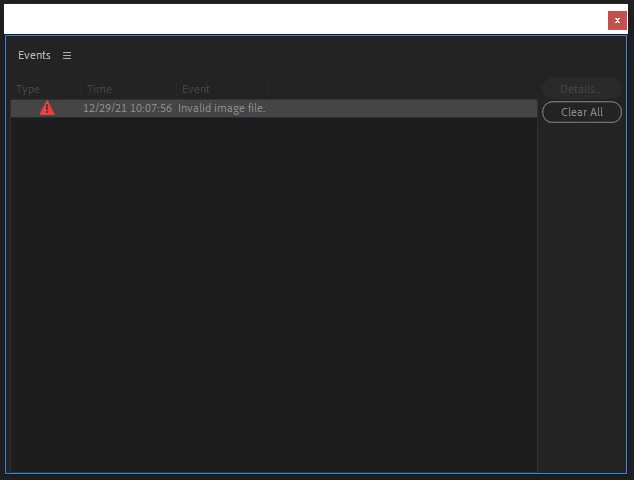
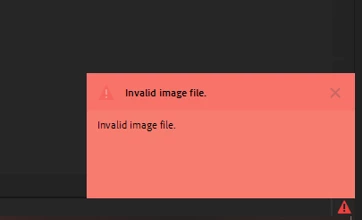
Invalid image file - error

  • December 29, 2021
  • 3 replies
  • 6068 views

Hello, 
i have a problem with my Premiere Pro 2022 (22.1.2).
I opened the project and it started showing an error "Invalid image file" and after a while the program shuts down. So i tried to start a new project, but it was the same.

I found there could be a problem with essential graphics, so i tried to delete everything, but nothing has changed. 

Reinstalling also didn't help.

Any idea?

Thank you,
Martin


This topic has been closed for replies.
Correct answer Beranek_martin

Hello,
NVIDIA has released a new update 04.01.2022 that resolves this.

Thank you for your time 🙂
Have a nice one

3 replies

Participant
March 22, 2023

same problem here

Participating Frequently
August 8, 2023

Sounds like the same problem I have. 

If I start a new project and don't even import any footage  I get the message

Was there a  solution? 

Participating Frequently
August 8, 2023

Actually I've re-read it and I get Invalid Parameter

Joost van der Hoeven
Community Expert
Community Expert
December 30, 2021

Sorry you have this issue. It is a weird one. Doe is happen with all projects? Have you tried un-installing Premiere Pro. Deleting all Cache and preferences. Then restart you computer, reinstall Pr?

Beranek_martin
Participant
January 2, 2022

Yes it happens with all projects (I tried 3 different ones) including the new project.


I tried to do exactly what you wrote and everything seemed to be fine, but i was only in "Learning" workspace, when i went to the "Effects" the error "invalid image file" is back. The same with "Colors", "Editing", and another options.

Think the problem must be on my computer, not in the program.


But the program has stopped shutting down, that is positive.


Peru Bob
Community Expert
Community Expert
December 29, 2021

Delete the Media Cache and Media Cache files:
https://community.adobe.com/t5/premiere-pro/faq-how-to-clear-your-media-cache-in-30-seconds-in-premiere-pro-2020/m-p/11017257/thread-id/260446?page=1

If that doesn't work, try resetting the preferences:
https://community.adobe.com/t5/premiere-pro/faq-how-to-reset-trash-preferences-in-premiere-pro/td-p/8236158?page=1

If that doesn't work, try resetting the Workspaces:
Reset a workspace
Reset the current workspace to return to its original, saved layout of panels.
1. Do one of the following:
• Click the Workspace menu icon and select Reset to Saved Layout.
• Choose Window > Workspace > Reset to Saved Layout.
from here:
https://helpx.adobe.com/premiere-pro/using/workspaces.html

If that doesn't work, try Preferences > Audio Hardware and set Input to None.

If that doesn’t work, try updating or rolling back your graphics driver directly from the video card manufacturer’s site. If NVIDIA, do a clean installation of the latest Studio Driver (NOT the Game Driver)

If that doesn't work, try creating a new project and import the old one into it.

Beranek_martin
Participant
December 30, 2021

Thanks for your prompt reply


I tried everything gradually and I still have the same problem "invalid image file".


When i start a new project, there is the same problem.

Thank you for your time and wish you a succesfull start to the new year 🙂