Known Participant
April 2, 2024
Answered

is there really no way to export captions in .scc format?

  • April 2, 2024
  • 2 replies
  • 1144 views

I am rerquired to export captions in this format, but there is no option in export to do this.

Correct answer Warren Heaton

In your Timeline, set the Captions Track to CEA 608-1 and then choose File > Export > Captions....


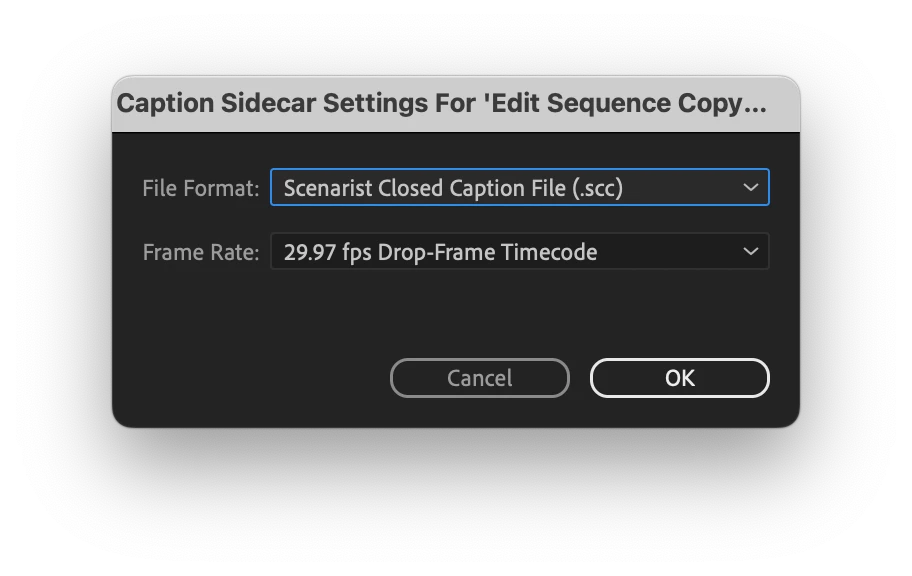
In the Captions Sidecar Settigs dialog box, set the File Format pop-up to Scenarist Closed Caption File (.scc) and then click OK.


2 replies

Warren Heaton
Community Expert
Warren HeatonCommunity ExpertCorrect answer
Community Expert
April 2, 2024

In your Timeline, set the Captions Track to CEA 608-1 and then choose File > Export > Captions....


In the Captions Sidecar Settigs dialog box, set the File Format pop-up to Scenarist Closed Caption File (.scc) and then click OK.


Participant
February 20, 2025

Hi! How do you set the Captions Track to CEA 608-1 ? Thank you!

Stan Jones
Community Expert
Community Expert
July 4, 2025


for anyone wondering, right-click on the controls portion of your captions track and choose "Track Settings..."

from there, you can change it.


@landonmaloney,


I have given a similar version of your correct answer regarding how to change a caption track from one format to another. But I regularly forget an important qualifier. My conclusion is that, for 608 especially, the best practice is to go back to the Create Captions step and use the correct format. I am looking at this in PR 25.3.0, but I don't think this changed from earlier versions.


@default39bxy9yce472,


Carefully review the 608 captions after the conversion. If you used the default Subtitle format from the Create Captions dialogue, it sets the maximum characters per line to 42. And if you modify it to the maximum allowed for the Subtitle format, that is 72. But the maximum for 608 captions is 32, and that is the setting when you use the 608 default for caption creation.


What happens when you use the Track Settings to convert format is that it truncates subtitle format to fit the 608 rules. For example, a Subtitle format caption at 42 per line with double lines may be:

The first question is
what is the best meal you have ever eaten?


When converted, all you see is:

The first question is what is th


In some cases, it will use a second line, but in most cases, even where it had 2 lines in the beginning, it just cuts it all out.


In the Text panel/captions tab (and the Properties panel), you see the whole caption text, not just what appears on screen. But when exported as .scc, it contains ONLY what shows on the screen. Because this is the criteria for 608, you cannot edit the 608 captions in PR to change that. And even if you could, if sometimes takes up to 3 separate captions to get the text from a single Subtitle format caption. You have to go back to the Create Captions step and use the correct format.


If you have already edited your captions, spelling etc, keep your old track for reference. Since PR 25.2.0, with the introduction of caption translation, having multiple caption tracks enabled at once is allowed. Create the 608 track, then select all the captions in the old/edited track, and move them to the middle of the screen. You can then step through and compare. Or, my preference, export each as .txt (from the captions tab, 3 dot menu), and compare in something like Notepad++.


Stan


Known Participant
April 2, 2024

ok, found it.  You can't do this from the text window, you have to actually export your video and do it under the captions section of tyhe export window