

McWiggins
Inspiring
October 8, 2021
Answered

Keyboard shortcut help: jump to & edit timecode of Playhead Position?

  • October 8, 2021
  • 4 replies
  • 7154 views

I want a keyboard shortcut to select/jump to the timecode value in the timeline panel, so I can make my playhead move to that point on the timeline. When I hover over it with the mouse, it's labeled "Playhead Position". 
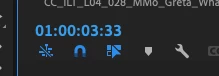


I don't want to have to move the mouse up there every time. I thought it was Tab, but maybe Adobe changed it, or I'm thinking of a FCP shortcut, or I'm Mandela-Effecting this.


When I open the Keyboard Shortcuts window, I can't find it, so I don't know how to create this shortcut if it doesn't already exist. Thanks in advance.

Correct answer thepixelsmith

You don't need the opening zero in your first example, nor do you need the period in the 29 for this to work.

4 replies

Known Participant
October 10, 2023

Try Alt+Shift+J

Participant
November 11, 2022

I am very interested in a keyboard shortcut to access "Playhead Position!" I'd like to move the playhead forward by a set amount of frames (115 frames, for example) without touching the mouse, so that I can do this many times throughout a day. Ideally this would be without a numeric keypad.

thepixelsmith
Community Expert
Community Expert
November 12, 2022

You are literally describing what the number pad does, when you use the plus and minus keys.

I don't know another way to do it, I coudn't find a way of setting a custom keyboard shortcut for it.
I use an app for my iphone called numpadpro as my numeric keypad.

If you use an external design like an elgato streamdeck you may be able to set it as a macro.

McWiggins
McWigginsAuthor
Inspiring
October 18, 2021

After messing around, I found a solution; typing it here in case anyone else ever searches for this. 


To select the Playhead Position section of the timeline panel for editing with the keyboard without using the mouse

  • If the timeline panel is highlighted/selected, I can press zero on the numeric keypad, and then type the playhead location I want—for example, typing "010315" will take my playhead to the 1-minute 3-second 15-frame mark.
  • If I know the number of frames I want to move the playhead from the beginning, I press "." on the numeric keypad instead of zero. For example, if I want the playhead to go to 1 minute five frames into the timeline (on a 24 fps sequence), I type ".29". 


This must be done with the numeric keypad (not on the main keypad with the numeric row above the letters). Also, no clips can be selected on the timeline, or else Premiere thinks you want to move the clip that many minutes/seconds/frames, rather than the playhead. 

McWiggins
McWigginsAuthor
Inspiring
October 18, 2021

(Edit: typing ".29" moves the playhead to the 1-second 5-frame position, not the 1-minute 5-frame position.)

Ann Bens
Community Expert
Community Expert
October 8, 2021

Just click on the playhead position and type in the timecode

e.g 1321 wil jump to 00:00:13:21.

+45 will advanced 45 frames.

-60 will go 60 frames back.

Use the numeric path.

McWiggins
McWigginsAuthor
Inspiring
October 8, 2021

Thanks for your reply, Ann, but I'm wondering if there is a way to get to the playhead position without using the mouse to click on it. Do you know if there is a way to do that? 

McWiggins
McWigginsAuthor
Inspiring
October 8, 2021

And thanks for reminding me that I can just press + or - on the numeric keypad to go forward or backward X number of frames (or move a clip forward or backward), I'd forgotten about that and that helps. And I'm still interested in a shortcut to go up there and type in a specific timecode location.