
Known Participant
July 15, 2022
Question

Keying out a background with glow

  • July 15, 2022
  • 2 replies
  • 1565 views

Hi There,


Using premiere pro, it is possible to key out a blackbackground from a video. However in the attached short video I would like to keep the blue neon rotating ring together with the blue haze that surrounds it and key out the black background although I do not want quite as much of the haze to be present once the background is keyed out.  


Using the image below. I would like the areas beyond the outer ring I have drawn to be completely transparent. ( A + B).  and the central area to also be completelty transparent so that  the limit of the glow would be with in the area shown by the green arrow.


I hope this makes sense.
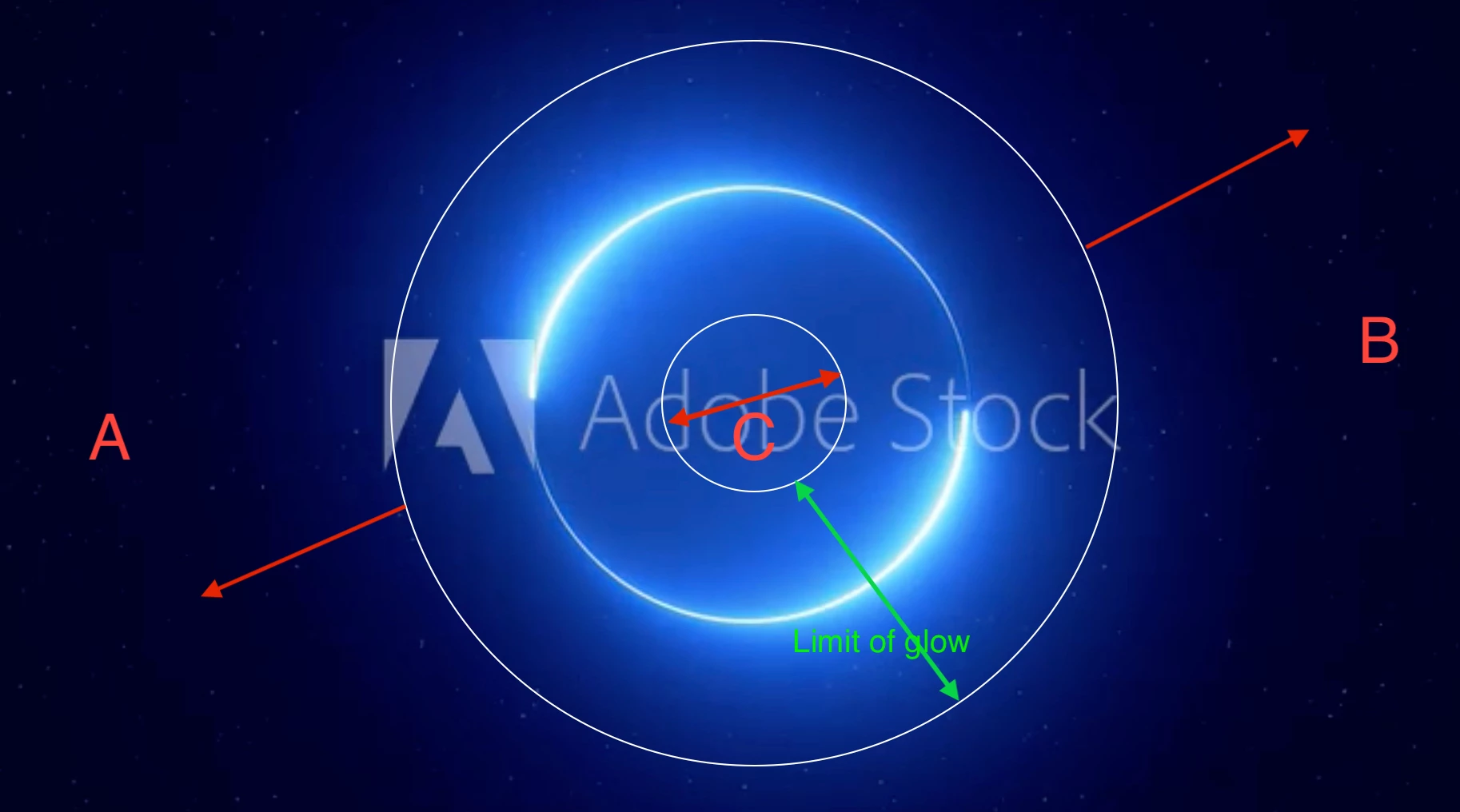
 

In a nutshell I want to key out but maintain the gradient glow from blue to black (transparent when the black is keyed out)


Thanks in advance for help.


Rob

This topic has been closed for replies.

2 replies

Avidwarp
Participating Frequently
July 15, 2022

Add a Lumetri Color effect to the clip.

In effect controls select Lumetri color

Go to the Curves section

You should be able to control the extents of the glow by attaching points to the RGB Curves 

Have a play around with a gentle S curve to affect the highs ans lows in the gfx image.

Known Participant
July 15, 2022

Hi Again,


In the Effects, Controls, I can't seem to see the Lumetri "color" option ?


Could you point me in the right direction pls.


Many thanks


Known Participant
July 20, 2022

Yes, that's the Lumetri panel.


So, you want to remove the black surround, so you can apply this as a layer above another clip/graphic element, is that correct?


As that appears to be an Adobe Stock mogrt ... you could copy the layer or group of layers that are the blue thingy, and paste those into another mogrt.


Depending on the controls included in the mogrt, this might require opening the mogrt in AfterEffects.


As in Ae, you do have full access to every item of the graphic file. Easy to select & copy something to reuse in your own comps.


That would actually both be easier and give better results.


Neil


Hi Neil, 


The source file is attached it is a .mov file. And your understanding is spot on, I do want to apply this above another video layer.  The file was downloaded from Adobe Stock as a .mov file.  It doesnt appear to have a Morgt file attached to it. 


Will your advice still stand? Ive struggled (understatement ;)) for a week now to try and remove the blackground. I am so stressed with using Premiere Pro, its taking its toll on my

health.. 

Avidwarp
Participating Frequently
July 15, 2022

Try this with black background graphics.

1 - select the clip on the timeline

2 - open the effect controls window in the interface

3 - you should see an option to control Opacity

4 - twirl down and you will have access to Blend Modes

5 - select Screen.


Should get rid of black and keep the glow.

There is a guy Adobe use for lectures on YouTube called PixImperfect - has an explainer for what all those modes do.