James Ronan
Known Participant
February 15, 2018
Answered

Link Media - PP has changed the File name. How to change it back?

  • February 15, 2018
  • 3 replies
  • 7208 views

Hi Guys


Some work on a project was done initially on a Windows PC. This has now gone and and the project has continued on a mac...

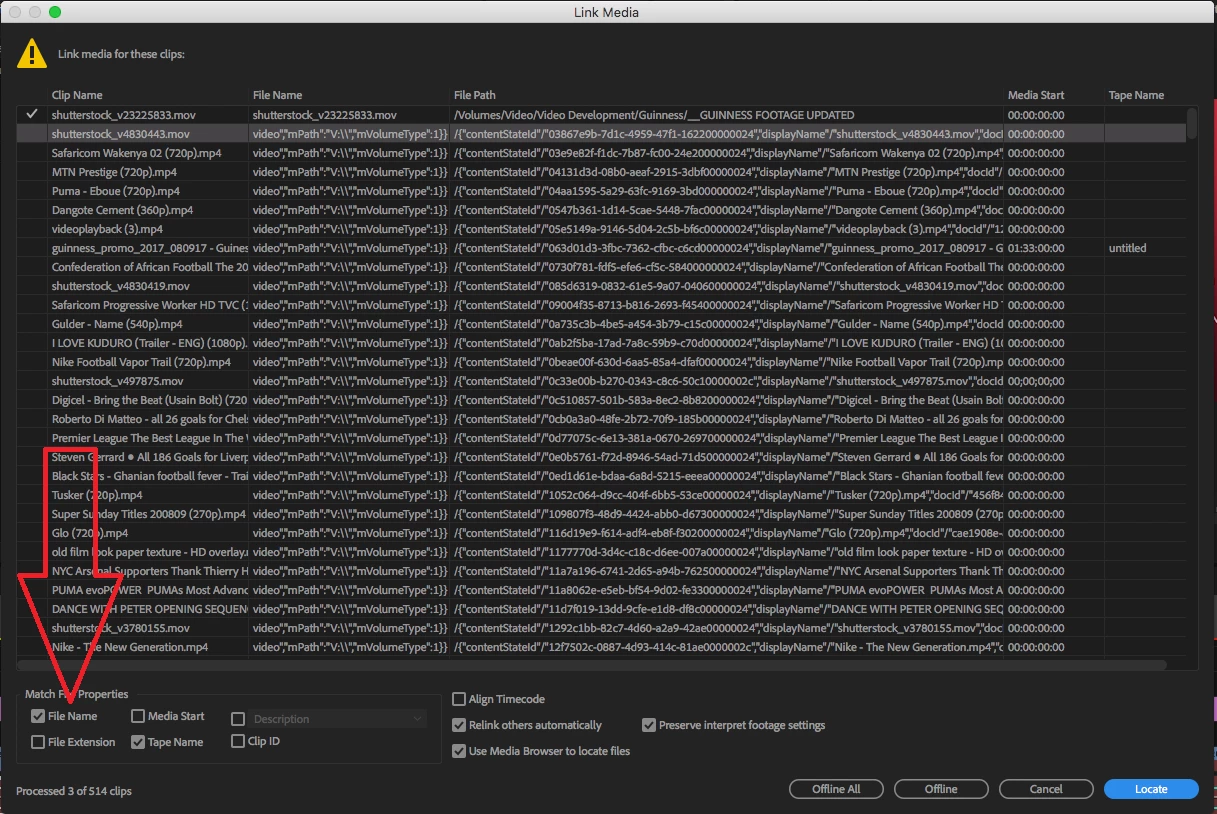
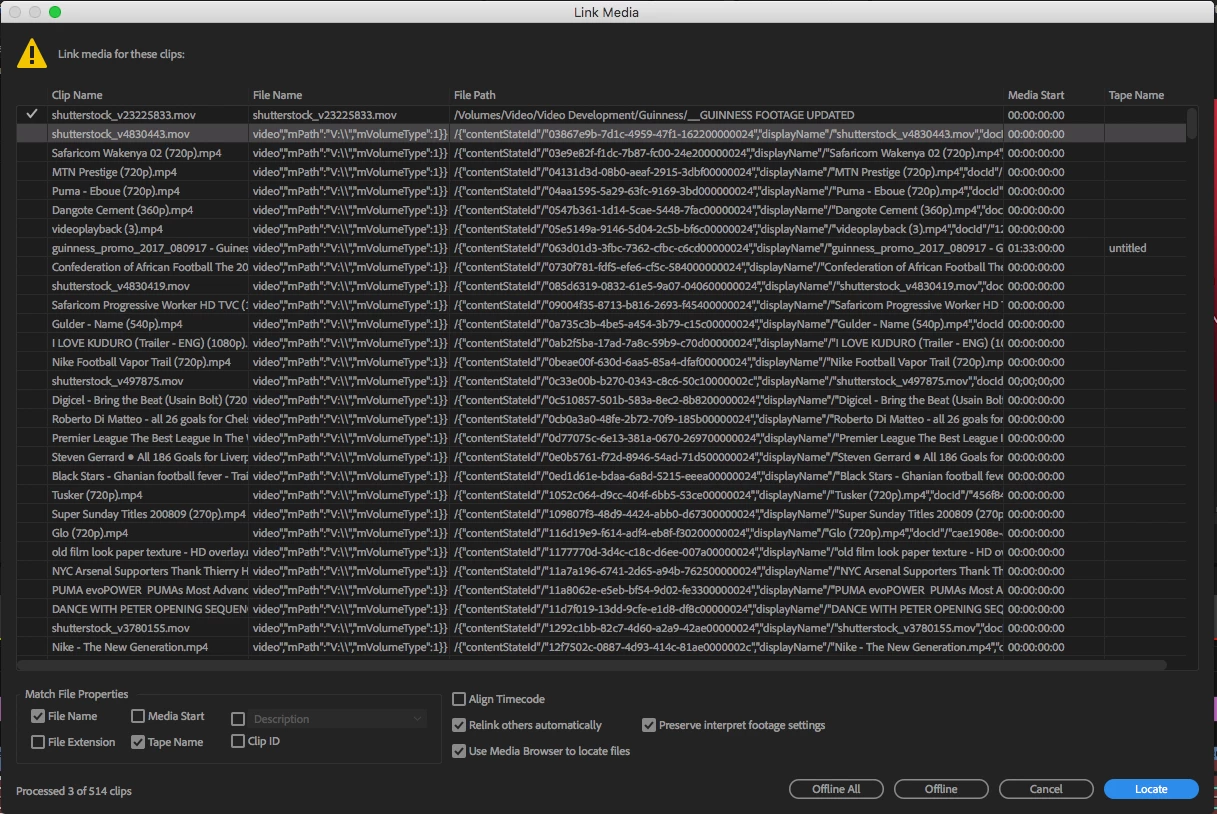
When trying to relink footage, it is showing that the File Name is different to the Clip Name? When in fact the File Name is still the same as the Clip Name, and still in the all the same folders etc. (All the project and it's contents has been worked off a central server)

It has changed every file name to:

video","mPth":"V:\\","mVolumeType":1}}

Relinking one by one works. but it won't do it automatically.

I can't see a way to change the File Name back to the Clip Name. Any ideas? I'm at a bit of a loss here have no idea and theres over 500 video files.


i've attached a screen shot for reference.

Any help massively appreciated!

James
This topic has been closed for replies.
Correct answer Vidya Sagar

Hi James Ronan,

Have you tried to uncheck the option File name in Match file properties & link? Please check.

Thanks,

Vidya

3 replies

Vidya Sagar
Adobe Employee
Adobe Employee
February 22, 2018

Hi James Ronan,

Are you able to resolve the issue? Please let us know the status.

Thanks,

Vidya

James Ronan
Known Participant
February 23, 2018

Hey Vidya,

Thanks a lot for your suggestion! Yeah this kinda worked... but it had to be done in really small increments.

E.g link media for no more than 3-4 clips at a time or the "Locating media..." window and PP would become unresponsive and crash.

So it was taking just as much time to relink as it was doing it manually aha.

Cheers

James

G.Know
Participating Frequently
May 25, 2018

This issue plagued one of three project files on a feature doc we're actively working on. I've found that only selecting "media start" and "clip ID" in Match File Properties allowed me to automatically relink multiple clips that had their pathways scrambled (when attempted with 4-10clips). While this was relinking, I looked in the resource monitor window (an extension of windows task manger) and saw the local drive constantly writing .ims files to the cache, something it does not do when the project is sitting idle. It appears to first scan the files located immediately around the file I identify first and then goes off into the rest of our footage, which at this point Premiere and the task manager show very, very little movement - the only place where I can tell premiere or the computer is "thinking" is within the resource monitor that shows me exactly what files it is reading/writing.

I am leaving this to scan over the weekend as Premiere attempts to unscramble 2137 clips. However, I would like to know if Adobe engineers have any idea or notion of where this problem is coming from - if it is a bug in premiere, a bug in our clips' metadata, or something else - because even if it rights itself on this workstation I'm afraid this project will continue to be unusable on any other editing station. Big problem for our multi-year project right now.

Galen


We were able to figure this problem out without having to relink everything manually.

1. Create a new project (we did this with a blank project on a separate machine)

2. Open old project and make all media offline

3. Import old project into blank project (at first we did a test with one, ten, and then 100 clips)

4. When we went to relink, the pathways and clip names had been cleared, meaning we could relink based on clipID and media start - no need to relink >4,000 files individually!

In the post-mordem with Adobe, we found that the issue seemed to be linked to the markers we had used on the clips themselves early on to sync interviews. Somehow this issue spread to random clips throughout the project but we've taken a few measures to prevent this such as de-selecting "write markers to clip xmp" in media preferences and doing any syncing in a blank project outside of our master project.

Legend
February 15, 2018
Vidya Sagar
Adobe Employee
Vidya SagarCorrect answer
Adobe Employee
February 15, 2018

Hi James Ronan,

Have you tried to uncheck the option File name in Match file properties & link? Please check.

Thanks,

Vidya