


- Home
- Premiere Pro
- Discussions
- Lumetri Color causes pixelation in video
- Lumetri Color causes pixelation in video

Copy link to clipboard
Copied
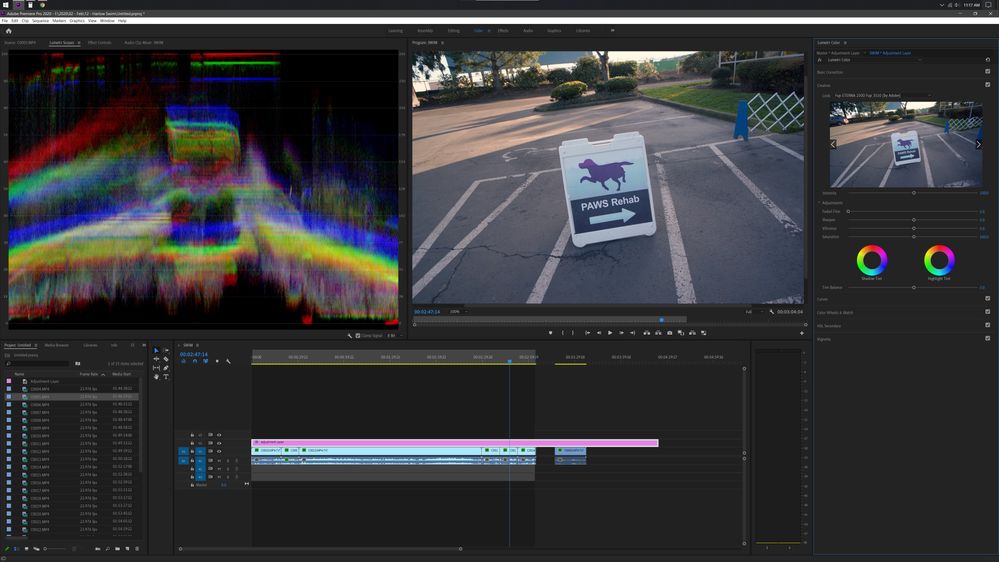
Please advise. When color correcting in premiere pro, I started running into this issue where if I adjust anything in the lumetric color, my footage becomes pixelated. Literally any adjustment outside of basic correction, this issue occurs. I can add a LUT, or edit curves, anything. I tried making adjustments to the clip directly and editing an adjustment layer, both had the same result. At first I thought it was just the preview, but when I export the same issue occurs.
Has anyone else run into this issue?



 1 Correct answer


Re-install the 442.19 drivers but do a clean install of the drivers.
1. Launch the installer
2. Click Next until you come to the Options section
3. Chose Custom (Advanced) and click next
4. Check the Perform a clean installation
5. Click Next and install the drivers
Hopefully that will wipe out all old drivers that cause the problems you have.

 32
Replies
32
32
Replies
32


Copy link to clipboard
Copied
That looks like GPU driver issues. If you go into Project Settngs dialog, and set the Mercury Acceleration option to Software Only, does this go away?
What is your GPU ... and what driver is it using?
Neil
Copy link to clipboard
Copied
Currently using an NVDIA GTX 1070. Driver version 450.12, seems to be the latest version according to my GEFORCE Experience.
I did change the setting to Software only, and that seemed to work, but the rendering times are much much slower.
I shoot on the A7III, and this is has never happened before.

Copy link to clipboard
Copied
I'm literally going through the same issue right now. I never had this issue until I updated the latest software. WTF Adobe!
Copy link to clipboard
Copied
That's not an "Adobe" issue, that's a GPU driver issue ... you've apparently got an Nvidia GPU, as the last driver is buggy across ALL apps, including Resolve. Learn how to diagnose things as there are always, with any of these apps, going to be some issues somewhere.
Another user in one of the many threads on this went back to the 441.66 driver, and that fixed it for him. Do so directly from the Nvidia support driver downloads.
Neil
Copy link to clipboard
Copied
Ahhhh interesting. No wonder, I still have Premiere 2018 and worked perfectly fine. Hopefully there is a driver update sooner than later. Thanks!

Copy link to clipboard
Copied
Thank you!

Copy link to clipboard
Copied
Hi Neil,
I am having the same problem. When I export after color correcting/ grading, my footage comes out pixilated.
It's the first time that I am using advance colour grading features in the Lumetri Panel in Premiere Pro so I don't know if this has always been a problem.
I have a dual graphics card AMD Radeon R9 M370X GPU PCIe and an Intel Iris Pro GPU Built-In.
I have changed the Mercury Acceleration option to "Software Only" but I'm still having this problem.
Can you please advise what I need to do to fix this problem.
My MacBook software is upgraded to the latest macOS Monterey.
I'd really appreciate your help.
Copy link to clipboard
Copied
It would be helpful to see a screen grab of the problem ...
Neil
Copy link to clipboard
Copied
It looks like the color correction is revealing the macro-blocking as well as the low color sampling in your source footage. Do you know what bit-rate that the MP4 clips were shot at? Most consumer cameras max out at around 21 mbps/second while most professional camera start at 35 mbps/second. Although, prefessionally, cameras that use MP4 or Long-GOP MPEG2 (even at 35 mbps/second) are only used for quick turnaround with light or no color correction. For color correction, you want a better video format (high bit-rate, minimal compression, and 422 color sampling or better).
I like to phrase it this way: Just because a camera shoots it, it doesn't mean it's good for editing.
-Warren
Copy link to clipboard
Copied
I shoot on the A7iii, 4.2.0 8-bit. 4k 100mbps. I've owned the camera for over a year and this is first project where this issue has happened.

Copy link to clipboard
Copied

I think I'm experiencing the same thing but to a greater extent. In my screen shot, the left side is what it looks like without Lumetri and the right side is what it looks like with it. Any adjustment to Lumetri Color causes the image to be massively garbled. It is happening with 2K footage shot on a Canon 5D mk IV in C-LOG profile using All-I compression in an MOV container. It does not happen with 4K footage shot on a Mavic Air in the same project. Rendering the clips does not help. Restarting the computer does not help. Setting the renderer to "Software Only" works around the problem but is also much slower.
I can work on the same footage in Resolve without issue.
PP v 14.3.0
Nvidia Studio Driver v 451.48
ASUS GTX 1070 Ti
Threadripper 1920x
32GB RAM

Copy link to clipboard
Copied
My screen is looking like yours so we must be having the exact same issues. Right at the end of a project, of course.
Copy link to clipboard
Copied
Going through the same issue.
Copy link to clipboard
Copied
AGAIN ... if you've got an Nvidia GPU, it's because of wonky drivers as covered in a billion threads here the last few days. Roll back ... some can use a 445.x driver, most have to go back to I think it's 442.19.
Neil
Copy link to clipboard
Copied
It can't be JUST because of the drivers. In my testing, PP 14.3 has issues with all driver versions going back at least to 442.19 while no other applications have any issues at all with any of those versions. Everything but Premiere is working just fine.
Copy link to clipboard
Copied
I'm a contributing author at MixingLight. Which is a subcription website for teaching pro colorist techniques and workflows. So I spend a lot of time dealing with folks working primarily in Resolve, some in Baselight or Avid, and do some Resolve work myself.
I don't know anyone working successfully with an Nvidia driver past the 445.x ones in any of those. And depending on the particular user, they may have to go back as far as 442.19 to get solid working.
So ... yes, this is a driver thing across apps and programs for video work.
Neil
Copy link to clipboard
Copied
Then your issue and mine are different. Nothing but PP is giving me any problems.
Copy link to clipboard
Copied
I just wanted to report back and say that I've been using DaVinci Resolve almost exclusively since this pixelation thing became an issue and not only have I not experienced a single GPU-related bug in Resolve but I've come to love working in it. It's SO much faster than Premiere at everything but especially rendering. Like, an order of magnitude faster. I do have to use Handbrake to transcode to h264 but even with that extra step it still takes way, way less time than Premiere/AME does. No more needing to let AME render overnight just to find in the morning that it crashed and has to be restarted! I'm very happy to be dropping my CC subscription! Well, not entirely; I still need PS and LR. And maybe Audition. But even if I have to keep Audition it's still going to save me $20/mo. Best work-around ever!
Copy link to clipboard
Copied
As noted in SO many post on so many threads ... the recent Nvidia drivers are problematic across all video apps. Some can go back to 445.x drivers and work, many must go back to the 442.x drivers before they can work.
Neil
Copy link to clipboard
Copied
Well it wasn't noted in this thread. I came here to search, saw this thread was about the third from the top, and thought "oh, great; there's already an active discussion about it." I didn't notice the dates on the posts until after I had already posted. And I'm not having any issues with Resolve or anything else. Only PP. Well that and having to expose myself to the negativity of forums in a likely-to-be-unsuccessful attempt to get help.
I rolled my drivers back to 442.19 but CUDA doesn't work at all now. It's selected in the project settings and I've restarted PP and the computer but rendering pegs the CPU and doesn't use the GPU at all. Resolve continues to use the GPU normally. I'm going to try 442.92 and then 445.87 if necessary.

Copy link to clipboard
Copied
Re-install the 442.19 drivers but do a clean install of the drivers.
1. Launch the installer
2. Click Next until you come to the Options section
3. Chose Custom (Advanced) and click next
4. Check the Perform a clean installation
5. Click Next and install the drivers
Hopefully that will wipe out all old drivers that cause the problems you have.
Copy link to clipboard
Copied
I was having almost the exact same issues as dev_willis and doing a clean installation seems to have fixed the pixelation problem.
Copy link to clipboard
Copied
I did do a clean install (I always do, in fact) for both 442.19 and 442.92 but in both cases PP would not use the GPU. Resolve and Photoshop both seem to be able to use it normally though. I plan to try 445.87 today.
Copy link to clipboard
Copied
I got 445.87 installed. PP is able to use the GPU again but still with lots of weird behavior. Resolve, Photoshop, etc all still work fine. The problem is only in PP.


-
- 1
- 2

Find more inspiration, events, and resources on the new Adobe Community
Explore Now
 AdChoices