
Inspiring
January 17, 2025
Answered

mapping audio channels on multicam clips

  • January 17, 2025
  • 2 replies
  • 3735 views

I am syncing three cameras, all of which recorded 5 channels of sound, with two channels of audio recorded by the on-set sound mixer (one lav, one boom). In the multicam clips, I believe the editor/director only wants the two channels recorded by the on-set sound mixer.


For whatever reason, Premiere made the multicam clips with audio mapped to different # of channels: some to 5 Mono, some to 3 Mono, some to 2 Mono.


Should I Modify all the multicam clips so they're mapped only to 2 channels of audio? When I cut one with 5 channel mono into a sequence, it brings in 3 silent channels. It won't cause problems when it comes time to deliver to our color vendor, will it? (ex. in a way similar to how proxies can only be attached if the audio mapping matches)


Is there a way to "map" audio for poly WAV clips (where the on-set sound mixer has a separate channel for each person's lavalier, etc..)? I noticed that if I map something to "Channel 3", I can't hear it on headphones (is this mapping it to a surround sound channel?).
Correct answer KazuTa

To ensure the right channel from the B-cam is included, follow these steps based on the screenshots you provided:

  1. In the Project panel, select the multi-camera sequences.
  2. Go to Clip > Modify > Audio Channels (or press Shift + G).
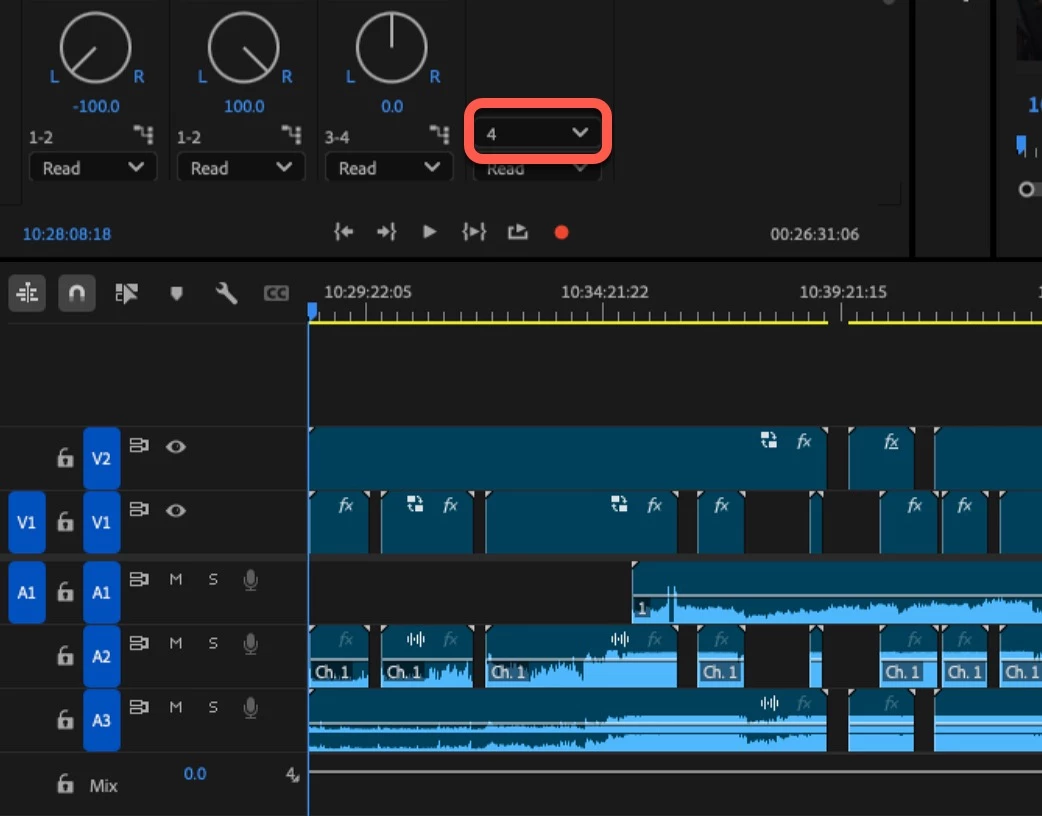
  3. Set the Number of Audio Clips to 4.

Note: This will not update any edits already placed in a timeline. Those clips will need to be replaced with the updated multi-camera sequences.

In this instance, to ensure proper AAF export, you’ll need to flatten the multi-camera sequences before sending them.


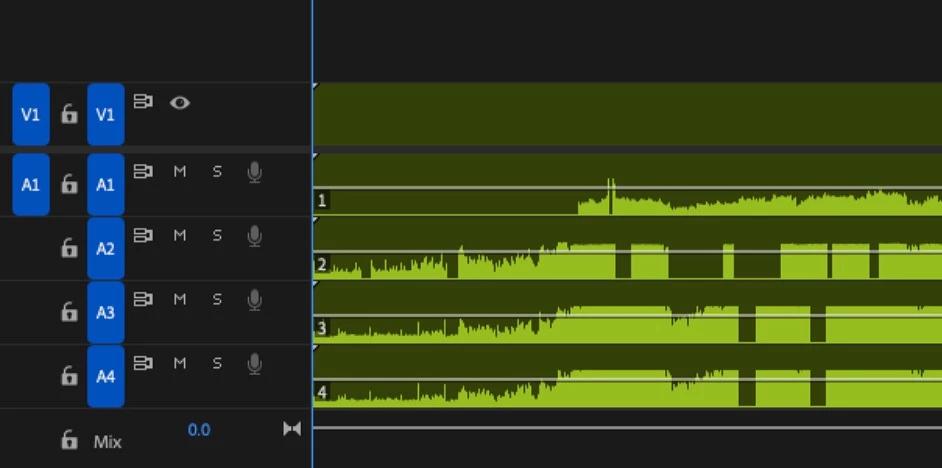
Whew, that's WAY easier than what I was thinking! So, I only have to select the multicam clip and right-click / Modify # of audio channels to 4 Mono. Here's the multicam clip Open in Timeline (I changed the # of audio channels in the Track Mixer to 4 also):


Then, when I cut it into a sequence, the two channels of Cam B sound (on A3 above) will show up as A3 & A4, below:

How does one flatten multicams before exporting an AAF? Simplify Sequence?

2 replies

Community Expert
January 17, 2025

If you’re creating a multicam sequence and want to use only your separate audio files (like external recordings) without including the audio from your camera media, make sure to set the Audio Sequence Settings to Camera 1 in the Create Multi-Camera Source Sequence window.

For a helpful breakdown of how Premiere Pro handles audio channels and their layout in multicam sequences, check out this video: https://youtu.be/M89zzmK_qcc.

If you’ve already created your multicam sequence and need to adjust the audio channel configuration, you can do this without starting over:

  1. In the Project panel, select your multicam sequences.
  2. Go to Clip > Modify > Audio Channels.
  3. Here, you can set the Clip Channel Format, Number of Audio Clips, and choose which channels to include. Based on your example, you want to:
    • Set Clip Channel Format to Mono.
    • Set Number of Audio Clips to 2.
    • Tick the columns corresponding to your external audio tracks (these columns match the audio tracks in your multicam sequence).


If you’re having trouble hearing audio beyond channels 1 and 2, it’s likely because you’re monitoring one channel per speaker. To monitor all channels, hold Shift and click the “bow ties” icon at the bottom of the Audio Meters.

KazuTaAuthor
Inspiring
January 22, 2025

I have a multicam clip with three channels of audio: one channel recorded by a

sound guy, plus one channel of audio from each of the two cameras. There are sections when the sound guy wasn't recording, and the two cameras stop & start independently, so I want access to all three channels of audio in my multicam clip.

When I created the clip, it defaulted to monitoring only one channel of audio:


I opened the clip as a timeline. In Audio Track Mixer, I tried setting the channels to two:

It seems to be providing a mix of the two channels of camera audio on Ch.2 & 3:

I tried monitoring 3 channels after panning Ch.2 to the right and Ch.3 to the left, but it only makes it so I can't hear Ch.3, even if I click on the bowties under my Audio Meters (I muted Ch.2 to make sure):

Community Expert
January 25, 2025

Thanks for the detailed information! Since the editor's already started cutting with the footage, there's over 60 B CAM shots, and the B CAM audio is really just there as a last resort, if I left the multicam clips with the B CAM audio on only one channel (panned center), if the B CAM audio was used and the sequence was flattened, would our sound vendor at least get a mono of the B CAM audio in the AAF? If so, at this point, I think it will be sufficient.


If you pan Track 3 to the center, your sound vendor will still only receive the first channel of the B Cam audio. This happens because the audio channel format of your multicam sequence appears to be set to 3 mono clips, but it needs to be set to 4 mono clips to include both channels of the B Cam audio. You can change this setting in the Project panel using Clip > Modify > Audio Channels, but keep in mind that this change will not update any clips that have already been added to the timeline.

Additionally, it’s worth noting that you don’t need to manually flatten your multicam sequence before sharing it via an AAF. The flattening process happens automatically during the AAF export.

Kevin-Monahan
Community Manager
Community Manager
January 17, 2025

Hello @KazuTa,

Thanks for the message. Glad to see you again here. I hope you're well. I hope we can help you with your issue. Can you provide any other issues that might clue us in to the issue you are having, like the kind of media you are working with? I wonder if anyone else in the community has experienced a similar issue. Perhaps @PaulMurphy might have an idea on how to move forward. Thanks for your patience on resolving this issue. I apologize for the weird behavior.


Thanks,
Kevin


Kevin Monahan - Sr. Community and Engagement Strategist – Adobe Pro Video and Audio