Inspiring
June 7, 2023
Answered

Matching audio edits that were created with remix tool...

  • June 7, 2023
  • 2 replies
  • 2352 views

I know this is a long shot, since I have scoured the community and the web and cannot seem to find the answer. When you use the remix tool to edit a music track, is there any way to re-create those exact edits again on the licensed track once you purchase it?


For example-

I download a preview music track from Adobe Stock and use the remix tool to customize it for my edit. When the project is approved and ready to send to mix, my client then purchases said track so I can replace the preview track in my sequence. I've tried to "Replace With Clip", that just drops the licensed track into the sequence, unedited. I've tried copy/paste effects (supposedly including "remix"), but that does nothing at all. I've also tried to recreate the remix with the licensed track, but have a heck of a time getting it to match the edits that were created in the preview track. It will give me the right length, but never puts the edits in the same place again, even with the exact same settings in the "Segments" & "Variations" tools in the Essential Sound Panel. I've also tried to take the preview track offline and reconnect it to the licensed track. It still does not recognize the remix.


Am I missing something?


It would be nice to at least have a feature where you could figure out where it puts the edits by timecode, either through edit detection or even some kind of EDL that I could use to re-create it.


Monterey 12.6.6

iMac 5K, 27", 2020

Premiere Pro 23.3.0
Correct answer Warren Heaton10841144

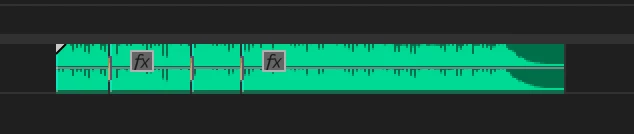
A Remix is a nested Sequence that shows as a Clip in the Timeline.


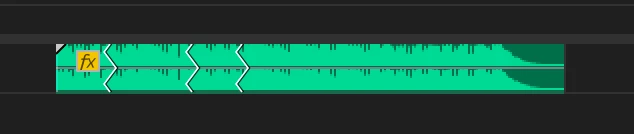
Use Match Frame (f) to open the Remix source in the Source panel and then Insert (,) or Overwrite (.) it back into the Sequence as Individual Clips.  Note:  Do not double-click as that opens the instance of the Remix in the Timeline in the Source panel rather than the source itself.

As individual clips, the source can be relinked or replaced.


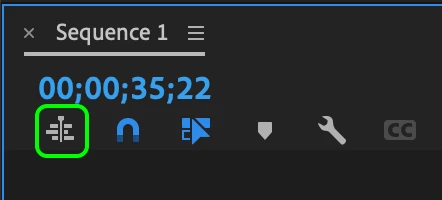
The "Insert or overwrite sequences as nests or as individual clips" button in the Timeline should gray (not blue) for "as individual clips".


2 replies

Warren Heaton10841144Community ExpertCorrect answer
Community Expert
June 24, 2023

A Remix is a nested Sequence that shows as a Clip in the Timeline.


Use Match Frame (f) to open the Remix source in the Source panel and then Insert (,) or Overwrite (.) it back into the Sequence as Individual Clips.  Note:  Do not double-click as that opens the instance of the Remix in the Timeline in the Source panel rather than the source itself.

As individual clips, the source can be relinked or replaced.


The "Insert or overwrite sequences as nests or as individual clips" button in the Timeline should gray (not blue) for "as individual clips".


Inspiring
June 26, 2023

Amazing, thanks Warren! That works perfectly.

Participant
April 23, 2024

Just an FYI.  I figured out another way to do this that worked for me.  It only works if it's the exact same filetype and same length, etc.  So you can't replace an mp3 with a wav file.  Basically I made the file offline.  Then relinked to the non-watermarked clip and it worked.

Participating Frequently
June 7, 2023

Right click on the preview track in your project window

Choose Replace Footage

Navigate to the new track and select it

The licensed version should now be in your timeline with all your edits and tweaks.

Inspiring
June 7, 2023

Thanks, but I've tried that many times. All it does is replace the remixed preview track with an un-remixed licensed track.

Richard van den Boogaard
Community Expert
Community Expert
June 24, 2023

Have you tried the following:


Select the audio clip with the unlicensed (remix) version. While holding down the Alt/Option key, drag the licensed version from the project window onto the clip. Does that replacement work?