Inspiring
June 7, 2023
Answered

Matching audio edits that were created with remix tool...

  • June 7, 2023
  • 2 replies
  • 2413 views

I know this is a long shot, since I have scoured the community and the web and cannot seem to find the answer. When you use the remix tool to edit a music track, is there any way to re-create those exact edits again on the licensed track once you purchase it?


For example-

I download a preview music track from Adobe Stock and use the remix tool to customize it for my edit. When the project is approved and ready to send to mix, my client then purchases said track so I can replace the preview track in my sequence. I've tried to "Replace With Clip", that just drops the licensed track into the sequence, unedited. I've tried copy/paste effects (supposedly including "remix"), but that does nothing at all. I've also tried to recreate the remix with the licensed track, but have a heck of a time getting it to match the edits that were created in the preview track. It will give me the right length, but never puts the edits in the same place again, even with the exact same settings in the "Segments" & "Variations" tools in the Essential Sound Panel. I've also tried to take the preview track offline and reconnect it to the licensed track. It still does not recognize the remix.


Am I missing something?


It would be nice to at least have a feature where you could figure out where it puts the edits by timecode, either through edit detection or even some kind of EDL that I could use to re-create it.


Monterey 12.6.6

iMac 5K, 27", 2020

Premiere Pro 23.3.0
Correct answer Warren Heaton

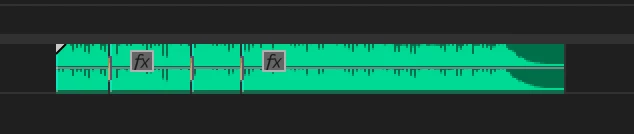
A Remix is a nested Sequence that shows as a Clip in the Timeline.


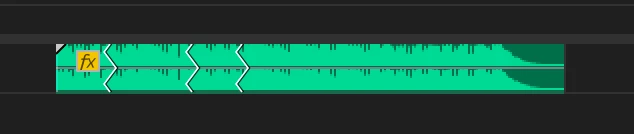
Use Match Frame (f) to open the Remix source in the Source panel and then Insert (,) or Overwrite (.) it back into the Sequence as Individual Clips.  Note:  Do not double-click as that opens the instance of the Remix in the Timeline in the Source panel rather than the source itself.

As individual clips, the source can be relinked or replaced.


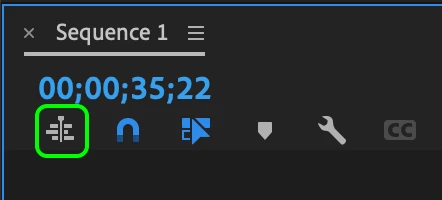
The "Insert or overwrite sequences as nests or as individual clips" button in the Timeline should gray (not blue) for "as individual clips".


2 replies

Warren Heaton
Community Expert
Warren HeatonCommunity ExpertCorrect answer
Community Expert
June 24, 2023

A Remix is a nested Sequence that shows as a Clip in the Timeline.


Use Match Frame (f) to open the Remix source in the Source panel and then Insert (,) or Overwrite (.) it back into the Sequence as Individual Clips.  Note:  Do not double-click as that opens the instance of the Remix in the Timeline in the Source panel rather than the source itself.

As individual clips, the source can be relinked or replaced.


The "Insert or overwrite sequences as nests or as individual clips" button in the Timeline should gray (not blue) for "as individual clips".


Legend
November 11, 2025

I'm super grateful for this! I think it solves my current problem, but I'm a little fuzzy on the execution. Here's what I'm doing:


Client gave me footage (video + audio) of a piano performance to use as underscore for their talking head. The talking head has pauses and fillers that of course must be edited out. Also, the piano performance is a little too long regardless. I'm hoping to:


1. Edit out pauses and fillers from the talking head.

2. Remix the piano performance to the correct length to match the talking head.

3. Use quick clips of the piano performance video as B-roll to hide edits in the talking head.


Mostly this is straighforward boring stuff... except... that when using the Remix tool (which makes it sound amazing), the video of the piano performance is not edited also. (I do wish that was an option!) So, after the first cut made by Remix, the video no longer matches the audio.


I'm pretty sure I can use your technique to find the appropriate cuts in the audio and replicate them in the video as well.

But when I "match frame" to see the cuts, I'm embarrassed to admit that I feel a little confused about where the cuts are EXACTLY because the cut is a jagged zigzag, not a clean vertical line. I feel like I'm just guessing.


I have a general idea of what to do, but click by click/keystroke by keystroke, I'm still a little fuzzy. Could someone who has the chance maybe do a quick screen recording of exactly how this would be done? Thanks so much!

Warren Heaton
Community Expert
Community Expert
November 11, 2025

@cre8vimp 

Use Match Frame to open the Remix in the Source panel, then insert that back into your Timline.

So, with the Playhead on a frame of the Remix, press F for match frame.  Move the Playhead were you'd like to insert the match frame source and then press Comma for insert.

Participating Frequently
June 7, 2023

Right click on the preview track in your project window

Choose Replace Footage

Navigate to the new track and select it

The licensed version should now be in your timeline with all your edits and tweaks.

Inspiring
June 7, 2023

Thanks, but I've tried that many times. All it does is replace the remixed preview track with an un-remixed licensed track.

Richard van den Boogaard
Community Expert
Community Expert
June 24, 2023

Have you tried the following:


Select the audio clip with the unlicensed (remix) version. While holding down the Alt/Option key, drag the licensed version from the project window onto the clip. Does that replacement work?