tommyk5357463
Participant
April 19, 2017
Answered

MERGING VIDEO'S IN TEXT OR OBJECTS?

  • April 19, 2017
  • 1 reply
  • 1478 views

Hey Guys,

Thank you in advance to anyone that answers this question. Essentially, I need to know how to make something similar to the following video: https://www.youtube.com/watch?v=Xnp8t7dTbJ8

How do I merge different videos into a text or object and have multiple of them at the same time? Can I do it through Premiere Pro or will I need to consider using other forms to create something similar to this? If it in a different type of form (e.g After Effects) would you mind giving me a detailed explanation on how to perform it? It would be a great help if someone could go through the steps and process of doing the following. Again, Thanks in advance!
This topic has been closed for replies.
Correct answer Meg The Dog

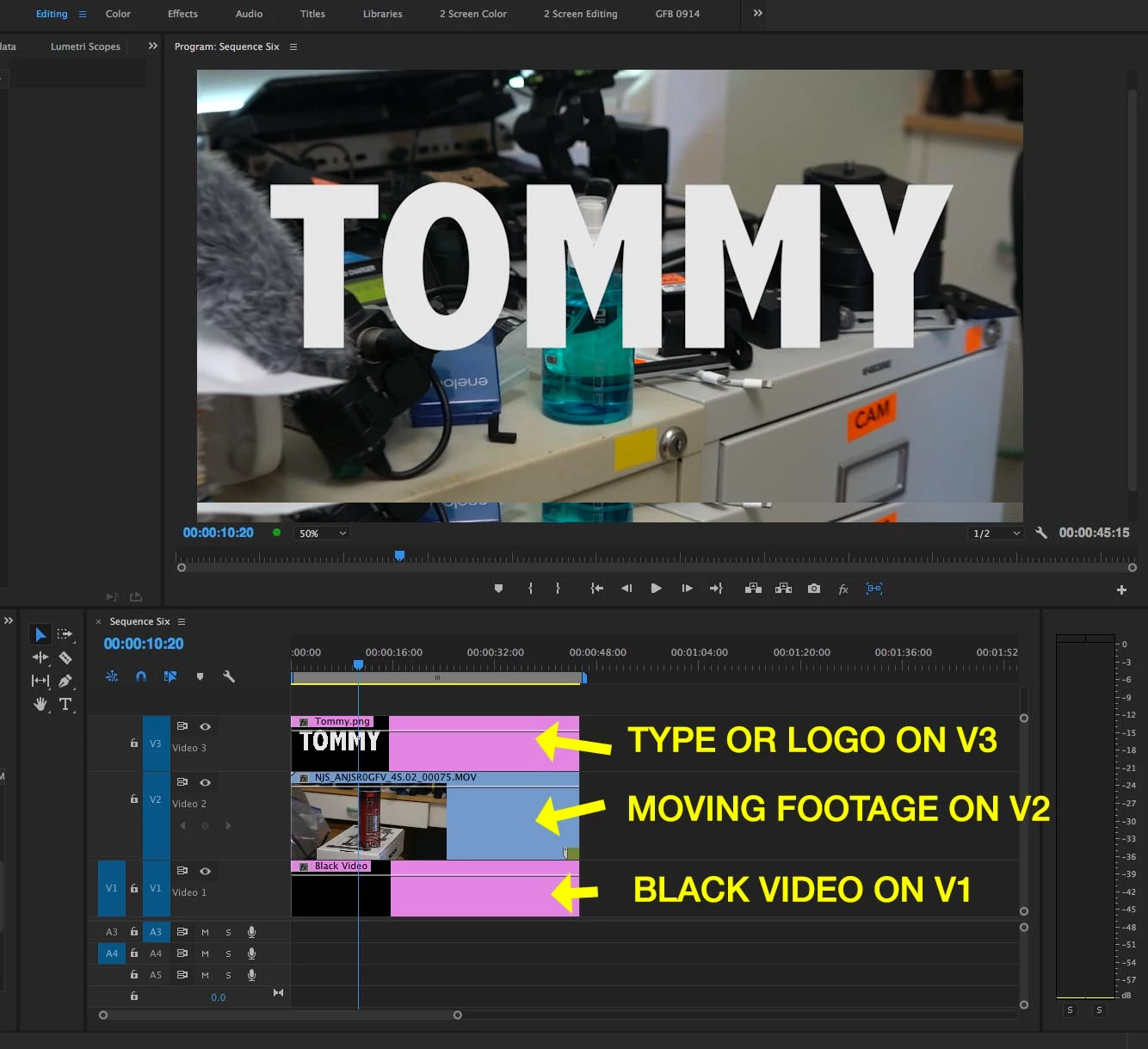
Generate the black background by going to File > New > Black Video and drop that clip on V1.

Place the moving video clip you want inside the type on V2.

Place the type or logo on V3:

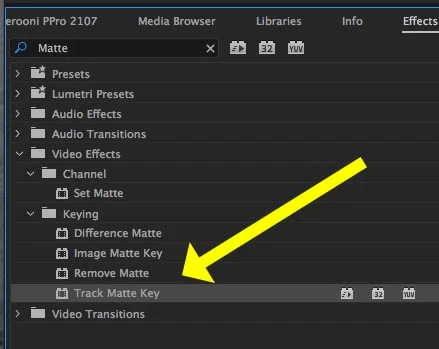
Go to the Effects Pane, and locate the Track Matte Key Effect, and drag it to the video clip on V2 to apply it there:

Once it is applied to the video clip on V2, select the clip on V2 by clicking on it and then of to the Effects Controls Window.

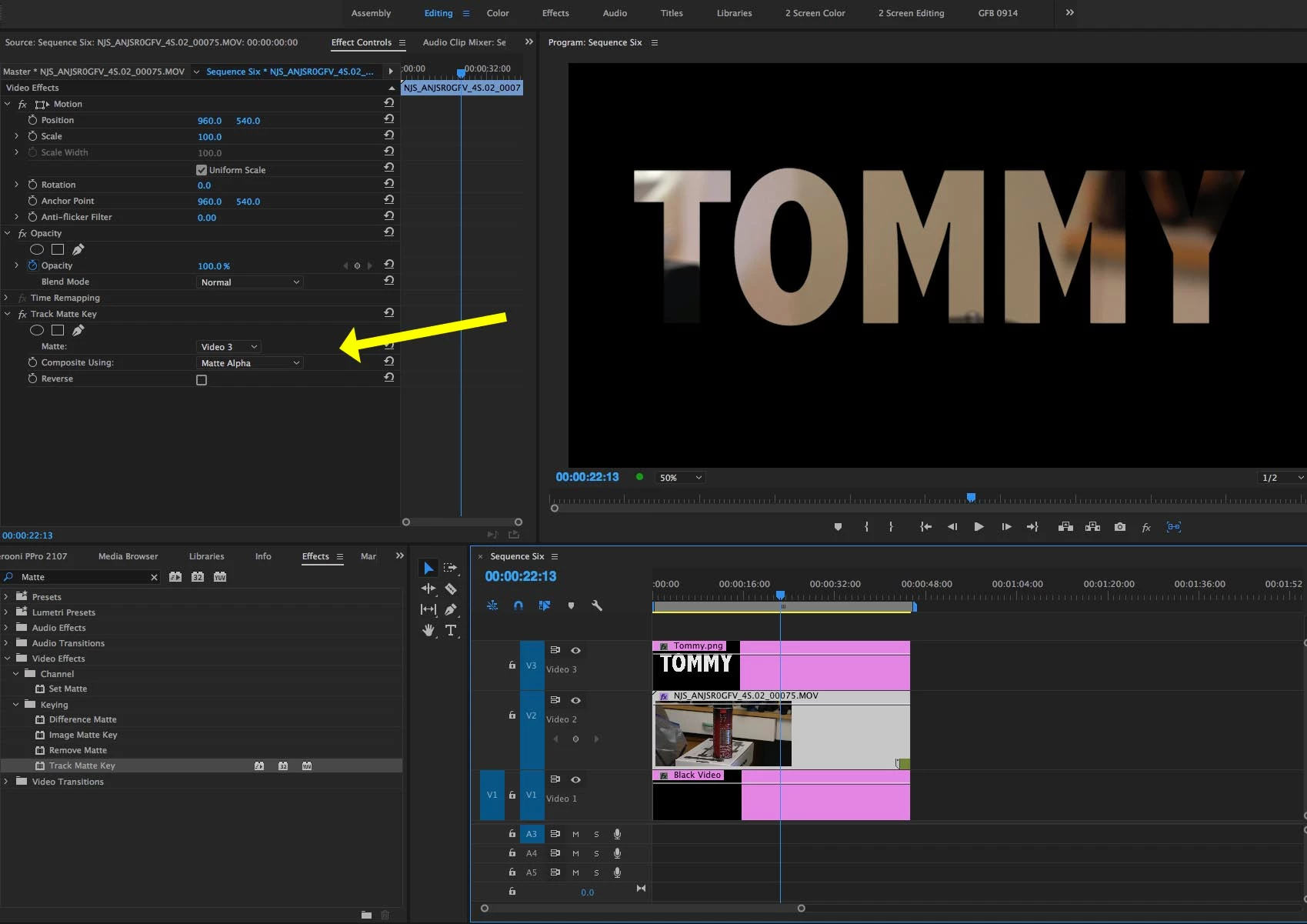
Set the Track Matte Key to get the key source from V3:

And the video will now appear within the type.

If the graphic on V3 has an Alpha, then select it for the compositing, if not, set the keyer to use the Luminance from V3.

MtD

1 reply

Legend
April 19, 2017

Use the Set Matte effect.

Place your video and text on different tracks. Apply the Set Matte to the video, and in the Effect Controls set 'Take Matte from Layer' to the text track.

tommyk5357463
Participant
April 21, 2017

Thanks for your response eikonoklastes,

May I ask how to have a black background around and object and then transform it into the footage as seen in the video that was provided?

Also, How do i make the footage go the opposite way in the matte effect?

Regards,

Tommy Kerr

Meg The DogCorrect answer
Inspiring
April 21, 2017

Generate the black background by going to File > New > Black Video and drop that clip on V1.

Place the moving video clip you want inside the type on V2.

Place the type or logo on V3:

Go to the Effects Pane, and locate the Track Matte Key Effect, and drag it to the video clip on V2 to apply it there:

Once it is applied to the video clip on V2, select the clip on V2 by clicking on it and then of to the Effects Controls Window.

Set the Track Matte Key to get the key source from V3:

And the video will now appear within the type.

If the graphic on V3 has an Alpha, then select it for the compositing, if not, set the keyer to use the Luminance from V3.

MtD