
Inspiring
August 1, 2020
Answered

Mind the gap

  • August 1, 2020
  • 3 replies
  • 11360 views

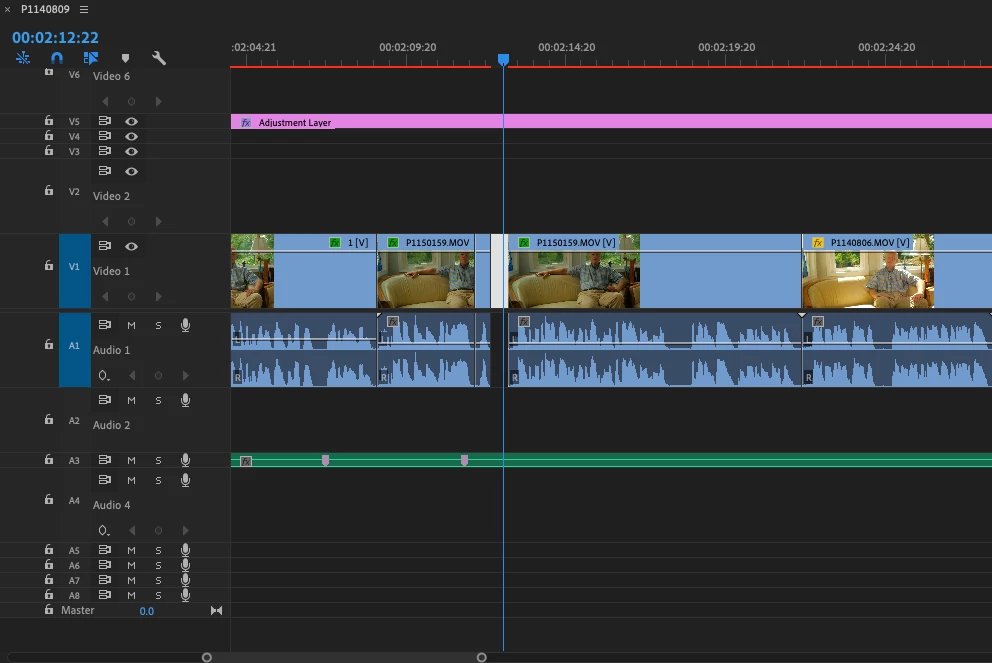
Hi!  I've been editing for years on PP but never have been able to find an answer to this, so I've had a lame workaround for about 7 years.  90% of the time, I click the little dead space between clips, hit delete and they snap together.  But sometimes, they don't and I have to employ my workaround, copying the entire right side of the timeline and moving it all over.  What am I doing wrong?  Thanks!!
 

Correct answer billysurfmartin

SOLVED!  So, it was the adjustment layer.  Somehow my original adjustment layer was split into 3 parts (on the same track).  I'm sure I did it somewhere along the way, but wheh I deleted them all but the original and pulled it across the timeline (so it covered all clips like orginally), it worked!

3 replies

Participating Frequently
February 21, 2025

If anyone else is having this issue ...

I was wondering why "Sequence > Close Gap" almost never works for me.


Turns out that it doesn't work when there is an Adjustment Layer on top. I just moved the Adjustment Layer to the right until it wasn't above the clips I wanted to close gaps between. (not sure you have to move it more than the size of the gaps)


Since the Adjustment Layer moves when I choose "Glose Gap", I suspect that the problem is, that there is no space to move the adjustment layer to the left in the beginning of the video.


I dont know why the Adjustment Layer is moving when closing gaps below 😕😕

Ann Bens
Community Expert
Community Expert
February 21, 2025
quote


I dont know why the Adjustment Layer is moving when closing gaps below 😕😕


By @TK - JV


Because you are performing a ripple delete (on multiple empty spaces).

Participating Frequently
February 24, 2025

Thx - that makes sense.

Would be nice to have the option to ripple or not.

Ann Bens
Community Expert
Community Expert
August 1, 2020

If you cannot close the gap it means something on the track is blocking.

Like in this example the video has been trimmed back but there is no gap for audio. So you cannot ripple delete the video as video and audio are linked.

Solving this by either trimming the audio of clip 10 to match the video or making a J-cut as in dropping the audio to a lower track and ripple delete.


Inspiring
August 1, 2020

Weird.  In my case the linked audio track is not blocking it it is trimmed to the same length/spot).  There is an unlinked audio track below (not linked to any track), also an adjustment layer above.  Later in the timeline, I closed a different area without issue (using delete). 

billysurfmartinAuthorCorrect answer
Inspiring
August 1, 2020

SOLVED!  So, it was the adjustment layer.  Somehow my original adjustment layer was split into 3 parts (on the same track).  I'm sure I did it somewhere along the way, but wheh I deleted them all but the original and pulled it across the timeline (so it covered all clips like orginally), it worked!

Angelic_life5EEF
Participating Frequently
August 1, 2020

Very simple 

select your clip entirely, go to sequence menu ---> close gaps. hurry you have get rid of all unwanted gaps .

This is a very easy method which comes in handy 

(Note: This feature is available from PR 2018)

reference and source credits  Close Multiple Gaps in Premiere Pro CC 2018 

Inspiring
August 1, 2020

I wish that worked!  But it didnt.  I just watched the video.  Here is the actual timeline.