
Participating Frequently
March 17, 2016
Answered

Mixing 1080p and 4K on Same Timeline

  • March 17, 2016
  • 1 reply
  • 42349 views

If I have a 1080 (16:9) timeline and then drop a 4K clip on it, the 4K clip appears as nearly twice the size as the 1080 clips.  I have to go to Effects Control - Motion (or double click on the clip in the Program monitor) to get the bounding box....which allows me to reduce the image to fit the 16:9 format properly.  Conversely, if the timeline was originally set for 4K clips and a 1080 clip is dropped into the timeline, it appears to be about half size in the Program Monitor. 

If my original clip on the timeline is always 1080 - 16:9, is there a parameter in Premiere Pro which will detect and properly size (to fit the 1080- 16:9) the 4K  clips or will I need to reduce the size of each 4K clip manually.  I know that 4K is 4096 x 2160 and 1080 is 1920 X 1080 but can Premiere Pro recognize that and reduce the footprint of the 4K clip to fit in a previously defined 1080 timeline/sequence.

(Of course when ALL the clips on the time line are 4K or ALL of the clips are 1080, the sizing problem does not exist.  The problem only occurs when I mix the two.

Premiere Pro CC 2015.2 Release, Windows 7 Professional
This topic has been closed for replies.
Correct answer Meg The Dog

One way to do it:

In your current project, select all your 4K source clips in the Project Panel, and once selected, go to the menu Clip > Video Options > and select Scale to Frame.

Now they will all be sized to the HD timeline.

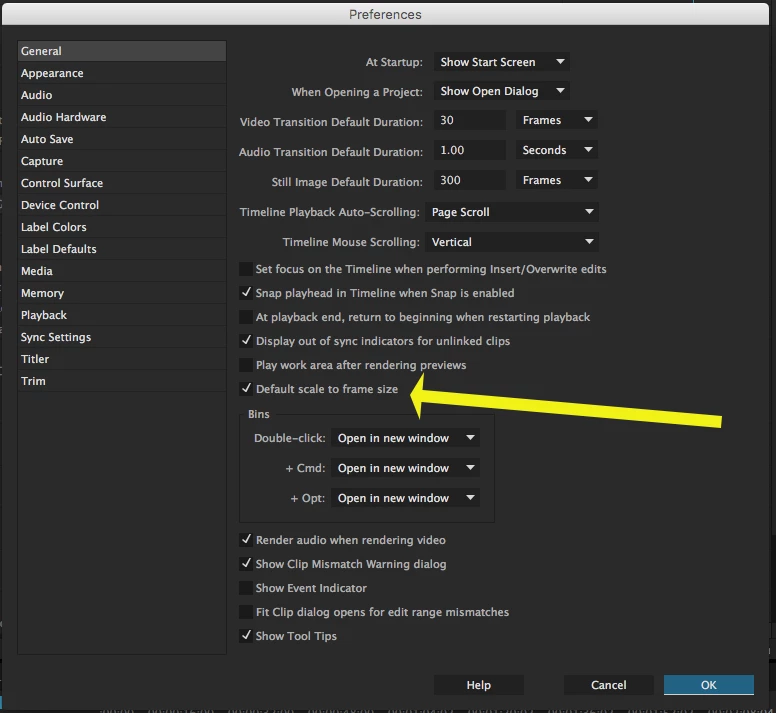
If you want this behavior on future projects, go to Preferences > General and check "Default Scale to Frame Size".

Another way is to leave the Default Scale to Frame Size unchecked, and when placing 4K clips on an HD timeline, control (right) click on the clip(s) and choose Set to Frame Size.

The difference is that with Scale to Frame Size, the 4K material shows 100% scale when filling the HD frame, whereas with Set to Frame Size, the clip shows 50% scale - which is much more useful, if you plan to enlarge or reposition the frame.

MtD

1 reply

Meg The DogCorrect answer
Inspiring
March 18, 2016

One way to do it:

In your current project, select all your 4K source clips in the Project Panel, and once selected, go to the menu Clip > Video Options > and select Scale to Frame.

Now they will all be sized to the HD timeline.

If you want this behavior on future projects, go to Preferences > General and check "Default Scale to Frame Size".

Another way is to leave the Default Scale to Frame Size unchecked, and when placing 4K clips on an HD timeline, control (right) click on the clip(s) and choose Set to Frame Size.

The difference is that with Scale to Frame Size, the 4K material shows 100% scale when filling the HD frame, whereas with Set to Frame Size, the clip shows 50% scale - which is much more useful, if you plan to enlarge or reposition the frame.

MtD

jefbak
Known Participant
April 25, 2016

I have the opposite issue - All my 4K video scales to fit when I place it in 1080P sequences even though I have "Default scale to frame size" unchecked in my preferences. I have to right click on each 4K clip and uncheck "Scale to fit" there to get it scale back up to 100%.

I want it to stay my 4K footage to stay native size when I put it in an HD timeline. Maybe I need to trash my preference files, if leaving unchecked is working for others. I'm using Samsung HEVC 4K footage as my source imported using the new Adobe support for the codec so that might have something to do with it as well...