Premiopolis
Inspiring
May 1, 2017
Answered

Motion Graphics - Limits & Frustrations when put to actual use.

  • May 1, 2017
  • 5 replies
  • 27879 views

Here are some of the limits we ran into testing for use in an actual post-production workflow.

Presumes the following environment:

- Complex timelines with many Motion Graphics templates and many instances of each template both in one sequence and across multiple sequences

- On-the-fly changes being made a) to the design of the templates, b) to the text and properties in the instances, c) quantity of property controls passed from AE to PPRo

#1: The only way we're able to introduce a MOGRT (Motion Graphics) file into the project is by dragging it into a timeline.  Can't drag to a the project panel, a bin, or even the Essential Graphics-generated "Motion Graphics Templates Media" bin.   Dragging into the timeline is not exactly optimal.  Risky.  Easy to accidentally over-write existing timeline cuts.  This is more of an inconvenience than a deal-breaker.  The following are more problematic

#2: We haven't found a way to update an existing Motion Graphic at the PPro project level.  If we update a template in AE we're forced to re-import/re-introduce the updated version to our PPro project.  It arrives as a new (same-named) template that can't be linked or merged with the prior.  In order to update sequences with the new template, we have to select all related instances and execute a "Replace Clip With..."  That's ok for smaller, simpler projects.  It's a deal-breaker for larger, more complex ones.  Why...

  • In a complex project there's no easy way to quickly and accurately select all the timeline instances relating to one particular template, shy of using dedicated tracks, or some JSX.
  • If there are multiple sequences all sharing multiple instances of Motion Graphics of Templates the prospect of constantly updating all of quickly becomes daunting.
  • It's an inefficient, time-consuming process.

#3: Even after updating Motion Graphics timeline instances, the updated instances don't reflect certain changes made at the AE context, namely additions or changes in property controls.  The only solution to that we've been able to come up with involves over-cutting the new Motion Graphic into the timeline.  That means losing any text entries or property settings.  That takes more time, introduces more risk than #2 above.

Curious to know if we're just over-looking something -- that there is some way to replace Motion Graphics at the project level that includes all style and property changes.  Would love to know we can overcome these limitations.  Otherwise, for our purposes, Motion Graphics are a brilliant, promising new development with great potential but which are self-defeating in a complex, professional post-prod workflow.  And yet that's precisely the environment to which Motion Graphics seem best suited.

This topic has been closed for replies.
Correct answer Premiopolis

Premiopolis

looks like some of our prays have been answered with the latest 12.1 april update of Premiere

here's an updated article:

Adobe Premiere Pro Help | Using Motion Graphics templates in Premiere Pro


https://forums.adobe.com/people/Roei+Tzoref  wrote

Premiopolis 

looks like some of our prays have been answered with the latest 12.1 april update of Premiere

here's an updated article:

Adobe Premiere Pro Help | Using Motion Graphics templates in Premiere Pro

Thanks for the callout Roei Tzoref & jstrawn

Highlights of the MOGRT workflow improvement:

- The option "Do you want to replace all other instances of this graphic in all sequences with the new template?" is a great leap forward.

- Sliders added to the AE side Essential Graphics Panel now voyage to the Premier side.  Brilliant!

Here's what I'm working out still, and this is in part based on having opted to work extensively with Live Text Templates (LTTs) (as opposed to MOGRTS) prior to this release.

Benefits of LTTs

- Immediacy.  Updates made AE-side are reflected PPro-side the moment (or, to be precise, very soon after) you hit Save in AE.  MOGRTs, by contrast, must be exported from AE Essential Graphics Panel, then imported to PPro Essential Graphics Panel, then dragged to timeline.

5 replies

jstrawn
Legend
September 29, 2017

Indeed. A way to update your ae-mogrt designs without changing the textual content of the ae items in your timeline is clearly needed. The reason you can't just relink, or something like that, is because they just work differently. So there is no simple fix and there are many contingencies to plan for, like what happens when the user adds or removes editable params on the Ae side before re-exporting.

Pr-mogrts, on the other hand, already have most of what you need in the form of Responsive Design and Master Styles.

Premiopolis
Inspiring
September 29, 2017

jstrawn  wrote

The reason you can't just relink, or something like that, is because they just work differently.

I imagine, of course.  Though considering LTTs are capable of handling updates of all kinds, it would seem possible (not necessarily easy) to achieve the same with a MOGRT.  Really I'm angling to have my cake and eat it too.  The features in both LTTs and MOGRTS are really forward thinking and mighty welcome.   The moment you see sliders, or the ability to pass or limit controllers in a PPro Mogrt you want them in an LTT.

jstrawn  wrote

Pr-mogrts, on the other hand, already have most of what you need in the form of Responsive Design and Master Styles.

In our case we're looking at design that is not just "responsive" but dynamic, driven by external datasets.  Whether it's game show data or science-heavy shows, we're looking to develop design ideas influenced by increasingly elaborate ideas.  For that we need expressions, hence AE.

Inspiring
July 11, 2017

I'd like to drop a few addendums in here if I may:

It's curious, if not frustrating that a nice clean dialogue box is utilized when a MOGRT is created and brought into Pr, allowing a lot of copy changes in a very short time, just by tabbing through the fields in the edit box. The problem with that is none of the other properties (typeface, size, color) can be adjusted. That said, when a MOGRT is created WITH premiere, I can play with the copy all I want, but the convenience of editing the copy in the dialogue box is gone, meaning I have to double click with the text tool on each field I want to update, which COMPLETELY defeats the purpose of the Essential Graphics panel in the first place since everything in that dialogue is available in the Effects panel. Why?

This may be more of a bug, but I'd also like to add that if you try to edit a text field on top of a previously added Essential Graphics template, you must move the layer out from under it. The cursor flashes from the text layer to the MOGRT layer and back again, making any workflow optimizations pretty much null and void.

jstrawn
Legend
July 17, 2017

ck_jedi  wrote

I'd like to drop a few addendums in here if I may:

It's curious, if not frustrating that a nice clean dialogue box is utilized when a MOGRT is created and brought into Pr, allowing a lot of copy changes in a very short time, just by tabbing through the fields in the edit box. The problem with that is none of the other properties (typeface, size, color) can be adjusted. That said, when a MOGRT is created WITH premiere, I can play with the copy all I want, but the convenience of editing the copy in the dialogue box is gone, meaning I have to double click with the text tool on each field I want to update, which COMPLETELY defeats the purpose of the Essential Graphics panel in the first place since everything in that dialogue is available in the Effects panel. Why?

This may be more of a bug, but I'd also like to add that if you try to edit a text field on top of a previously added Essential Graphics template, you must move the layer out from under it. The cursor flashes from the text layer to the MOGRT layer and back again, making any workflow optimizations pretty much null and void.

It's not a bug, though I can see why it may seem like one.

AE mogrts allow users to set up editable parameters and then adjust their appearance using things like text fields, sliders and checkboxes in PrPro's EG panel. This makes tweaking them fun and easy in Pr but it means that you can only change the parameters that were made editable in AE. To change other things, you'd need to open the original comp in AE, edit it there, then re-export as MOGRT and bring it into Pr again.

PR mogrts allow you to export the whole Graphic in one container and then bring it into any other project/sequence with all Layers, Effects, Keyframes and Appearance parameters intact just as they would be if you had just made that Graphic from scratch. This makes the content more portable and flexible, but as you have seen, it also means that you need to edit the resulting Graphic the same as you would any other Graphic in Pr.

Inspiring
July 17, 2017

I think you may have missed my point. I wouldn't expect every little bit of minutia to come over from AE into the PrPro panels, but why wouldn't PrPro make its own source text one of the editable parameters? If a MOGRT file contains the same formatting of editable parameters, regardless of whether it was made with Premiere or After Effects, what then is preventing text fields created with Premiere from being editable parameters inside the Essential Graphics panel OF Premiere? That's like being able to order a hamburger with onions over the phone, but not having the onions option when actually visiting the restaurant.

Basically, what I'm saying is that I'm feeling a little hindered. The potential of the new panel is great, but I'm forced to choose my path based on certain limitations. If I want the robust animation options achieved by using AE, the text's look and feel (font, color, size, style, kerning, etc...) must be put into lockdown having only opacity and source text as editable parameters. If I want the flexibility to edit any of those other parameters, I lose the immense convenience of changing the source text in the Essential Graphics panel which, as I said before, kinda defeats the purpose of having the panel.

With regard to the bug comment, that was specific to adding text on a video layer above a layer with Essential Graphics on it. Try it. Drop an EG template onto V1. Then add text to V2 and try clicking in to edit it. You can't. It selects V1, then V2, then back to V1. You have to shift the EG layer out from under the new text layer in order to edit the text.

ppohio
Participating Frequently
June 10, 2017

One thing to add to this thread as I've been looking for a solution: I just finished a project using the new essential graphics for my lower thirds and while it was very helpful for a simple workflow, I came to the end and realized that you can't Render and Replace the assets? This seems very frustrating to me because you are entirely reliant on your project never breaking and those assets never being needed to be re-used. Previously with Live Text templates from AE, you could simply Render and Replace when you're wrapping up and everything is locked in - much better for archiving projects long-term.

Premiopolis
Inspiring
June 12, 2017

My impression was that the links were pretty reliable as long as you maintain your relative paths between your Ppro file, your exported MOGRTs and your AE originals.  Is that not the case?

The exported MOGRTs may be your missing link.  By default they want to export to a some system / Adobe centralized folder.  It struck me the better destination is a custom one located with your PPro sources, so that if the project and media files are ever migrated, the MOGRT exports naturally come along for the ride.

jstrawn
Legend
May 12, 2017

I know that this is not exactly what folks in this (and other) threads are looking for with regards to re-assigning updated mogrt's as a batch process, but I wanted to make sure to pass on this method for batch-updating appearance changes using Master Styles within PrPro Graphics. Specifically:

1. Create a text Layer (which will also make a Graphic object in the Timeline)
2. With that text Layer selected (blue box), got to the Essential Graphics Panel (EGP), choose Master Styles > Create Master Text Style (give it a name, click ok) -- this layer is now attached to a Master Text Style item in your project

3. Copy that Graphic object throughout your Timeline (TL) Sequence(s)
4. When you need to change the style, choose any one graphic instance in the TL, and edit any one of the text layer(s) with the Master Style applied
6. Once you are happy with your new appearance settings, go to the EGP again and you will see that the assigned style nows has a <modified> tag next to the name
7. Click on the Up Arrow to "Push to Master Style"

That style will then be synced up to the parent Style item in your Project Panel and the changes to ripple to all the child instances that you made in your timeline sequence(s).

Premiopolis
Inspiring
May 13, 2017

Thanks jstrawn

This is helpful indeed.  But yes, really looking for solutions that will take text graphics to the next level, meaning creating a truly professional texted graphics environment.  In my particular case I see that as developing PPro/AE relationship to support four different discipline in motion picture development.

1 - The Graphic Designer, who creates and updates templates

2 - A Text or Data wrangler, who controls a list of names, titles, or scores/stats etc, is responsible for spelling and accuracy.

3 - A coder for programming sophisticated data/text-to-design relationships

4 - The Editor who handles timing, placement and serves as the central liaison between all parties and the director/producers.

Right how the MOGRTS and Live Text Templates are geared for the Editor and Graphic Designer.  The Editor is expected to the type up and manage the text/data in the timeline.  This is, in many circumstances sufficient and standard operating procedure.  And we're able to use expressions and ExtendScript to take things a little further.  For our most sophisticated projects we're still dependent on developing our own code base and auto-rendering out files either through AE and at times HTML-to-PNG automations.

That Adobe has taken all this as far as it has is inspiring and impressive, and we're hoping to finally see that breakthrough in a coming update.

jstrawn
Legend
May 1, 2017

Premiopolis  wrote

#1: The only way we're able to introduce a MOGRT (Motion Graphics) file into the project is by dragging it into a timeline.  Can't drag to a the project panel, a bin, or even the Essential Graphics-generated "Motion Graphics Templates Media" bin.   Dragging into the timeline is not exactly optimal.  Risky.  Easy to accidentally over-write existing timeline cuts.  This is more of an inconvenience than a deal-breaker.  The following are more problematic

#2: We haven't found a way to update an existing Motion Graphic at the PPro project level.  If we update a template in AE we're forced to re-import/re-introduce the updated version to our PPro project.  It arrives as a new (same-named) template that can't be linked or merged with the prior.  In order to update sequences with the new template, we have to select all related instances and execute a "Replace Clip With..."  That's ok for smaller, simpler projects.  It's a deal-breaker for larger, more complex ones.  Why...

  • In a complex project there's no easy way to quickly and accurately select all the timeline instances relating to one particular template, shy of using dedicated tracks, or some JSX.
  • If there are multiple sequences all sharing multiple instances of Motion Graphics of Templates the prospect of constantly updating all of quickly becomes daunting.
  • It's an inefficient, time-consuming process.

#3: Even after updating Motion Graphics timeline instances, the updated instances don't reflect certain changes made at the AE context, namely additions or changes in property controls.  The only solution to that we've been able to come up with involves over-cutting the new Motion Graphic into the timeline.  That means losing any text entries or property settings.  That takes more time, introduces more risk than #2 above.

#1 - You are correct that the starting point for MOGRTs is always dragging from the EGP Browse Tab (EGP = Essential Graphics Panel) into a Timeline Sequence in PrPro. Then, from the Timeline, you can drag and drop a Graphic object into the Project Panel to convert it to a Master Graphic item. There is also an item in the Graphics menu that lets you do that. At that point, each new instance of it in a sequence will always be an exact duplicate of the master. In case you are wondering why we designed it the way we did, the main reason was so that Graphics are always separate from one another in the Timeline and users don't have to worry about their changes rippling across to other items in the timeline, unless they explicitly upgraded to a Master Graphic first.

#2a - You can update your Pr MOGRT's by changing the Graphic layers then exporting them again from the Graphics menu and then dragging them into the Timeline again. For MOGRTs from AE, you can also make changes to the Comp items then re-export from the EG panel in AE. In either case, exported MOGRTs will be need to dragged into the timeline again from the EGP Browser and the changes do not get merged into existing Graphics. You can choose to re-export with a different name though, so perhaps that may help in some cases.

#2b If you want all your instances to be identical (with changes rippling across all timeline instances), then create your graphics directly in PrPro (You can export them as MOGRTs in the process if needed but you don't have too - Pr mogrts are always just Graphics with layers within any Pr timeline), then upgrade to Master Graphic before adding anything to sequence. Now everything will be an instance of one Master Project item and Replace Footage for that project item would update for all timeline instances. And it will work differently with MOGRTs that came from AE because those are actually pieces of AE media and not actually Graphics with layers like the MOGRTS you get when exporting from within PrPro.

#3 - This sounds similar to #2a, or am I misunderstanding? MOGRTs do not offer any sort of Dynamic Link workflow at this time if that's what you are expecting. They always need to be authored first, using either the EG panel in AE, or the EG panel in Pro, Exported, and then dragged in from the EGP Browse Tab to be edited as needed from within the Timeline (using the EGP). So I can see your trouble here, but please note that you can continue to modify any param that you made editable over on the AE side after you bring them into a Timeline sequence in Pr. Also, all Graphic Layers (text, shape, clip) will remain editable for Graphics which came from Pr MOGRTs.

Roei Tzoref
Legend
May 2, 2017

Thank you Premiopolis for starting this discussion, and  to you jstrawn for addressing the issues.

The problem with motion graphic templates (especially those who were made in Ae) starts when you start to work in bulk. many templates, spread around your sequences, and now you want to update the old ones and replace them with new ones. with Live Text Template you had an actual file, you could just replace it in the bin and it was easy. with Motion Graphic Templates it's an installation, and replacing can be a nightmare I image. here's why:

1. Can't install many motion graphic templates in one operation:

the motion graphic template requires installation every time and only one at a time (can't multi-select) making it difficult to bulk import and work faster with many templates that require updates and replacement for new instances.

2. No organized way to replace an old template with a new template:

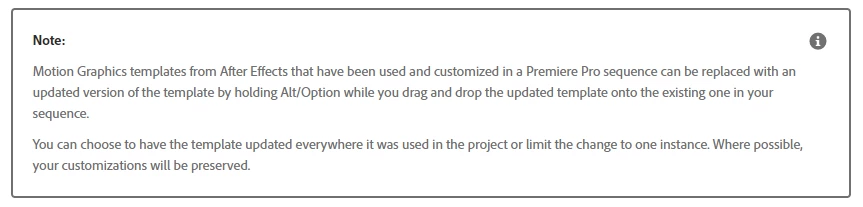
you can drag the new MGT from the EGP over the old MGT clip in the timeline holding the Alt key, but what if you got many instances in the timeline or in other sequences?

if it's Ae MGT, you can drag the new motion graphic template to the timeline and then you get a clip in the project panel so you can "replace with clip" the old for the new, but what you need to select all the clips? messy. a workaround if it is just one sequence is to select label group so you can select all of them in the timeline (as long as you don't have other rose labels..) and then replace with clip from bin.

what about replacing the source? you can but it's complicated - the mograph file is linking to an aegraphic file in a complicated folder structure and the only way to actually replace source file in the project panel with source file in explorer/finder, is to unlink and relink to the new file - very complicated and error prone.

if there was replace source for new source feature in the project panel, theoretically your workflow would improve significantly and would be this:

1. drag the new template to the timeline, then you get a clip in the project bin (this is what happens if it's Ae MGT, whereas if it's Pr MGT then just create a master graphic)

2. replace source for new source right in the project panel (if it was possible in premiere)

but unfortunately, no source to replace source command in Premiere that I know of. in Ae's project panel, you can drag source with Alt the new over the old and you have replaced it - and it's very useful feature.

here's another example of another user struggling for workflow solutions:

https://forums.adobe.com/message/9474385#9474385

Premiopolis
Inspiring
May 13, 2017

Premiopolis  wrote

selects all timeline clips whose name matches MOGRT you're working with (requires an reliable naming convention to work) and automatically selects only the items you intend to replace. 

Custom built panels are certainly a lot of fun, but assuming you're already following a reliable naming convention, couldn't you select the target items by just using the built-in Find command?


andymees@aje  wrote

Custom built panels are certainly a lot of fun, but assuming you're already following a reliable naming convention, couldn't you select the target items by just using the built-in Find command?

Absolutely.  Your approach works great.  The conceivable benefit of using a Custom Panel would be to replace typing of text with a series of pre-defined buttons -- maybe that's a little faster by hair.  And perhaps you could even work out a some code to auto-replace old MOGRTS with new ones, but I suspect that bit of code would be a little hinky.

Your Find/Replace approach is in some ways better than a code-based approach at this point because Timeline Find/Replace finds not only to names but also any clips whose timeline instance you might have renamed.  (Renamed instances are inaccessible to ExtendScript / Custom Panels) So if you're inclined to be rigorous about naming conventions, you could be as straightforward or sophisticated as you want when it comes to your Find/Replace approach.