
Participant
January 23, 2015
Answered

Multi-Cam sequence ONLY PLAYS AUDIO FROM LEFT CHANNEL, Adobe Premiere Pro CC.

  • January 23, 2015
  • 13 replies
  • 40612 views

Hi All,

I was wondering if anyone could help me out here. I have several hours of short (1-3 min) clips from a 3 day event that I'm trying to organize and prep for editing.  I wasn't on the shoot, but the cameras recorded the external mic (main audio) to one channel, and the internal mic (reference audio) to another channel; however it varies on which channel they recored main vs reference.  For the clips where someone is talking directly to the camera and I know I won't need the reference audio, I've gone in and done "modify audio" and mixed the "stereo" down to "mono", and then selected the channel with the "main audio" to be source channel.   That works great- now when the person talks it comes in evenly through both left and right speakers instead of being lopsided.

However, when I then try to take 2 of those clips that have been mixed down to "mono" and create a new multi-cam sequence, the new sequence consistently plays audio only from the left channel.  I have tried numerous configurations whence making the multi-cam sequence (automatic, mono, stereo, adaptive). Nothing works- it ONLY plays from the left side.  I have also tried modifying the audio channels after I make the new sequence, and put "Channel 1" in both the left and right tracks.  Nothing, it still only plays from the left side.

Any idea in how to get my mono source channel to play evenly in both left and right channels instead of only being in the left?  By the way, if I try to Pan to the right in the effects window, it just gets quieter, not balanced.

Thanks for the help!
Correct answer mgfusco111

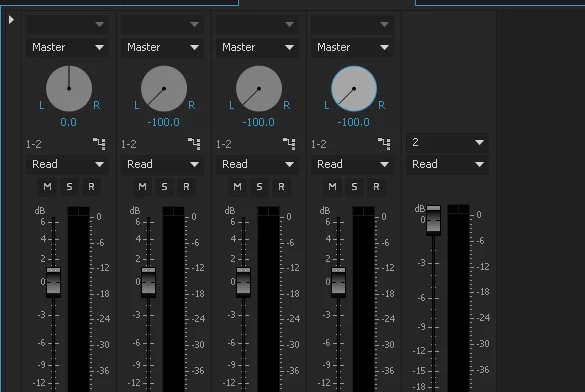
I found all but A1 balanced to the left in the track mixer. Balancing them back to zero fixed the problem. I had been messing around for a while, so I don't know if I did something in addition to fix it.

13 replies

Tim_VideoGuy
Participant
March 5, 2025

Ran into an issue in 2025, and I think I’ve got a solution. My Multi-Camera sequences were only playing through the left channel. Turns out, the mics I used weren’t recording in stereo or dual mono. So, when I created a new multi-camera sequence, it ended up being single mono. I tried copying the clips to a new sequence, which fixed the issue, but I lost the benefits of the Multi-Camera features.

Here’s the fix I came up with: you need to set up your audio before creating the multi-camera sequence. It’s a bit of a hassle, especially if you’ve already set up your sequences and have to remake them.

Here’s what worked for me:

Select your audio, right-click to open the menu, then hover over “Modify.”
Choose “Audio Channels…” from the pop-out menu.
A popup window will appear. In the “Clip Channel Format” section, use the dropdown menu to select “Stereo.” Then make sure both the L and R boxes are checked.
Once that’s done, you should be good to go when regenerating your multi-camera sequences.
Note: This won’t fix sequences you’ve already made.

Known Participant
September 28, 2023

I too have had this problem for years.  My typical setup is the talent has a lavalier mic going into my field recorder, while the camcorder is shooting the talent.

In post-production, using Premiere Pro, I import the audio WAV file (which comes in as a mono track on the left side) and the video into my Project Panel. BEFORE I create my multicam sequence, I right-click on the audio WAV file, a pop-up menu appears. I then hover Modify and click on Audio Channels. This opens up a Modify Clip window with Audio Channels tab selected. I change the Clip Channel Format from mono to stereo. This adds a Right portion to the Clip. I then check the Right, so both L and R are now checked. Then hit OK at the bottom right corner of the screen. I then build my Multicam source sequence (highlight the audio and video, right-click and hit Create Multi cam source sequence). Once created, drag that onto my timeline and voila, there's both Left and Right working. If you only want mono for your final render, then you can do that with an export setting.  I hope this helps. 

Lakeshore Video
Participant
September 28, 2023

My issue is that Premiere automatically pans all of the tracks to the left when I create a multicam sequence.  The solution is to just go one by one panning them all back to zero.  It's super annoying and time consuming doing this because I will have 15+ tracks on a multicam sequence and I will have sometimes 10+ difference multicam sequences from the day during a wedding or a concert.  This sometimes takes me 30+ minutes just to pan everything back to zero.  Adobe needs to just fix this so everything pans to zero automatically.  I can't believe there is no setting to fix this.  Its such a waste of time for editors.

Participant
September 28, 2023
I think I figured out the solution because for years I’ve had the same problem. In creating the multi-cam in the audio settings use stereo and not mono.

Get Outlook for iOS<>


This e-mail and any previous e-mail messages, including files, may contain confidential and/or privileged material. If you are not the intended recipient, please contact the sender and delete all copies. Any unauthorized review or use is strictly prohibited.
Participant
August 29, 2022

When creating the multicam, make sure all sources are mono/stereo as the need may be. If all are set to mono, and you create the multicam with mono, this problem shouldn't arise. I'm guessing that the multicam picks a channel in mono only when their are other stereo sources in the audio.

Bruetss
Participant
May 22, 2022

If anyones still getting this issue in 2022, just add a new audio track beneath or above your existing one, drag your clips onto the new track and delete the old one. Problem solved.

Participant
February 22, 2023

Hmm didn't work for me. Still looking for a solution


Participant
February 23, 2023

I ended up solving the issue with the above recommendation about creating a new timeline COMMAND+N, making sure to change the settings to mono. Then copy and paste my sequence from the old timeline. Works.

Why is this such an issue Adobe?

Mark Vandenberg
Participant
March 28, 2022

I realize I'm late to the party, but seven years later this is still not fixed.  WTH, Adobe.

Jeff Bellune
Legend
March 28, 2022

Did you try any of the methods discussed in this thread?

If so, which one(s) worked for you, please?

Mark Vandenberg
Participant
March 28, 2022

Going into the sequence settings and changing the number of channels from 1 to 2 under Audio.

Participant
December 1, 2020

Not sure if anyone else if having this issue but this happened for me today.


To fix it I had to do the following in my case (after some trial and error of the suggestions in this thread):


1. Create a new "bin" (i.e. folder) and place/copy the video files/clips to that folder.

2. Right click on the folder and select "Create new multi-camer source sequence ..."

3. In the create sequence box that pops up - select your settings (I chose the synchronize point to be Audio and Track Channel 1; Sequence Preset: Automatic; Offset audio by 0 video frames; Audio: Sequence Settings is Camera 1, Audio Channels Preset is Automatic; Enumerate Cameras) then select OK.

4. Now, right-click on the clip that was generated (for me it was in the format *.MOVMulticam) and select Sequence Settings. Change the Audio: Number of Channels to 2. Select OK.

5. Now, right-click on the clip again and select "New Sequence from Clip".

6. Open up the generated sequence so it displays in the Timeline panel then select the Timeline panel (so it has a blue bar around it).

7. Now go the Audio Clip Mixer panel. You should see the audio channel is set to -100.0. Change this 0.0 and now your audio should be centered again.

8. To check this stays - do a Quick Export and play the exported file (audio should now be balanced).


No clue why this happening. It must be a bug.


Participant
December 1, 2020

Forgot to mention I am using Adobe Premiere Pro 2020 from Adobe CC.

Known Participant
September 17, 2019

I have experienced the same problem.  That is, mono tracks only heard on left side.  The fix for me was to view the audio clip mixer where the audio tracks defaulted to "-100" in the L/R balance which forces the sound only to the left.  I changed it to "0" which centered the sound and solved the problem.

Participant
May 7, 2021

Yes. The simpliest solve I've found is to select your nested audio clips in your sequence, control click to "REMOVE Attributes".  Select "Panner".  This sets the -100 back to 0. 

Participant
June 15, 2018

I fixed it by going to dropdown menu: Sequence/Sequence Settings... and changing the number of channels to 2.

Participant
May 22, 2020

Yes! Thank you MichaelJoel, this worked for me!

mgfusco111Correct answer
Participant
December 28, 2015

I found all but A1 balanced to the left in the track mixer. Balancing them back to zero fixed the problem. I had been messing around for a while, so I don't know if I did something in addition to fix it.

e.reed.rogers
Inspiring
May 9, 2018

Not sure how it happened but as

Participant
June 26, 2018

OMG!  Thank you so much this is the fix I've been looking for.