
chris.j.Ynwa
Participant
May 4, 2025
Answered

multiple bins to one chronological timeline

  • May 4, 2025
  • 1 reply
  • 322 views

Hey folks,

Would anyone know if it's possible to get all my footage from multiple bins put into a timeline in chronological/creation date?


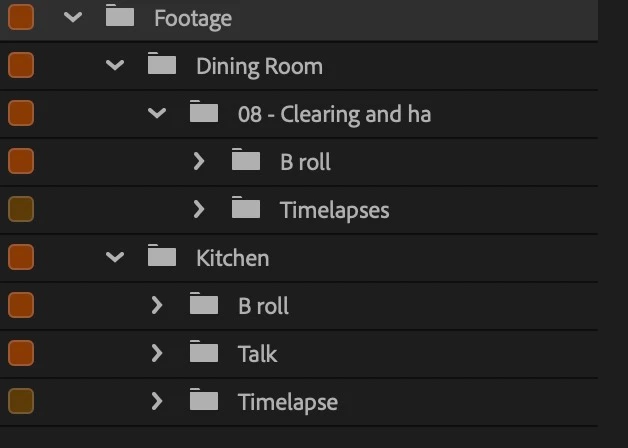
I have been foldering a lot of footage beforehand into shot types and lots of the footage will overlap in creation date in these bins, so I was hoping I could have them foldered like this, colour code them in the bins, then drop 5 bins into a timeline in date created. Any thoughts?

Cheers,

Chris


Correct answer PaulMurphy

To create a chronological timeline from multiple bins, you can follow these steps:

  1. Create a Search Bin:
    Go to File > New > Search Bin.
    • Set the search criteria to Media Type.
    • Choose either or both:
      • Movie – if your video files include audio
      • Video – if your video files do not include audio
    This will generate a Search Bin that contains all matching video files across your project.
  2. Enable the Creation Date column:
    In the Project panel, right-click on any column heading and select Metadata Display.
    In the dialog, search for Creation Date and check it to make it visible in the Project panel.
  3. Sort clips by Creation Date:
    Open your Search Bin and click the Creation Date column header to sort the clips chronologically.
  4. Create your timeline:
    Select all the clips in the Search Bin and drag them onto a new sequence. They will appear in order based on their creation date.

1 reply

PaulMurphyCommunity ExpertCorrect answer
Community Expert
May 5, 2025

To create a chronological timeline from multiple bins, you can follow these steps:

  1. Create a Search Bin:
    Go to File > New > Search Bin.
    • Set the search criteria to Media Type.
    • Choose either or both:
      • Movie – if your video files include audio
      • Video – if your video files do not include audio
    This will generate a Search Bin that contains all matching video files across your project.
  2. Enable the Creation Date column:
    In the Project panel, right-click on any column heading and select Metadata Display.
    In the dialog, search for Creation Date and check it to make it visible in the Project panel.
  3. Sort clips by Creation Date:
    Open your Search Bin and click the Creation Date column header to sort the clips chronologically.
  4. Create your timeline:
    Select all the clips in the Search Bin and drag them onto a new sequence. They will appear in order based on their creation date.
chris.j.Ynwa
Participant
May 5, 2025

Genius thank you for this, will save me a lot of time going forward!