

Multiple inverted opacity masks not working in Premiere Pro
In my project, I am trying to create a simple opacity mask over a shed in a forest. The shed's room is divided into two parts by a tree in front. My goal is to have both parts be completely transparent so that I could throw anything I need in back of it. I know that for using a single opacity mask, you need to draw your shape and hit invert in order to make the drawn shape transparent. Here are some difficulties I've ran into using two masks and wanting them to operate the same:
Here, both masks are inverted, but nothing happens.
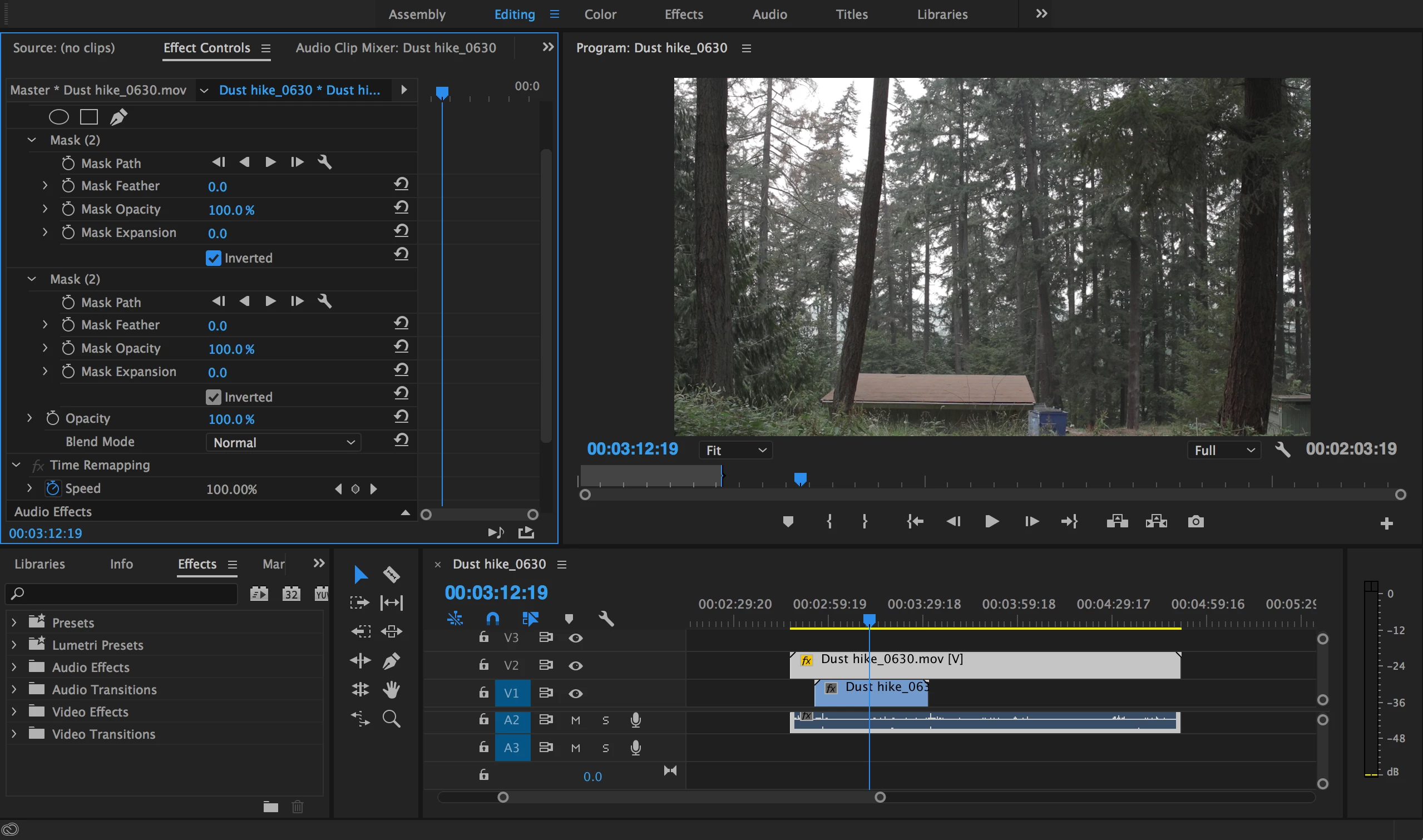
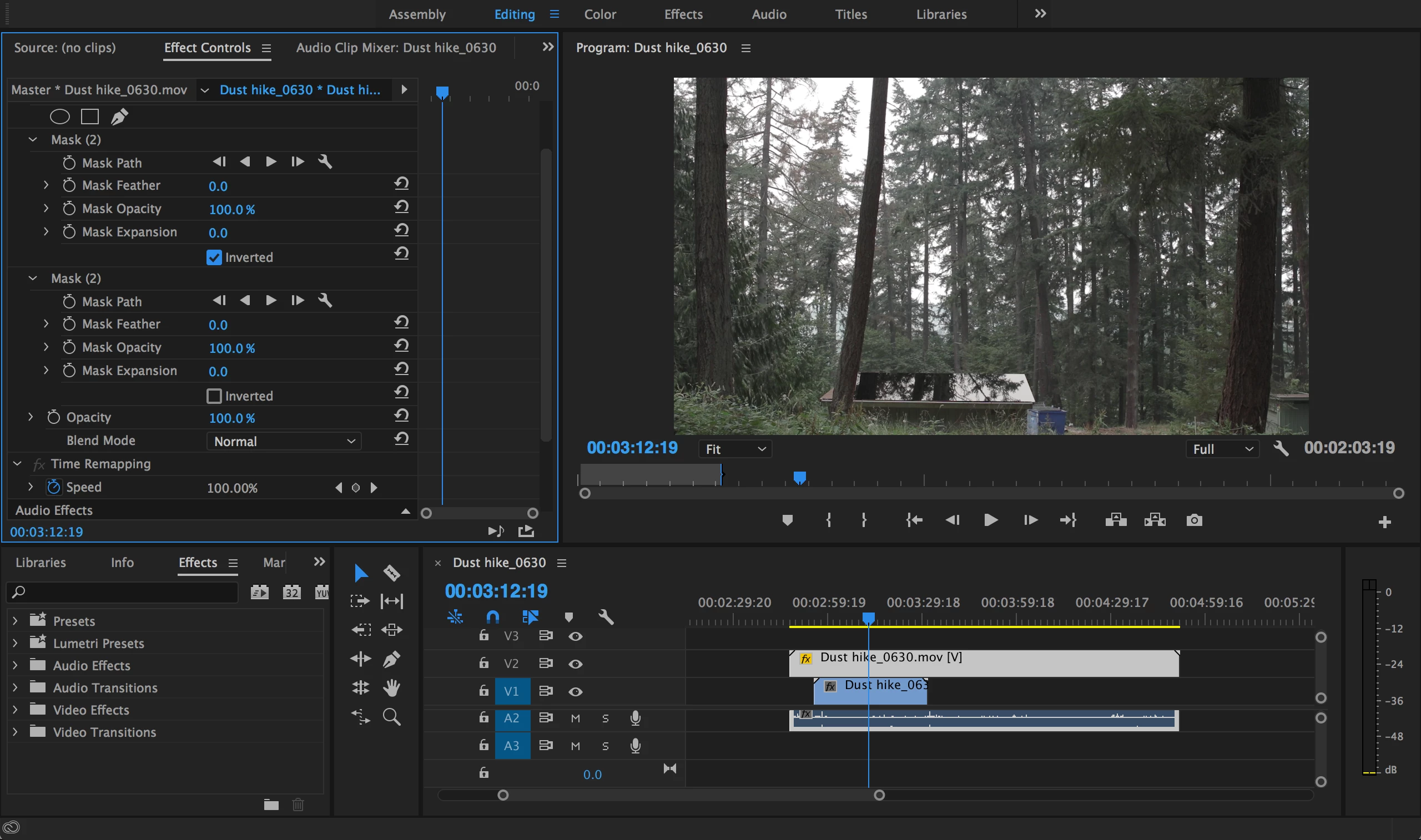
In these two screen shots, I toggle off the inversion to one mask while keeping the other on. Only one mask is transparent when I need both to be:

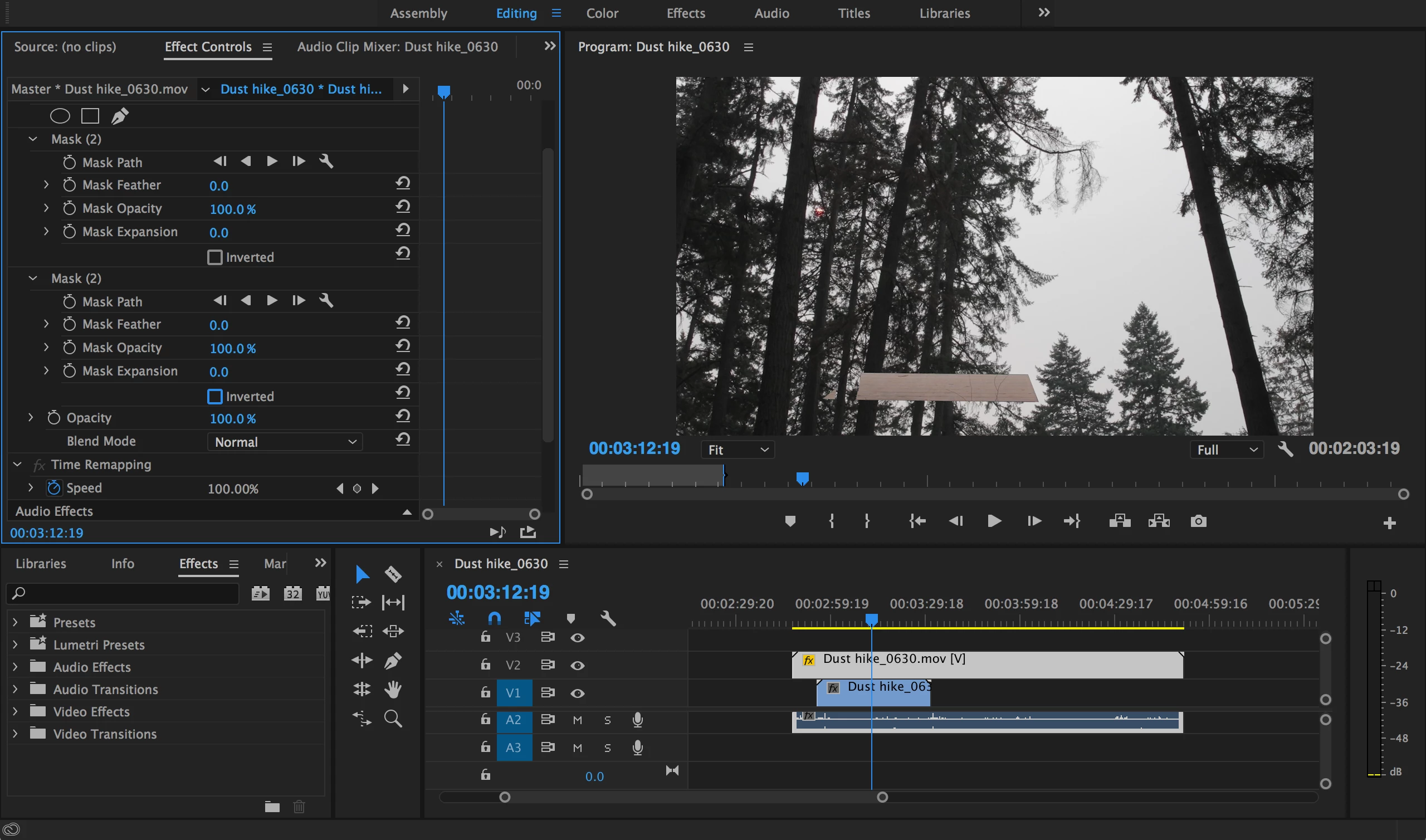
Finally: Here's what it looks like when both masks are WITHOUT inversion (behaves as expected, making the area around my masks transparent to the image behind it):
That leads me to my question: Is there a way to utilize two opacity masks that both act completely transparent within their given shape in Premiere Pro? I know that this is rather simple in AE, but unfortunately, I don't have the specs to run it (even doing these two masks would take hours to render). On Premiere, such simple masks are pretty forgiving, therefore, I am looking for Premiere answers only!
Thanks!
 AdChoices