Participating Frequently
September 9, 2012
Answered

Muted red audio track?

  • September 9, 2012
  • 17 replies
  • 65049 views

Hello.

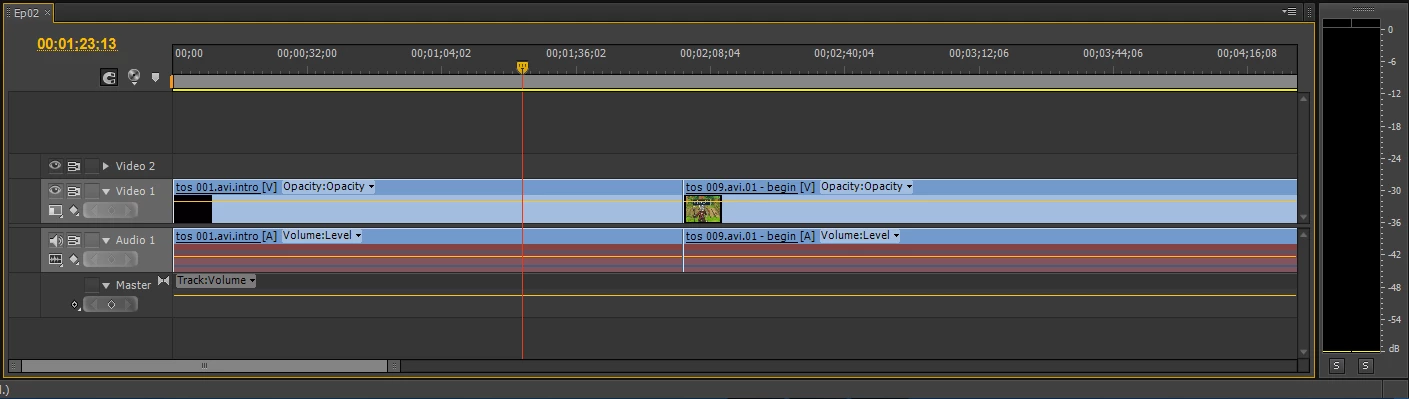
I was working on this project last night and audio was working perfectly. Today I've re-opened the project and found out that all audio sub-clips are red and no audio is played for those sub-clips:

I've tried right-clicking everywhere but I'm unable to find a way to get audio back on those clips.

Also, if I add a new video-audio clip to the sequence, the audio is there, is only the ones I had already added those that won't play. It wouldn't be a problem if I didn't had like 40 of those small clips

I'm a Premiere Pro noobie, so I'm not sure what I did wrong and how to fix it.

Please help

This topic has been closed for replies.
Correct answer ElJayBronx

I tried Match Frame. Before performing Match Frame, the audio displays as unlinked in the Source window (next to Effects Controls). After the operation, it reloads the footage with the waveform and all in the Source window, but remains unlinked in the timeline. So, still no dice.

ECBowen sounded like he was on to something with getting Premiere to rebuild the conform files, but because it's such a background process I'm finding it difficult to be certain I've properly cleared everything. Is there a way to set a new Media Cache folder as you would the scratch disk folder?

Thanks for the responses, everyone.


had the same issue myself today, spent 1 hour on the phone with TS agent.

It seems that the problem involves copied/pasted elements from one project to another (copied the data in the sequence, switched projects, copied said data into sequence in the newer project). All was well until after a save, then the file was salmon-red and the audio file in the Source Panel looked like a nice clay tennis court.

TS suggested and it seemed to work, to import the sequence from the other project rather than copy/paste the files. I did this with the same footage then saved/closed several times with no additional problems.

The original problem sequence, however, was toast.

Looks like a bug to me.

Jay

17 replies

Participant
April 4, 2024

Well, I had the same problem today, my audio was working just fine until this red line appeared and the audio was mute. I got it fixed by re-linking the media, got my audio back on track! Hope that works for you

Participant
March 7, 2022

Most probably, you have deleted or cut the source media file on your hard drive, and now the Premiere cannot find it.
I had the exact same problem and after copying back the original audio to the folder that it used to be, problem solved.

Participant
March 1, 2021

While using Rush, it seemed that my audio files turned red only after I'd un-selected "Auto volume" in the audio settings. I deleted all of the red files and re-added them, but did not press the auto vol. button- and none of them have corrupted.  

digabyte
Inspiring
March 31, 2018

The answer that is marked the correct answer is not correct (nor an answer).  Can a moderator please fix this?

The solution, as mentioned by others, is to right click on the problem clip, select Audio Channels, and reassign the source channels.  This can be done to multiple clips at once.

Inspiring
April 1, 2018

Note, please, that that was MY solution and someone else marked it correct...for what was happening six years ago. I haven't had the issue happen in that many years myself, so it may well be that the problem you're having has a different origin. We BOTH may be correct. And wrong! Since it's not my issue any longer, I can't reproduce it. It WAS both correct and an answer when it was written.

digabyte
Inspiring
April 1, 2018

My point is that its not a solution if it doesn't offer a, well, solution. The "solution" at the top of this thread is to start over, when all you really need to do is reassign the clip's audio channels.

It would seem that you are more concerned about personal issues than the thread providing a solution for the community. No one is attacking you personally. The post is simply to provide clarity for a problem that still exists, even if it is six years later.

Participant
February 9, 2018

I gave all of these very kind suggestions a desperate attempt but none of them worked for me. The issue began, yes, when I attempted to copy and paste to merge two projects together...but it was a perfect storm of possibilities that might have caused it to happen...but this solution that I've arrived at from a somewhat different direction has worked for me.  I just discovered that if I right clicked on the muted red clay audio track, clicked "link media" from the drop down menu...click locate in the window...go to where you hopefully know where the file is located...it finds it and links...click ok...and the file is restored.  Yes...a number of steps and a pain in the ass if you have several hundred of these, but I'll take it rather than have to do the difficult work again of finding the files and syncing one again.  The one thing I didn't attempt was to uninstall the program and re-install...didn't have the heart...but this might have worked as well.  I'm just taking the opportunity to fine tune each clip as I restore them.  Good luck...a real nightmare.

Participant
May 12, 2017

no audio track in premire pro cc after importing red RD3 Files . please hel

Participant
March 15, 2017

I had the same problem and was freaking out.

This is what I tried:

Right click on the audio

Select Audio Channels and I was told to change the drop down options to left and right in that order. However, mine were already left and right. What I did was change it to none and save then changed it back to left and right. IT WORKED

GoGoWinston
Participant
July 29, 2014

I just found another solution that did not require any importing of sequences or re-assigning media.   Here is how I solved this:

  1. Select all the clips in the sequence. 
  2. Right click one of the clips and select "Make Offline..."
  3. Select the radio dot to keep the media.  VERY IMPORTANT!
  4. All the media will now be offline.  Now, select everything again
  5. Right click one of the clips and select "Link Media..."
  6. Find the appropriate clip, right where you left it. 
  7. Now the sequence comes back online, but WAIT - you still may not have audio. 
  8. Allow Premiere to conform all the clips that it needs, and wait for nothing to be working in the lower right of the main window. 

And that is how I saved my project.  Who cares that it needed to re-conform.  It saved me a TON of manual labor.  Good luck to everyone!

Participant
July 7, 2014

In case people still get stuck on this, here's a fix that usually works for me:

1. Close PP and clear your media cache folder.

2. Rename the folder containing all your media files (Just a a letter of something to the name)

3. Open PP, locate the file it asks for, wait for PP to find all the other files, and it should work

If you have linked AE compositions that also use footage from the same folder you'll have to either manually link everything in AE again or just repeat steps 2 and 3 by renaming the folder to the original name.

Participant
November 21, 2013

I had the same problem but found this:

I've found a solution for this, at least in my case. For some reason Premiere sometimes fails to assign the audio channels.

In a sequence with red "disconnected" audio, try this:

1) Select all of the affected audio

2) Right click and select "Audio Channels"

3) Make sure the "Source Channel" drop-downs are all assigned to either a right or left channel.