Participating Frequently
September 9, 2012
Answered

Muted red audio track?

  • September 9, 2012
  • 17 replies
  • 65046 views

Hello.

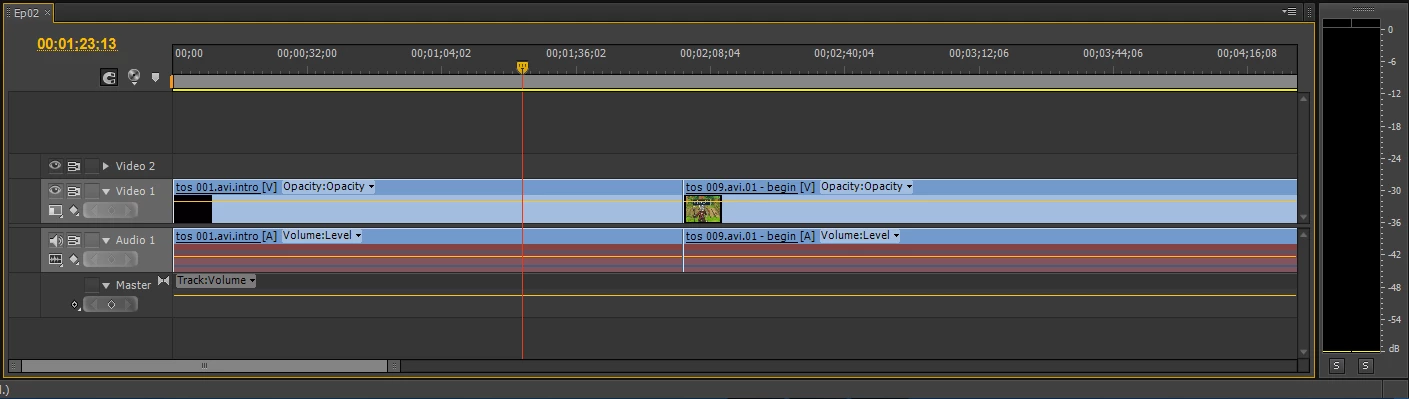
I was working on this project last night and audio was working perfectly. Today I've re-opened the project and found out that all audio sub-clips are red and no audio is played for those sub-clips:

I've tried right-clicking everywhere but I'm unable to find a way to get audio back on those clips.

Also, if I add a new video-audio clip to the sequence, the audio is there, is only the ones I had already added those that won't play. It wouldn't be a problem if I didn't had like 40 of those small clips

I'm a Premiere Pro noobie, so I'm not sure what I did wrong and how to fix it.

Please help

This topic has been closed for replies.
Correct answer ElJayBronx

I tried Match Frame. Before performing Match Frame, the audio displays as unlinked in the Source window (next to Effects Controls). After the operation, it reloads the footage with the waveform and all in the Source window, but remains unlinked in the timeline. So, still no dice.

ECBowen sounded like he was on to something with getting Premiere to rebuild the conform files, but because it's such a background process I'm finding it difficult to be certain I've properly cleared everything. Is there a way to set a new Media Cache folder as you would the scratch disk folder?

Thanks for the responses, everyone.


had the same issue myself today, spent 1 hour on the phone with TS agent.

It seems that the problem involves copied/pasted elements from one project to another (copied the data in the sequence, switched projects, copied said data into sequence in the newer project). All was well until after a save, then the file was salmon-red and the audio file in the Source Panel looked like a nice clay tennis court.

TS suggested and it seemed to work, to import the sequence from the other project rather than copy/paste the files. I did this with the same footage then saved/closed several times with no additional problems.

The original problem sequence, however, was toast.

Looks like a bug to me.

Jay

17 replies

Inspiring
July 16, 2013

ANOTHER SOLUTION:  Move the affected ".xmp" files to a backup folder.

(Here's the steps I took to solve my problem.)

1.  Open CS6 and your project that is having the problems.

2.  Look at your timeline (sequence window) in CS6 and write down the file names that are affected that say: "media offline."

3.  Close CS6

4.  Move any files that have the ".xmp" extension and match your affected filename from your source video / audio folder(s) into another backup folder somewhere.

5.  Open CS6 and you will see that CS6 recreates new ".xmp" files and hopefully your problem will be solved and you won't have any files that say: "media offline" anymore

6.  Save your CS6 project

7.  Close CS6, reopen CS6 and then your project and see if it's still corrected.

Well lucky me ran into this same or similar problem tonight after editing for weeks on a 1.5 hour wedding video with more than video and audio 110 clips and I finished it after a marathon editing session this last weekend thinking I was finally done with this project! 

Everything looked great until I saved my project, shut down my computer and went to sleep.  I later opened up my project to find that 46 of the 110 clips had "media offline" on them. 

The weird thing is only the first half of my wedding video clips were affected that I hadn't touched for at least a week and only on camera 1 that used .MTS files.  My camera 2 that used .mp4 files were all fine.

Further, when I tried just re-linking the video clip I kept getting the error that said the video clip doesn't have any audio associated with the clip and the audio tracks would be deleted.  That's when I figured I would do a test and see what happens when I deleted the ".xmp" files because from reading your various posts I knew it couldn't be a codec problem since all my footage is from two cameras and it just seemed that CS6 lost it's freakin' brain and some of the information files ".xmp" got corrupted somehow either by CS6 or by windows, windows update, whatever it was it sucked but my solution took about 5 minutes to complete once I was able to figure out the problem.

I hope this helps someone Thanks for all of your posts as well as it sounds like there might be several different solutions to the same or similar problem.

BTW - this happened on my Dell PC Laptop e6510 with an SSD.

Rob. B.
Participant
May 27, 2013

I had a similar problem, and I found the solution in another post. Here's what they had to say:

I've found a solution for this, at least in my case. For some reason Premiere sometimes fails to assign the audio channels.

In a sequence with red "disconnected" audio, try this:

1) Select all of the affected audio

2) Right click and select "Audio Channels"

3) Make sure the "Source Channel" drop-downs are all assigned to either a right or left channel.

For some reason, these were all assigned to "none" each time this happened to me.

Here's the link to that discussion: http://forums.adobe.com/message/4778837#4778837

Participating Frequently
June 3, 2013

@ Rob B

This is a great fix, thanks for posting! This should be stickied to the top of this thread.

This symptom also happens in the dynamic link from Prelude.

Hoping the Sir Reel update addresses this. --UPDATE 6/13/13 Premiere Pro CC SirReel release coming 6/17 does not address this issue, but the same fix methods mentioned in this thread still work just fine.

Message was edited by: daveinsacto

Participant
March 19, 2013

Ran into this problem today. Media cache workaround did not help, and there are so many (4-channel) audio files that it's just not feasible to relink them all manually using the Audio Channels switch (that would be tens of thousands of mouse clicks). But... Here's what worked for me: export to Final Cut XML. Then Import that XML. The audio files are now relinked and unmuted.

Of course I now live in fear that when I close the project and reopen it in the future, I'll run into the problem again... not exactly what you want from your NLE. But at least the XML workaround is faster. Hope it works for others...

Wellsie33
Participant
April 12, 2013

Final Cut XML shortcut did not work for me.

Had to import the entire video and audio from the other project (cannot cut and paste) and then re-edit the whole thing over again, it cost me hours on a tight deadline... I am not impressed.

I am losing all patience with this program, it's meant to help me enhance my workflow, I pay a lot of money to use it, and all it seems to do is get in the way. Very fustrating.

Time to start investigating alternate options methinks.

Participant
April 14, 2013

Hello. I am reposting this workaround from several months back. Essentially, you import a sequence (or timeline, whatever you like to call it) that has the files you want to copy into your current project.

1. Open the project you wish to bring files into (the "B" project).

2. Select File>Import, then choose the Premiere Project that you wish to copy files from (the "A" project).

3. You will be promted to choose whether to import the entire project or individual sequences. I selected the individual sequence that contained the files I need. Click 'OK'.

4. As an added bonus, all the copied files are automatically placed into a bin for you. Double-click the sequence file and it should all be there.

This has worked for me without a hitch, although it would be really nice if copy/paste just worked properly. Let me know if you have questions.

September 22, 2012

I've got the red audio w/ no sound issue too!  Everything was working fine, til I reloaded the project (mere minutes after I closed it.). I am using Adobe Premiere CS6.0.2 on a PC (Dell XPS8300: i7-2600 CPU @ 3.4GHz) running Windows 7.

(First let me state, while I have been using Premiere Pro & Premiere Elements for 5+ years, I am definitely NO expert. Also, I started this post in despiration, but have concluded with my workaround that works.)

If I recall correctly, here's what I did:

  • Several months ago, I created Version 1 of the prproj in CS3. It contained only one .MOV file (filmed on my camera).
  • I made several audio volume adjustments & splices throughout the file, saved it, but decided to not work on it until I bought CS6.
  • In between that time, I renamed the MOV file.
  • Fast forward to today, when I started to edit it in CS6. Obviously, I had to locate the renamed file. No problem, until...
  • I realized the project settings were not optimal for the source file.
  • I used a different project that had better settings and imported the MOV file and saved it as Version 2.
  • But I did not want to lose the volume adjustments I made on the Version 1.
  • I opened Version 1, unlinked the audio, copied all the audio segments, pasted it into Version 2, linked it with the video track and deleted the previous audio track already in Version 2.
  • All seemed well as I continued to edit the project making several volume adjustment & new razor edits for several hours.
  • I saved Version 2. Closed it to check on a different project.
  • When I reopened Version 2, the Audio Track was in red and contained no information.
  • It seems to still be wanting the audio to be the old filename from Version 1, or something!

I have attempted to change the MOV filename name back to the original filename, but that did not help. Still in red.

I have saved several versions and played around with it, but could never get the audio to link back up.

Here's my workaround (I don't know if this will help anyone else, but unless someone has a better idea besides uninstalling/reinstalling/not-updating, which I suspect would not have fixed this issue):

I added the original MOV file into the project, sandwiching the edited version then copy & pasted the attributes for each edited segment. That took much less time than typing this all up. .  But since I had already started this post, I figured I'd post my "fix."

Hope it might help someone, but I still would love to know how to get the audio file to point to the right thing again!

Participant
October 2, 2012

I have just come across the same problem. I've put together a short video demonstration of the problem in hopes that someone who knows what to look for might be able to discern what is going on when this happens.

*edit: The narration gets cut off at the end of the video, but all I go on to say is that the problem is only with audio, never video, even when the audio is natively linked to video.

http://www.youtube.com/watch?v=JeqnqM0FgiE&feature=youtu.be

File type does not seem to play any role. Wav, Mov, and MP3 behave the same. Audio that is attached to video and standalone audio behave the same.

I have copy/pasted sequences and footage without issue many times in the recent past. The problem is new.

The only change to my system that could possibly have an effect is my recent upgrade from the trial version of CS6 to a licensed, rental version under the Creative Cloud. But because I had already installed Premiere Pro for the trial, there was no need to reinstall the program. I believe one update was downloaded sometime in the last week, as well.

I have tried deleting all files in the Media Cache folder and all files in the Adobe Premiere Pro Preview Files folder in hopes that Premiere Pro would 'rebuild' the conformed audio files once I reopened the projects, but this has not seemed to have any effect.

Jeff Bellune
Legend
October 2, 2012

Try putting the playhead over the problem clip and then perform a Match Frame operation.  I don't know if it will fix this particular issue, but it has fixed other copy/paste audio problems.

Jeff

Participant
September 22, 2012

that happens to me too but i solve thise problem

i notic that this pug caused by the latest update of premiere

to solve this problem

keep your projects as it is & dont try to alter it

remove premiere from your system or remove your system & set up new one

instal permiere cs6.0 (which you downloaded  the original one with no updates )

refuse to update your program if you asked to

open your projects & it will open intact with no problems

i hope this be helpful

Known Participant
September 20, 2012

Haven't this exact problem. Very very strange, have tried all the above steps to no avail.

It seems if I open one project A and copy / paste into project B, all works until I save/ close/ reopen. Then all of the audio files are red and don't play. On initial paste it looks/plays fine.

Driving me nuts..

On another project my transitions and fades are gone, and if I copy a timeline clip with transitions into that project it doesn't copy with the transitions.. AHH!

alraz_exeAuthor
Participating Frequently
September 20, 2012

I guess we all should submit this a bug to adobe using their form:

https://www.adobe.com/cfusion/mmform/index.cfm?name=wishform

Hoping (in vain...) that they fix this for the next release.

alraz_exeAuthor
Participating Frequently
September 11, 2012

Just to make it clear...

I only want to know what the reded out audio clips mean, how in the world i did that and how to fix it.

thanks in advance.

Participating Frequently
September 12, 2012

I have the same issues, audio worked yesterday when I went home, now some audio tracks are red.

I have deleted all Preview files, and re-renderd everything but the audio is still red.

Only some of the audio is red, most audio on the video tracks still work.

Track is red and no sound, this is a wave file but it also drops out on video files:

http://i15.photobucket.com/albums/a399/dlddesign/DLDDesign/RedAudio1.jpg

The Audio track is still good, and still in the project:

http://i15.photobucket.com/albums/a399/dlddesign/DLDDesign/RedAudio2.jpg

If I have to replace the audio everytime I open a project this will take hours of work.

Any help????

Thanks

ECBowen
Inspiring
September 12, 2012

I am on a PC, the files are still good, and the second photo shows the track in the project is still there and plays.

It is just the audio on the sequence is gone, even the name is the same.

Anyway to relink red tracks without replacing it?


The Conform files are the audio files you see in the timeline. Those are the files that are broken. Go to your Media cache directory and select all. Delete all the files in there. Open Premiere and let it rebuild the media cache audio conform files. See if that fixes it.


Eric

ADK