
Participant
May 22, 2017
Answered

My Exported File Is WAY Too Big

  • May 22, 2017
  • 5 replies
  • 44046 views

Hi there. Very new to Premiere Pro CC. I'm trying to export a 55-minute video. I figured it was going to be big, but the final file size wound up being over 100 gigabytes. Clearly, that's not something I can give to a client. But I'm having trouble figuring out what export settings will be best to use.
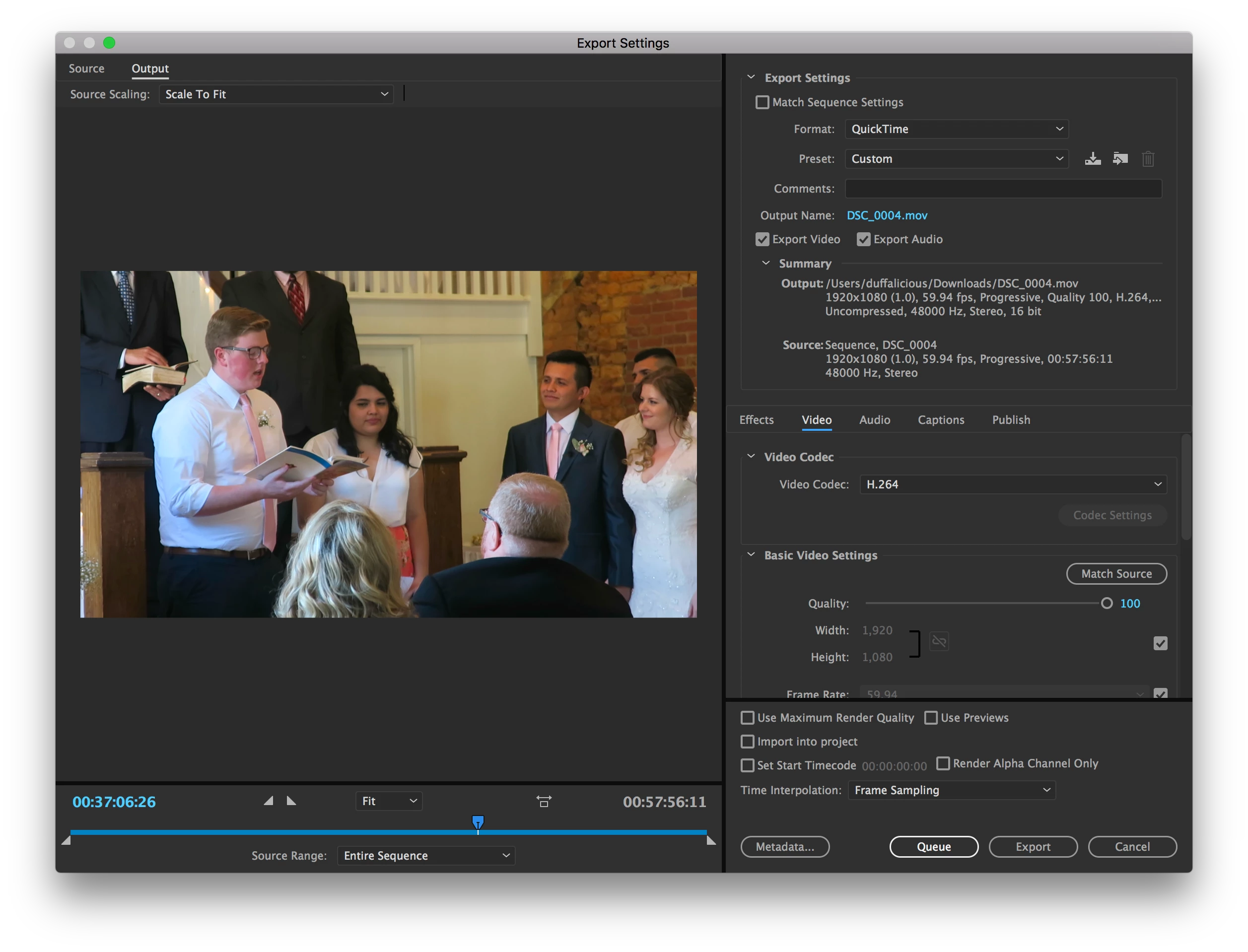
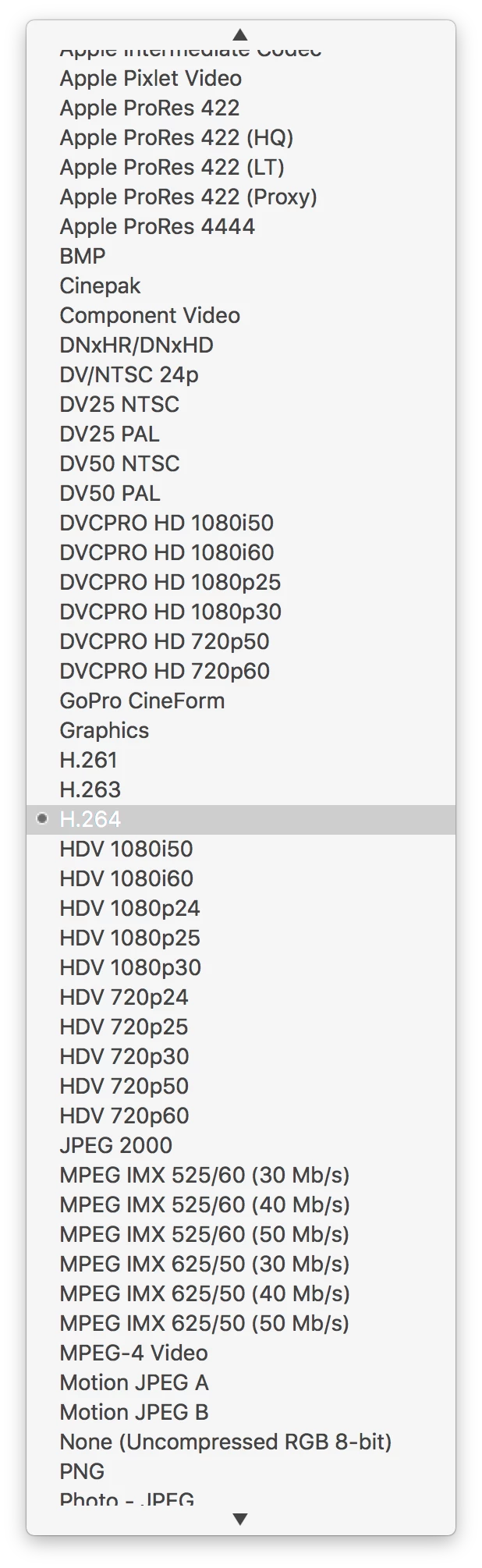
I don't know what 90% of these codecs are. What can I do to get the file size down to around 20-25 gigabytes?

    This topic has been closed for replies.
    Correct answer excited_Genie16B8

    Don't use QuickTime.  The H.264 option with the Match Settings - High bitrate preset will do the job.

    5 replies

    Participant
    March 25, 2021

    I also have the same problem but worse, I have a 2min and 50 sec video which is when exported, the size of 52.7 GB

    Format AVI

    Output: 1920x1080 (1.0), 60 fps, progressive, quality 100, 00:02:50:37.......no audio

    Source: SAME SAME..., 60.035FPS, SAME SAME........, 00;02;50;17... SAME

    Video Codes: V210 10-bit YUV


    What should I do?


    April 7, 2021

    You could use Adobe Media Encoder instead of Premiere, because, how to say it... Premiere is not very good at exporting videos, to say the least. So use Adobe Media Encoder or download a free software called Handbrake, that will transform your mammoth exported file to a super lightweight one without sacrificing visible quality.

    Participant
    July 2, 2020

    I'm having similar problems.  My original file is 197 MB, and the program was a little over 2 hours long.  I cut out the first 52 minutes.  So the saved file is 1 hour, 16 minutes long.  I used H.264 and Match Source-Adaptive High Bitrate, as suggested by several sites,  Dialogue box at the bottom says estimated size is 354 MB, but finished file was instead over 1.5 GB.  I tried low bitrate option, and finished size only went down to 1.4 GB.

    excited_Genie16B8Correct answer
    Legend
    May 22, 2017

    Don't use QuickTime.  The H.264 option with the Match Settings - High bitrate preset will do the job.

    Inspiring
    May 22, 2017

    The Settings i always use for quick distribution are: Format H.264 (rather than quicktime), Progressive, 1920x1080, CBR bitrate at 25. then if you want to lower the compression even further you could lower the bitrate to 10-20. Or if you want better quality use VBR pass 2 and limit it to mini 20 max 25. (the example below isn't HD but thats only because its a YouTube clip downloaded for an example)

    Peru Bob
    Community Expert
    Community Expert
    May 22, 2017

    How will the client be viewing it?

    Is this the final export or just for client review?

    Participant
    May 22, 2017

    Both, really.

    Participant
    October 13, 2021

    I'm new to premiere Pro and when I was trying to add some GoO-PRO clips to my. vidoe ben it kept piping up that the file was corrupted how can I add the GO-PRO clip