

arneberg1
Participating Frequently
October 13, 2019
Question

Names changes when importing PSD-files

  • October 13, 2019
  • 3 replies
  • 635 views

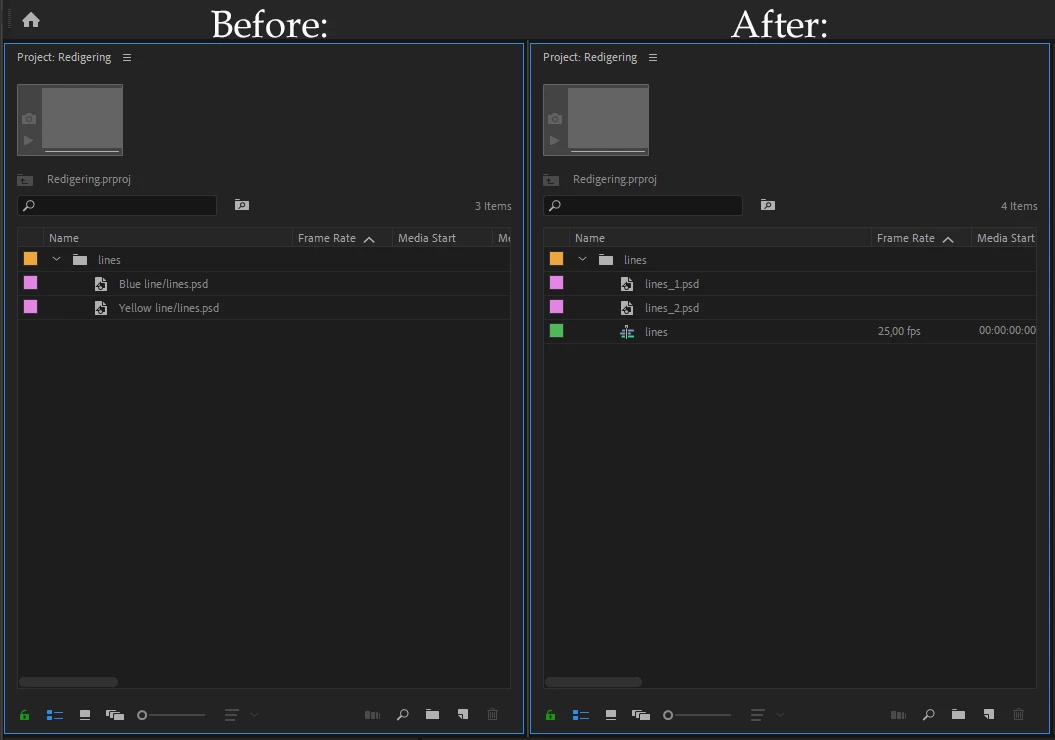
Recently I have noticed that when importing a multi layer PSD-file into PP, the names of the individual layers in the PSD is changed by my PP into something generic like [PSD file name]_1.psd, [PSD file name]_2.psd and so on instead of the layers original names. This behaviour makes it quite difficult to navigate between the different layers. It used to be that PP maintained the layers original name, followed by /[PSD file name] - like in "Yellow line/lines.psd" and "Blue line/lines.psd" (see example below), but nowadays they appear as "lines_1.psd" and "lines_2.psd", so have a guess: Which one of those contains the yellow line and which one contains the blue..?


What causes this change of behaviour by PP, and - more importantly -  is there a way to avoid it?
 

This topic has been closed for replies.

3 replies

Averdahl
Community Expert
Community Expert
October 14, 2019

What happens if you download this file and un-zip it an import the .psd file?


Link: https://1drv.ms/u/s!AtFsQF-l3dqLhPMR_8APH8x7985Zlw?e=DDR9n3


And, when you import it into Premiere Pro, what do you set Import As to in the Import Layered File dialog?

arneberg1
arneberg1Author
Participating Frequently
February 6, 2020

After months of frustration and experimenting, I finally found out what caused the renaming of my PSD files.


It turned out that PP's "Project Settings > Ingest Settings" had the "Ingest > Copy" box ticked, which apparently made PP call Media Encoder upon importing PSD files. Media Encoder then rendered the imported PSD files in the background, sending them to my designated scratch disk under a new name.


Now I have unticked the "Ingest > Copy" box, and, thank heavens, everything is back to normal - except I had to re-import all PSD-files to revert their layer names back to their original ones and then make a "Replace with clip > From Bin" for every single apperance in the timeline. Took a while, but now it works 🙂

Averdahl
Community Expert
Community Expert
October 14, 2019

I use the very same version and my layers looks like they do in the attached image.


How do you import the psd file, File > Import or via Media Browser? I still prefer File > Import for everything i import.

arneberg1
arneberg1Author
Participating Frequently
October 14, 2019
I also import files via PP's own File -> Import function.
Averdahl
Community Expert
Community Expert
October 13, 2019

I have never seen that. This is what i see in Premiere Pro 13.1.5 when i import a layered Photoshop file as Individual Layers. 


What version do you use? (Help > About Premiere Pro)

arneberg1
arneberg1Author
Participating Frequently
October 14, 2019
It says 13.1.5 (Build 47) - just like yours I'd imagine. And the PSD's are created in Photoshop CC v. 20.0.6