
snazzyjer13
Inspiring
December 17, 2019
Answered

Newer projects opening in 2019

  • December 17, 2019
  • 1 reply
  • 3053 views

Installed 2020, all my apps are updated to newest versions.


Whenever I double-click a Premiere project (created and saved in the 2020 version) my previous CC 2019 app is opening by default, which of course gives the prompt that I can't open that file because it was created in a newer version.


I can always open 2020 first and then open my project from there, but I'm not sure whay it's defaulting to the previous version - I also can't find any preferences that would allow this change. I'm not even certain whether it's an Adobe preference or on my computer (Mac OS Catalina). 


Speaking of, I've just recently trashed my preferences and caches and restarted, etc. 


Any thoughts?


Thanks!
This topic has been closed for replies.
Correct answer Meg The Dog

Click on one of your Premiere Projects that was created in the 2020 version of Premiere to select it.

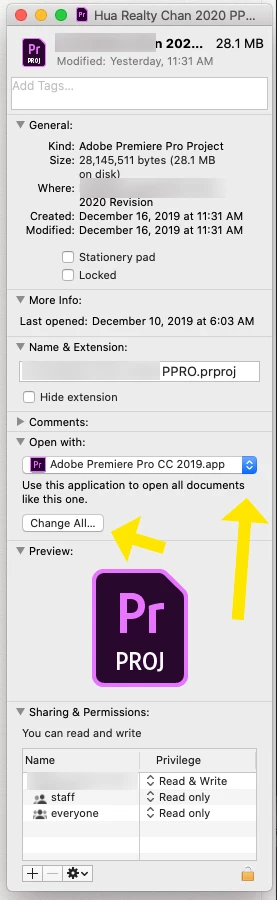
Once it is selected, type Command + I to bring up the Info Window.

Change the Open with: by clicking on the drop down menu and then selecting Adobe Premiere Pro 2020.app, then click the button Change All . . ., you will be prompted to confirm that is what you want to do, click Continue.

Now you should be able to double click on a project file and it will open in the 2020 version.

MtD

1 reply

Meg The DogCorrect answer
Inspiring
December 17, 2019

Click on one of your Premiere Projects that was created in the 2020 version of Premiere to select it.

Once it is selected, type Command + I to bring up the Info Window.

Change the Open with: by clicking on the drop down menu and then selecting Adobe Premiere Pro 2020.app, then click the button Change All . . ., you will be prompted to confirm that is what you want to do, click Continue.

Now you should be able to double click on a project file and it will open in the 2020 version.

MtD

snazzyjer13
Inspiring
December 17, 2019

Amazing!! I figured it was something simple, thank you so much.


Jeremy