
Inspiring
May 30, 2018
Answered

No cuts ocurring in multi-camera editing

  • May 30, 2018
  • 10 replies
  • 28288 views

I'm trying to edit some footage from a concert (Premiere Pro CC V 9.2, Lenovo Thinkstation PC, Win 7).   I had 2 cameras and a field recorder.

1.  I created a multi-camera source Sequence

2. From that I did a New Sequence from Clip

3. I toggled multi camera view on.

As I scrub through my footage I can see both camera angles in the left side of the multi-camera view.   But in the tutorials I've seen online when people select different angles, the selected one appears on the right side, the border turns red and a cut is made in the timeline.    On mine the selected one appears on the right side, but the border stays yellow and no cut is made in the timeline.   (yes, I know I have to stop to see the cuts).   Screen shots below . . .
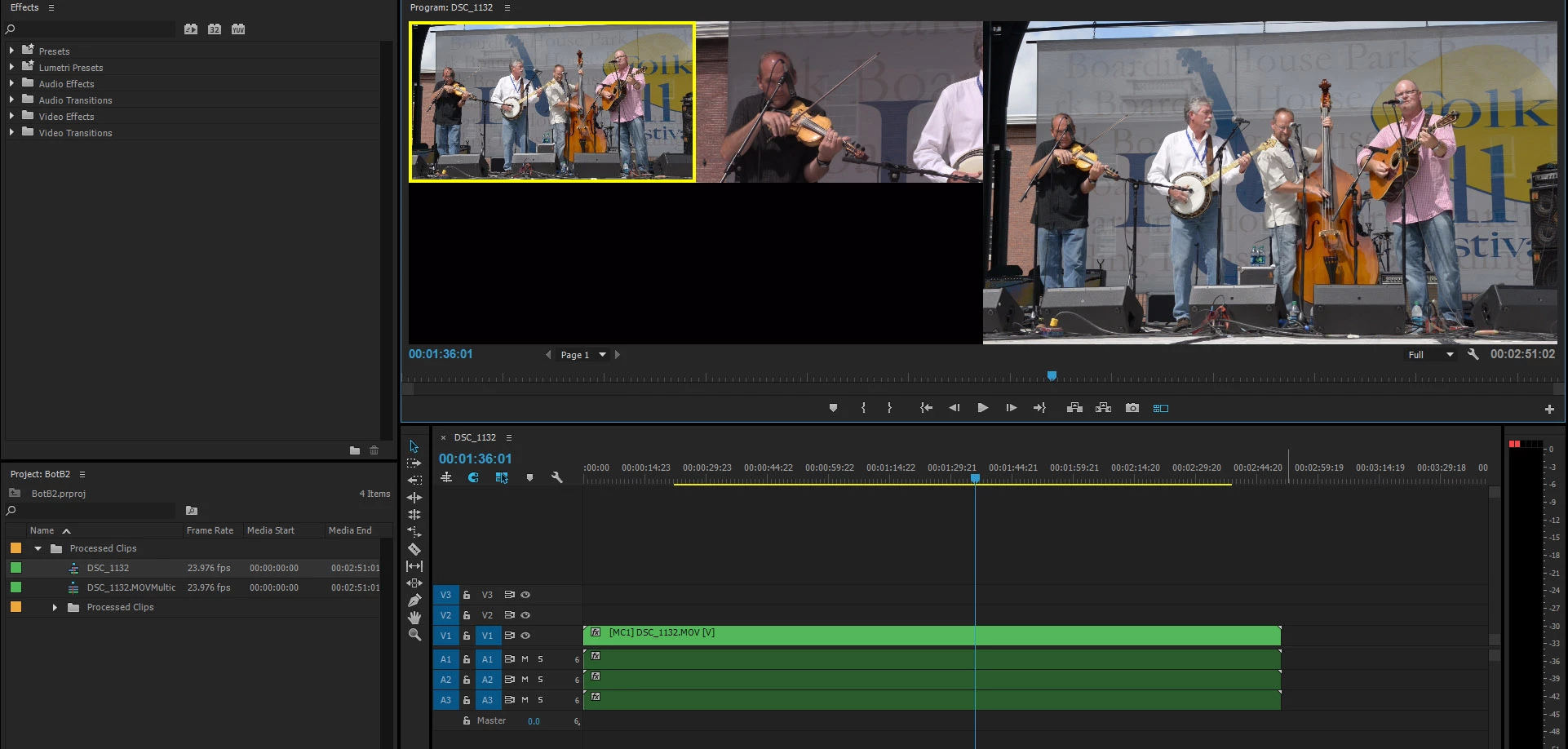
. . .
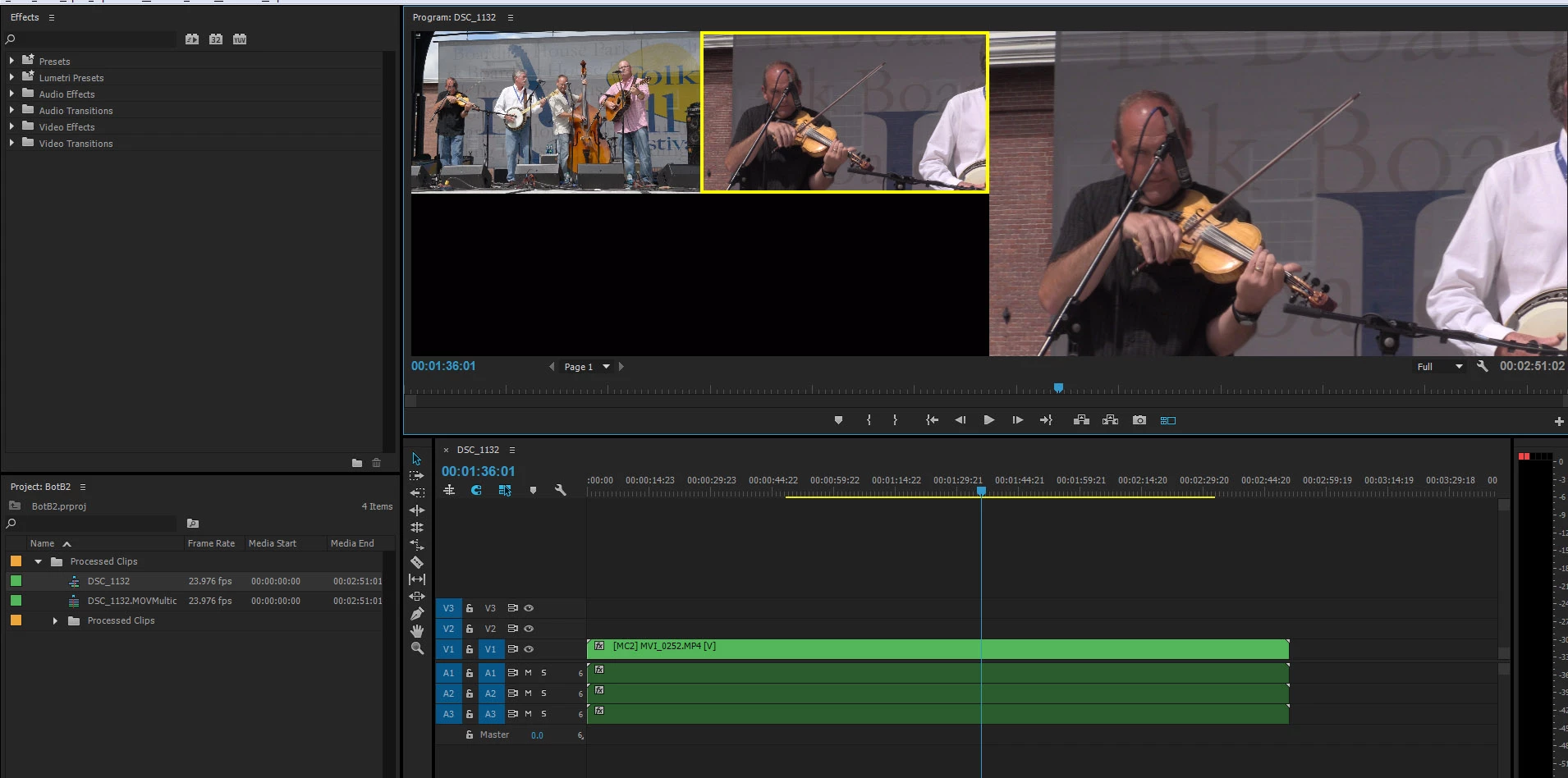
What am I doing wrong?

BTW, I'm selecting the different angles with my mouse.   Several tutorials mention doing it with the numeric keypad but that doesn't seem to do anything (I tried it both with and without num-lock).

Thanks in advance!

This topic has been closed for replies.
Correct answer peternelson

I found the answer.  This is another thing I find confusing about Adobe Premiere.  It turns out that I had to enable both of blue V2's on the blank line on the timeline above the V1 video track that actually seems to have something on it.  When I did that everything seemed to work as expected, but I don't understand it.

I know I have two cameras so there are two video tracks in there somewhere, but only the V1 track is populated on the timeline     What's a good way to conceptualize this so I can make sense of the way Adobe displays this?

10 replies

beejh83010145
Participant
July 14, 2024

I logged in simply so I could say thank you. You saved me, been trying to figure out why when I pressed 1 2 or 3 to select individual cameras my timeline wouldn't adjust accordingly by creating those cuts. Instead it just would change the entire clip. Selected V2 and V3 (highlighted blue now) in my timeline (even though they're completely blank) and suddenly the cuts are sticking to the timeline. I have no idea why this is and I'm assuming it's some sort of bug because if that's the way it's supposed to be that's really garbage UI.

Participant
October 30, 2023

Hi Community, I am having this 'problem' as well but not sure if that's just how it is on PC


I'm coming from a Mac interface with lots of multicam experience. Is it really true that I am unable to make cuts in the timeline using the numbers while the playhead is stopped on a PC? I have had success in changing cams and showing the cuts after playing, but that isn't the real workflow. It will change the cam where you are in the timeline but not make a cut when it is stopped.


I want to be able to play/pause and make cuts/change camse on the fly or when stopped for more precise work.


Is there a fix or workaround please?

Participant
October 30, 2023

OK, so after a little more working in the PC Premiere multi-cam edit, the Camera Angle change cuts seem to be taking effect even when the playhead is stopped. It was such a weird issue that maybe only applies when there are more than a few cuts in the timeline. I did reassign the keys to make sure they were set to what I want and that only. (First set as old FCP7 standard, and then made changes as needed).


Overall, so far I gotta say the PC is pretty quick at jamming through 5-cams worth of music videos smoothly and chomps through warp stabilization pretty well too.


The lack of cuts for change cams in the beginning was somewhat of an anomaly, but certainly drove me a little crazy. Fixed now with Keyboard Shortcuts in the Edit dropdown menu as well as making sure you have the correct setup as other contributors have mentioned.


Participant
September 19, 2022

Hi, please just try SHIFT+0 on your Windows and then try. 

Participant
October 20, 2020

Hi! I've run into this problem with two different solutions.


Solution #1: Make sure you're using a non-custom keyboard layout. I had mine set to AVID, and the multi-camera buttons didn't work.


Solution #2: Make sure you have the multi-camera switcher in the program monitor. I was trying to switch the camera in the preview monitor, and it wouldn't make any cuts.


Hope this helps!

Participant
February 27, 2023

Hey Miller, you are a life saver man! I feel so stupid now, it's Solution 2 for me, I was trying to switch in the preview monitor as well and I ended up watching all kinds of  youtube videos because of this. I'm so glad I scrolled down in this thread as well.Cheers.


Nikhil

adamonthego
Participant
December 20, 2019

This wasn't able to solve my issue but did some digging and was able to solve the "cutting in multi-camera sequence" issue by right-clicking on my timeline and unchecking "Nest Source Sequence". If that is checked it seems like the cutting will not work. 

Participant
September 23, 2019

Make sure you do not have the clip selected in your timeline.  Click the blank space above the clip to deselet.  Otherwise it will change the entire clip's camera instead of making a cut and switch.  Also, you really have to be playing the sequence to switch cameras.  If you are not playing the sequence, it will switch the camera of the clip you are on.  Understanding the difference between what the program does while playing and while not playing is actually really helpful.  While you are playing and switching cameras, you won't actually see the clips happening in the timeline.  That will happen all at once after you stop playing. 

Kevin-Monahan
Community Manager
Community Manager
February 29, 2024

Hi @andreac3846756,

Thanks for the response.


quote

Make sure you do not have the clip selected in your timeline.  Click the blank space above the clip to deselet.  Otherwise it will change the entire clip's camera instead of making a cut and switch.  Also, you really have to be playing the sequence to switch cameras.  If you are not playing the sequence, it will switch the camera of the clip you are on.  Understanding the difference between what the program does while playing and while not playing is actually really helpful.  While you are playing and switching cameras, you won't actually see the clips happening in the timeline.  That will happen all at once after you stop playing. 


By @andreac3846756


Super helpful. Thanks for sharing.


Kevin

Kevin Monahan - Sr. Community and Engagement Strategist – Adobe Pro Video and Audio
Known Participant
June 18, 2019

Same problem here, random shuttering after last update.

cinep82592163
Participant
June 8, 2018

You have probably solved it, but for others with this issue:

It is necessary to setup keyboard shortcuts for each camera, which is not done by default.

Search command for "camera", then add cameras to numpad.

Stan Jones
Community Expert
Community Expert
June 11, 2018

Just FYI. The default is set up, but it is not for the keypad, only the keyboard. Keyboard 1, for example, is "Select Camera 1" and Ctrll + Keyboard 1 is "Cut to Camera 1." (I do not see a difference in function between select and cut to when working in a multicam sequence.)

I think many users would prefer your keypad option.

Participant
November 16, 2020

Wow - this solved it for me! I had assigned the cameras to numbers 1-9 on the keyboard but as 'Select Camera 1', 'Select Camera 2' etc.


If you want to be able to use the numbers on the keyboard to actually cut the video in the timeline as you're playing it, you have to assign numbers 1-9 as 'Cut to Camera 1', 'Cut to Camera 2' etc in your Keyboard Shortcuts. Thanks so much Stan.

peternelsonAuthorCorrect answer
Inspiring
May 30, 2018

I found the answer.  This is another thing I find confusing about Adobe Premiere.  It turns out that I had to enable both of blue V2's on the blank line on the timeline above the V1 video track that actually seems to have something on it.  When I did that everything seemed to work as expected, but I don't understand it.

I know I have two cameras so there are two video tracks in there somewhere, but only the V1 track is populated on the timeline     What's a good way to conceptualize this so I can make sense of the way Adobe displays this?

Stan Jones
Community Expert
Community Expert
May 31, 2018

I don't think the track targeting is it. I have only the single video and single audio track targeted and it works fine.

Note that it is not the numbers of the keypad, but the keyboard itself that are used. But that and the mouse are working for me.

Are you actually using audio sync? That's the only difference I see in my test; I am using 2 video/audio files, a separate .wav audio file, but in point to sync, and I only get the single, wav file as an audio track.

Kevin-Monahan
Community Manager
Community Manager
June 8, 2018

Note that it is not the numbers of the keypad, but the keyboard itself that are used.

Thanks; I've since discovered that my keyboard numbers do seem to work properly, but several YT tutorials, e.g., How to Edit Video with Multicam Sequence | Adobe Premiere Pro CC - YouTube (01:31).. ,explicitly say "numeric keypad".  so I thought that was a thing.

Are you actually using audio sync?

Here's the dialog I used to create the source sequence . . .


Hi there peternelson,

Sorry about this. Have you solved your issue? It seems like you have. Let us know.

Thanks,
Kevin

Kevin Monahan - Sr. Community and Engagement Strategist – Adobe Pro Video and Audio
Ann Bens
Community Expert
Community Expert
May 30, 2018

Hit the playbutton then intermitted hit the angles with your mouse.

See how that goes.

Inspiring
May 30, 2018

Hit the playbutton then intermitted hit the angles with your mouse.

See how that goes.

That's what I was doing.  I was just getting yellow borders and no cuts.   I found a solution (see above) but I don't understand it.

Ann Bens
Community Expert
Community Expert
May 30, 2018

This is what those blue boxes mean:

It the tracks are not targeted nothing will happen.