

hobbesedits
Inspiring
June 5, 2021
Beantwortet

Nudging audio track less than a millisecond- Very Precise

  • June 5, 2021
  • 7 Antworten
  • 5075 Ansichten

I make music videos so I time clips very specifically to songs.


I need to match an original audio file exactly to a re-encode of the same file. I’ve clicked on show audio time units and have been nudging the clip as precisely as I can. But for some reason I can’t match it exactly.


Here’s a screenshot showing what I mean:
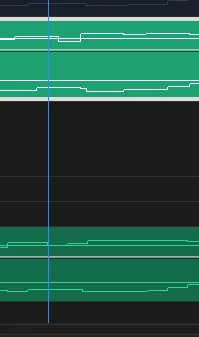


If I nudge the clip left or right, even when showing audio time units, it will go too far in either direction so the waveforms never match up. The difference is very small obviously but I can notice a difference in parts.


Is there any way to be more specific with the nudging here to make it fit exactly? Or another way to make it match the other file exactly?

Beste Antwort von hobbesedits

Adding a final update to this.


After months of having given up on this I found out that the problem was Premiere itself. Whenever it rendered out the audio it would be slighly out of sync to how it was in the project.


I found out the issue was Premiere itself when I recently exported the same project I had tried to export back in June (when I wrote this post) on the latest version of Premiere (15.4). The render I made on version 15.4 was perfectly in sync with my initial render. I reverted back to version 15.2 to test if this was the case, and the render I made on version 15.2 was out of sync in the exact same way that had happened to me when I wrote this post.


So this problem is solved with the update now thankfully. If anyone else is having similar issues I'd suggest trying to install older versions to see if those render correctly for you.

7 Antworten

Participating Frequently
June 6, 2022

Eureka! I got the answer.

Here is what to do:


Click the hamburger (three lines) next to Sequence name, check “show audio units”, turn off snapping by un-highlighting the magnet icon or hitting S (magnet icon found under time display under sequence name), then you can manually move the track by milliseconds.


Et voilà!

Participant
January 21, 2024

Thank you, worked like a charm for me!

hobbesedits
hobbeseditsAutorAntwort
Inspiring
August 21, 2021

Adding a final update to this.


After months of having given up on this I found out that the problem was Premiere itself. Whenever it rendered out the audio it would be slighly out of sync to how it was in the project.


I found out the issue was Premiere itself when I recently exported the same project I had tried to export back in June (when I wrote this post) on the latest version of Premiere (15.4). The render I made on version 15.4 was perfectly in sync with my initial render. I reverted back to version 15.2 to test if this was the case, and the render I made on version 15.2 was out of sync in the exact same way that had happened to me when I wrote this post.


So this problem is solved with the update now thankfully. If anyone else is having similar issues I'd suggest trying to install older versions to see if those render correctly for you.

Peru Bob
Community Expert
Community Expert
June 5, 2021

I know it's less pricise, but try unchecking Audio time units it just to see if you get lucky and it happens to line up.

Richard TOULON
Legend
June 5, 2021

I think there is an other way.

As Richard mentioned it, zoom at max or descent zoom amount at least.

Then use markers ( M ) to determine exactly the point where you want to synchronize on both tracks.

Select both tracks, Synchronize / Markers.

Should work.

By the way, it seem to me to be an extrem kind of sync. Did the audio sync failed to synchronise correctly your two files ? It is pretty accurate since it synchronise audio track by analysing the wavefrom.

Let us know.

Richard TOULON
Legend
June 5, 2021

And nudging clips will always be based on your frame rate not the audio samples.

Community Expert
June 5, 2021

Is the timeline zoomed in as far as possible?

hobbesedits
Inspiring
June 5, 2021

Yeah, the screenshot above is the audio at the maximum zoom. Basically, the trough that's next to the playhead at the top in that screenshot- I want to line that up with the trough in the audio at the bottom. But I'm already at maximum zoom and nudging it with alt-arrow keys moves it too far in either direction.

Averdahl
Community Expert
Community Expert
June 5, 2021
quote

But I'm already at maximum zoom and nudging it with alt-arrow keys moves it too far in either direction.


By @hobbesedits


So how does it look and sound when you play back the audio?


Audio does not need to be 100% in sync with the video, it will look great anyway. Of course, a couple of frames off will be bad, but you are only a couple of time units off and no one can notice that when they see/hear the video.

Community Expert
June 5, 2021

Is one of your audio tracks attached to a video track? you may have to unlink.

hobbesedits
Inspiring
June 5, 2021

One of them was linked to a video file but isn't anymore

Richard TOULON
Legend
June 5, 2021

Hi,

Select both elements on your timeline, Right click / Synchronize / Choose audio.

Let us know.

hobbesedits
Inspiring
June 5, 2021

Unfortunately that option was less accurate than manually doing it. Thanks for the advice though.