
Participant
June 18, 2020
Answered

One clip is blurry on my sequence AND when I export...HALP!

  • June 18, 2020
  • 1 reply
  • 2630 views

There is one clip on in my sequence that is blurry. It's not blurry when I open up the original clip outside of premiere. The other clips in my sequence are totally fine. This particular clip is 2880 x 2160 at 24 fps. The other clips are not. 
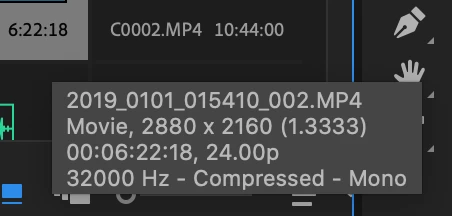
When I go to export it for youtube the clips becomes even more blurry than it already is in the sequence. 

Can someone tell me 2 things..,

1. What do I need to change for my sequence setting?
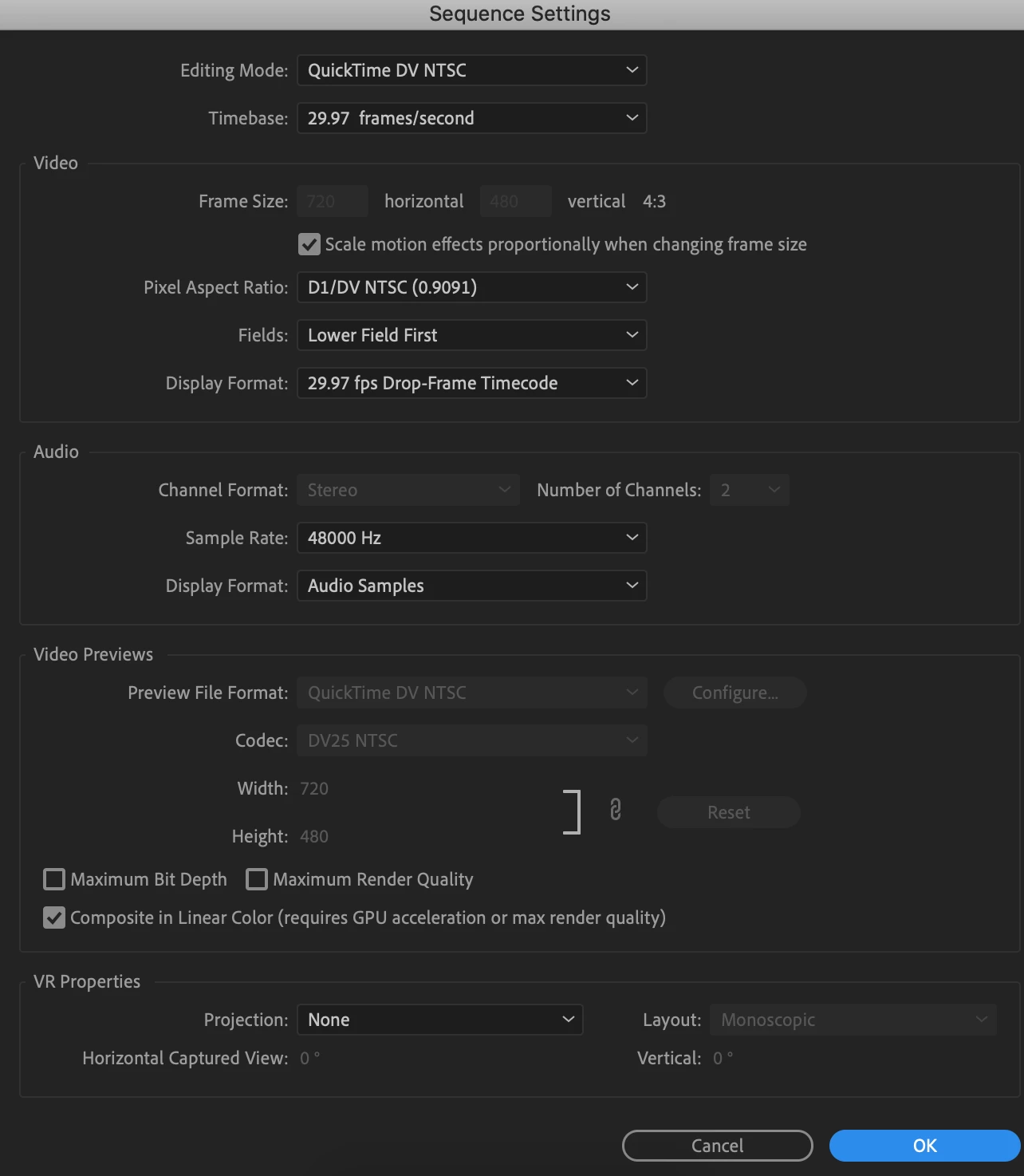


2. What do I need to select to export?
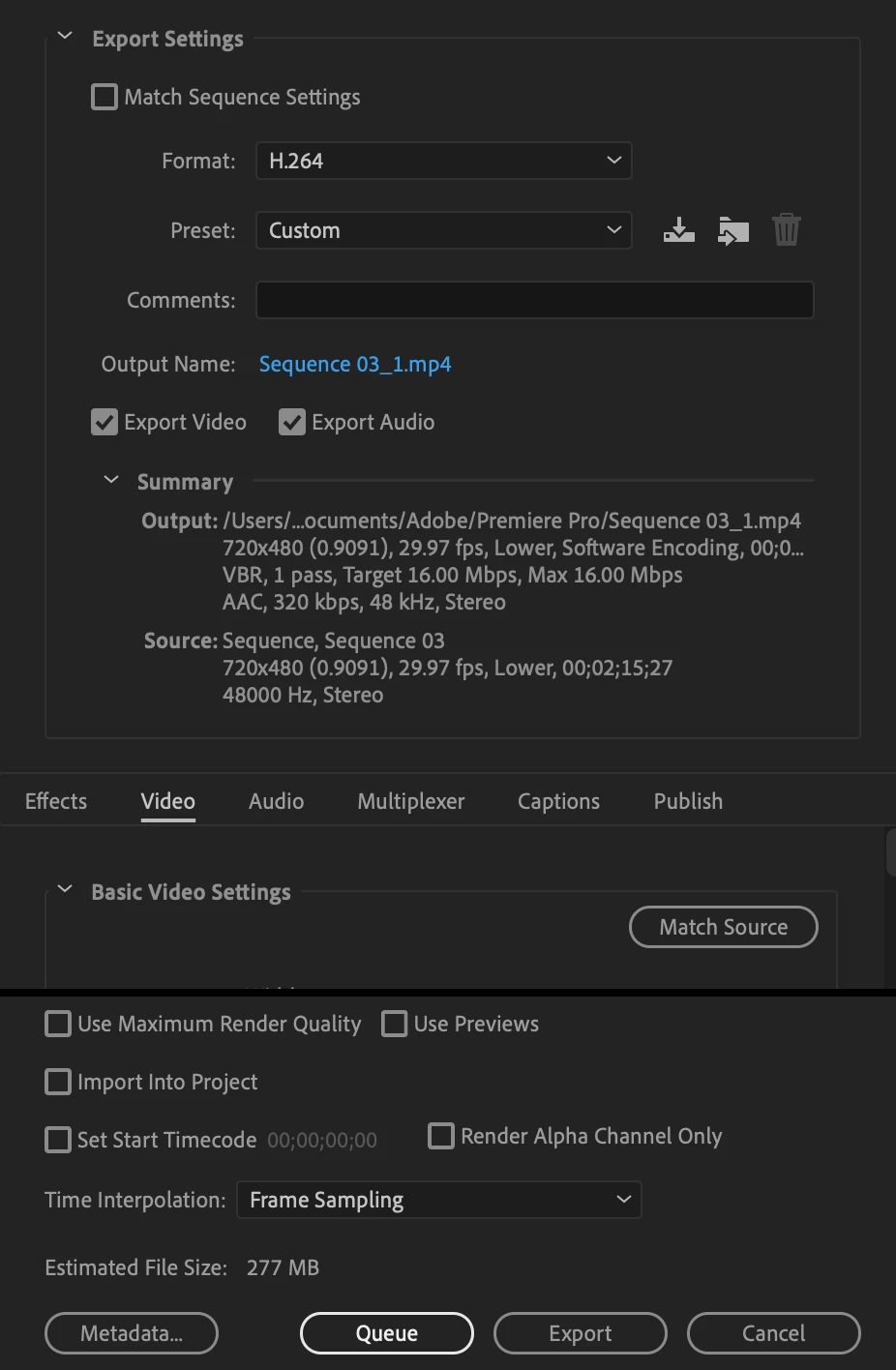
 
Thanks!

This topic has been closed for replies.
Correct answer R Neil Haugen

Neil - You're a SAINT! The blur is GONE, wahoooooo! 


One more question...What should my export settings be then for putting it on youtube?


Just try the H.264 format and select the YouTube 1080 option, should be fine.


Neil

1 reply

R Neil Haugen
Legend
June 18, 2020

Um ... are you sure you want an ancient miniscule 720x480 sequence? What's the rest of the media involved?


Neil

Everyone's mileage always varies ...
Participant
June 18, 2020

The other clips are these (If I'm answering your question correctly..):

And TBH I don't even know what an ancient miniscule 720x480 is in reference too (prob why I can't figure this out) lol I just need to figure this out so I can export it with out a blur and be done with this poject!

R Neil Haugen
Legend
June 18, 2020

Not sure how you got that sequence ... the best way is simple. Drag/drop a clip that is the frame-size and fps of the main media for your project to a blank timeline panel, or right-click the clip in a bin, "new sequence from clip".


This is a horrid, small resolution sequence with a forced shape to 4:3 proportions by the weird aspect ratio you see in the sequence settings.


You could go to that sequence settings dialog, change the Editing Mode to custom by clicking the drop-down and scrolling to the top, then setting the framesize to 1920x1080, aspect ratio to 1.0, and frame-rate to 30fps.


Then right-click on the 2880 clip in the timeline and select 'set to framesize'.


I would also go to the Preferences/Media dialog and set the Default scaling to set to framesize.


Neil

Everyone's mileage always varies ...