
Participating Frequently
July 2, 2020
Question

Pixellation in Timelapse

  • July 2, 2020
  • 4 replies
  • 1184 views

Hey guys!


I just shot a timelapse on my Sony A7III. 20MP JPEG + RAW about 300 photos. When I look at the footage it is crispy sharp. But when I import it to Premier Pro it´s getting pixeled. Same in After Effects and Photoshop. I also tried it with the RAW files via Lightroom. I literally tried everything. Do you have any suggestions? This timelapse is for a big local company so please help.
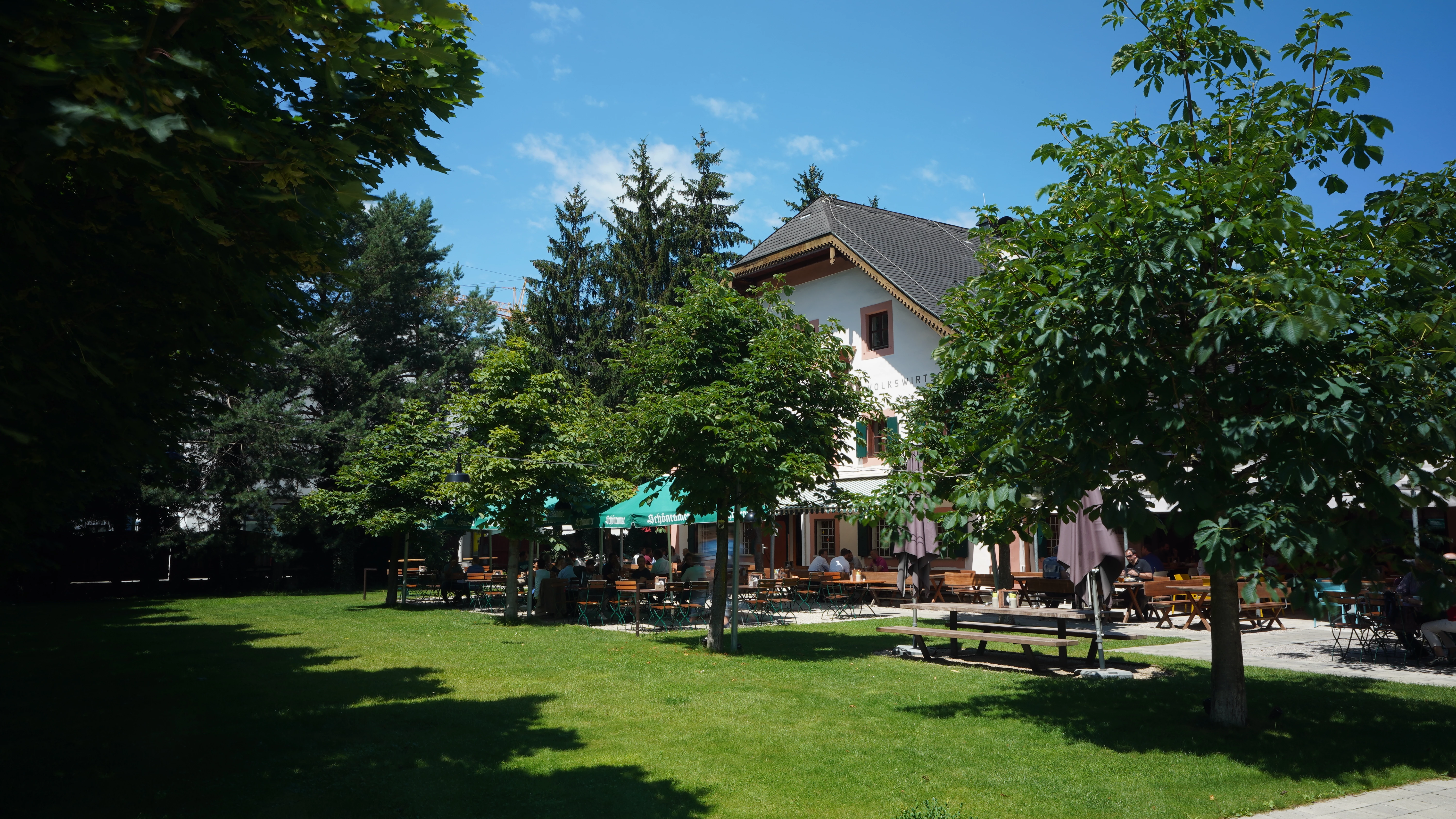
 Here is the link to the video: https://youtu.be/tbU_8tgg3iE

This topic has been closed for replies.

4 replies

Ann Bens
Community Expert
Community Expert
July 3, 2020

Wow this forum is really messed up. 12 replies gone.

HasinatorAuthor
Participating Frequently
July 5, 2020

Yeah I think they had some problems.

So any suggestions left on the problem? Still not working...

Ann Bens
Community Expert
Community Expert
July 5, 2020

I asked for a screenshot....

Richard van den Boogaard
Community Expert
Community Expert
July 2, 2020

Like Ann suggested, please check if you have Use Preview Files in the export setttings turned on. If you do, please turn this feature off. That way, PPro will not use the low(er) quality preview files, but the original files upon export.


Hope this helps.

HasinatorAuthor
Participating Frequently
July 2, 2020

I´m not using the preview files to export. The problem is the quality is bad when I render it out and also when I prerender it to watch it fluently.

Richard van den Boogaard
Community Expert
Community Expert
July 2, 2020

Try this:

Create a batch process in Photoshop by recording a new macro in the Actions Panel.

In the new macro you select the following actions:

1) Image > Image Size change resolution to 1920x1080 (or whatever your desired size is) and Resolution to 72 Pixels/Inch (please note that the size changes when you select a lower resolution, correct this).

2) File > Save

3) File > Close


Next, stop and save the macro in the Actions panel. Now, copy (not move!) all source images to a new folder and then open all 300 images and use the Actions Panel to run through all of these images.

Import the new sequence of JPEG files to PPro and run the timelapse.


My personal preference is to render out Timelapses with After Effects instead of PPro.


Hope this helps.

Ann Bens
Community Expert
Community Expert
July 2, 2020

If you are not doing any panning and zooming on the images make them the same size as in height and width of the sequence.

This will give less strain on the computer.

HasinatorAuthor
Participating Frequently
July 2, 2020

I tried to export the timelapse in 6000x3376 Pixel (same as JPEG Image). Still bad pixels.

Inspiring
July 2, 2020

Are you creating the timelapse by adding an image sequence to Premiere Pro? Or does you camera produce a video file of the timelapse?

What are your sequence settings?

What are your export settings?

MtD

HasinatorAuthor
Participating Frequently
July 2, 2020

I´m adding an image sequence.

Picture Size out of Camera: 6000x3376 pixel

When I import the image sequence it is 25p than i change it to 29,97p an 1920x1080 pixel.

Export settings are also 29,97p, 1920x1080p, CBR 15.

I never changed my workflow or my camera settings. When I import an old timelapse, everything looks okay.

The only thing i changed is the shutter speed, to get that motion blur.

Ann Bens
Community Expert
Community Expert
July 2, 2020

Make sure it is set to the same framerate as the sequence.

Increase the bitrate on export.