
Inspiring
August 18, 2017
Question

Pixellation in TimeLapse

  • August 18, 2017
  • 3 replies
  • 4018 views

I'm tearing my hair out trying to find a solution to this but I cant seem to find one.

Whenever I export a timelapse from Premiere Pro the footage looks like this:

DSC06411 on Vimeo


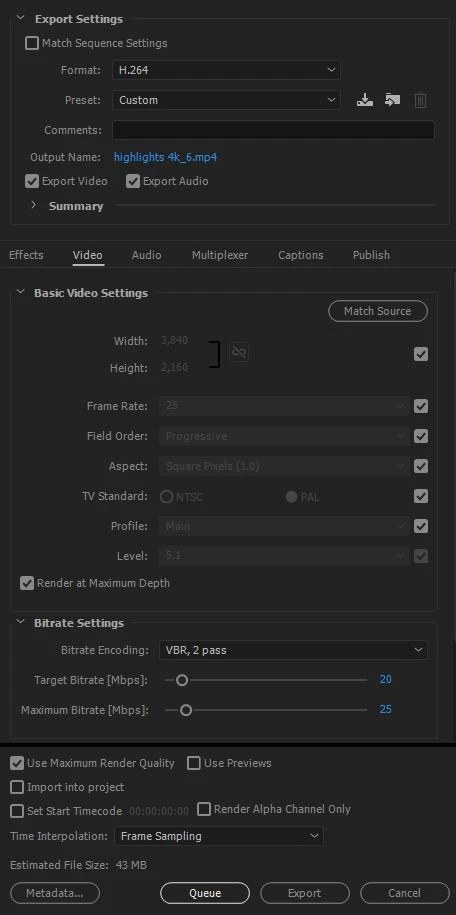
I have tried using different codecs and export settings using both CBR and VBR and diferent resolutions. but every time it comes out like this. Here are my current export settings.
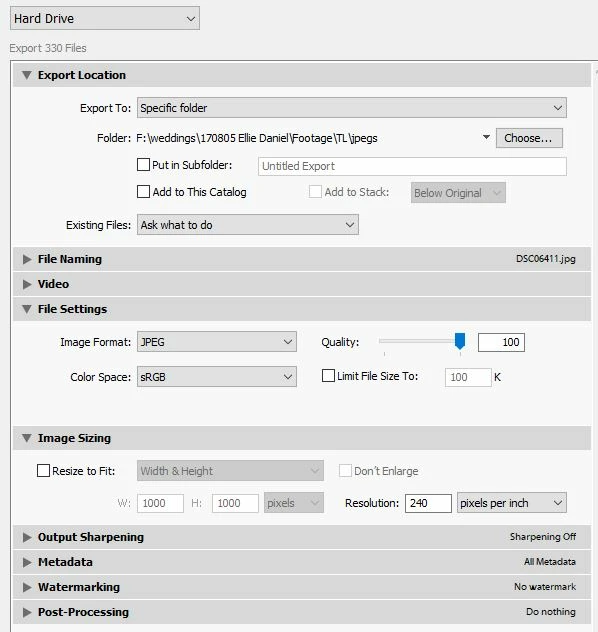
Photos were from a Sony A7Sii brought into lightroom and exported as jpeg like so:
Can anyone shed some light as to why premiere might be having such trouble rendering my time lapse? Or what I could do to fix the situation? It was originally sitting on a Timeline with 4k footage which looked absolutely fine when rendered. It's only the Time laspe that is struggling.

    This topic has been closed for replies.

    3 replies

    Participant
    July 15, 2021

    After weeks of searching I finally found the problem!

    Turn off the image stabilisation. That should solve the problem.

    Pyromk1Author
    Inspiring
    August 11, 2021

    What image stabilisation do you mean?
    I'm having same problem but have added no effects to the image.

    R Neil Haugen
    Legend
    August 18, 2017

    PrPro is not very "sharp" about resizing still images ... I noted right off that you did not have the exports from Lr resized ... I would suggest you re-export those jpg's at a multiple of the sequence frame-size settings. I normally just do double, so for a 1920x1080 sequence, I make 3840x2160 exports from Lr. That way I can "zoom" into them or do the o'l "Ken Burns" effect if I choose. And PrPro does a better job of working from those than if I import full-size jpg's of my original camera RAW files.

    Neil

    Everyone's mileage always varies ...
    Pyromk1Author
    Inspiring
    August 21, 2017

    Thanks for all of your help, I've tried pretty much every suggestion, but im still having no joy. Tearing my hair out


    I've tried resizing the jpegs to the exact size of the film. I'm now working on a project file completely separately to the original trying to isolate the problem so that I can import the footage as naturally as possible without messing with the dimensions.

    ingested the footage into a 50p timeline having set indeterminate to 50p. exported the footage at 50p at its original resolution with all of the render quality settings turned off. Still no joy whatsoever. footage comes out looking like its a quarter of the resolution it's supposed to be despite video file telling me resolution is much higher.


    To make matters more confusing I've tried another time lapse on the same timeline and its rendering at a higher quality that the cloudy sky one as above. Still not perfect but much better. Oddly when I then render a video featuring the cloudy sky lapse at the start followed immediately by the second one, the quality of the first time lapse is as bad as ever but that poor render quality seems to follow on to the second time lapse which was okay before.

    From all of the testing I've done im almost certain there is a problem with how Premiere is rendering it.

    Any other ideas anyone?

    thanks

    R Neil Haugen
    Legend
    August 21, 2017

    Is there any other format you can choose in LR besides jpeg?


    Lr will send a tiff to P-shop or open the RAW file there, it does only export jpegs. Now, one can easily set up batch operations in P-shop to output batches of files at once.

    And something is off in the settings here as I can use jpegs at need without such issues.

    Neil

    Everyone's mileage always varies ...
    Ann Bens
    Community Expert
    Community Expert
    August 18, 2017

    What file extention do the original stills have.

    What is the resolution of these jpegs

    As they are stills I would set the timeline to 50p.

    Why are you using LR.
    Premiere can import an image sequence and you can color correct with Lumetri.

    Pyromk1Author
    Inspiring
    August 18, 2017

    .jpg files at 4050x2705

    Premiere pro automatically imports the image sequence at 25p (is there a setting to change this? cant find one)

    I always shoot photos in raw and then take into LR to make adjustments then export from LR as .JPG before bringing the image sequence into Premiere. Premiere doesn't appear to be able to import Raw files from the Sony as far as i can see.

    thanks

    Ann Bens
    Community Expert
    Community Expert
    August 18, 2017

    Set sequence to 50 before importing the image sequence.

    Might want to try .png instead of jpg.