cianm68024762
Participant
October 11, 2017
Question

Playback Monitor Positioning Error (Multiple Displays)

  • October 11, 2017
  • 7 replies
  • 6888 views

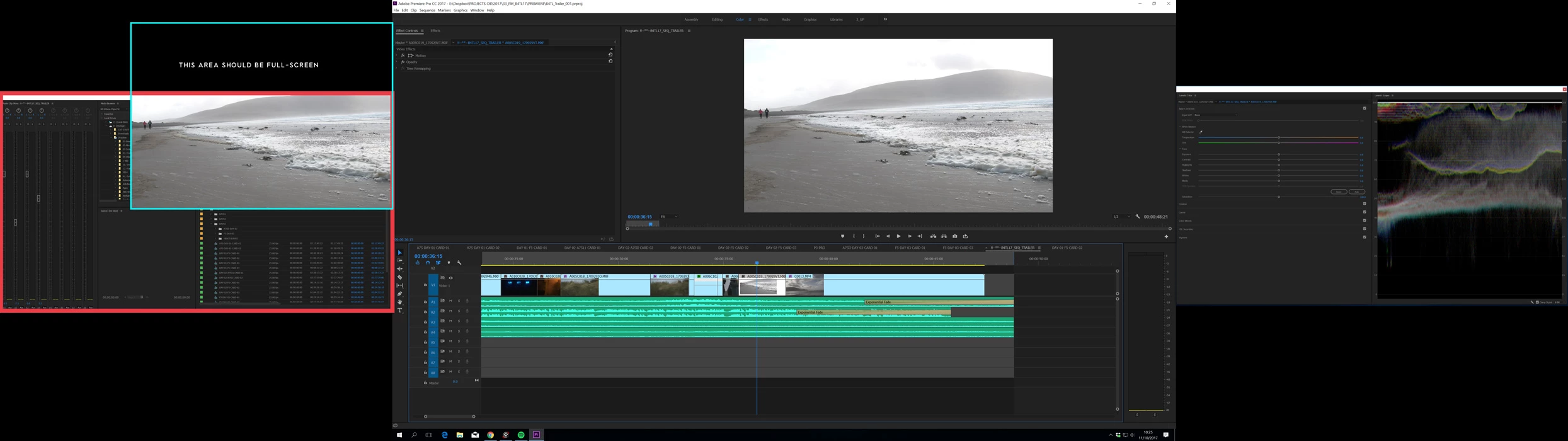
Hi all! Searching to see if anyone can help me out here, I'm having a fairly annoying issue with CC.17 (2017.1.2) where my playback monitor is continuously positioned off-centre (and therefore cropped) -- either Premiere is interpreting the position of my monitor incorrectly or is being fed an incorrect position by the OS, either way it's totally beyond my technical know-how to fix and am looking for some help,

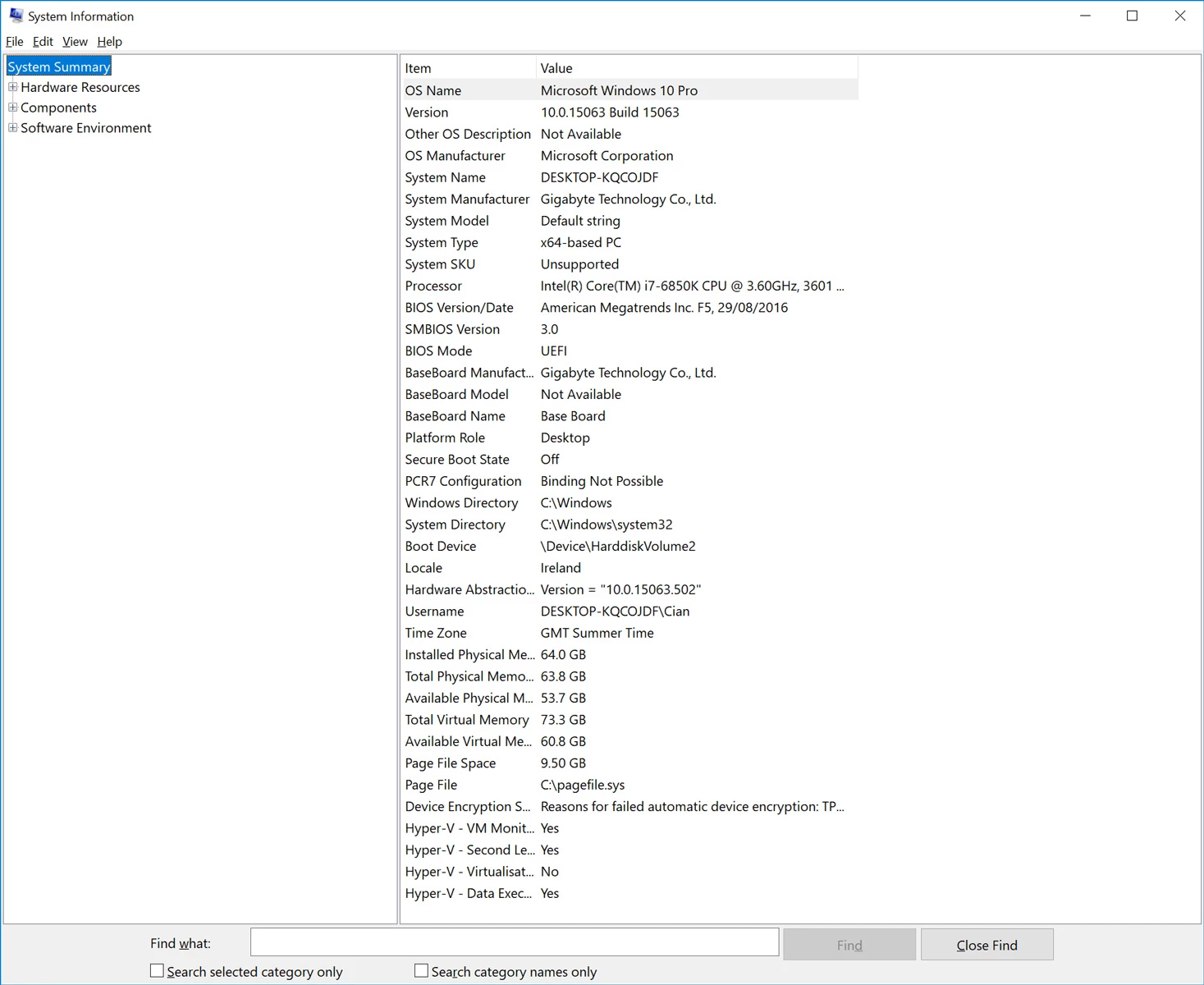
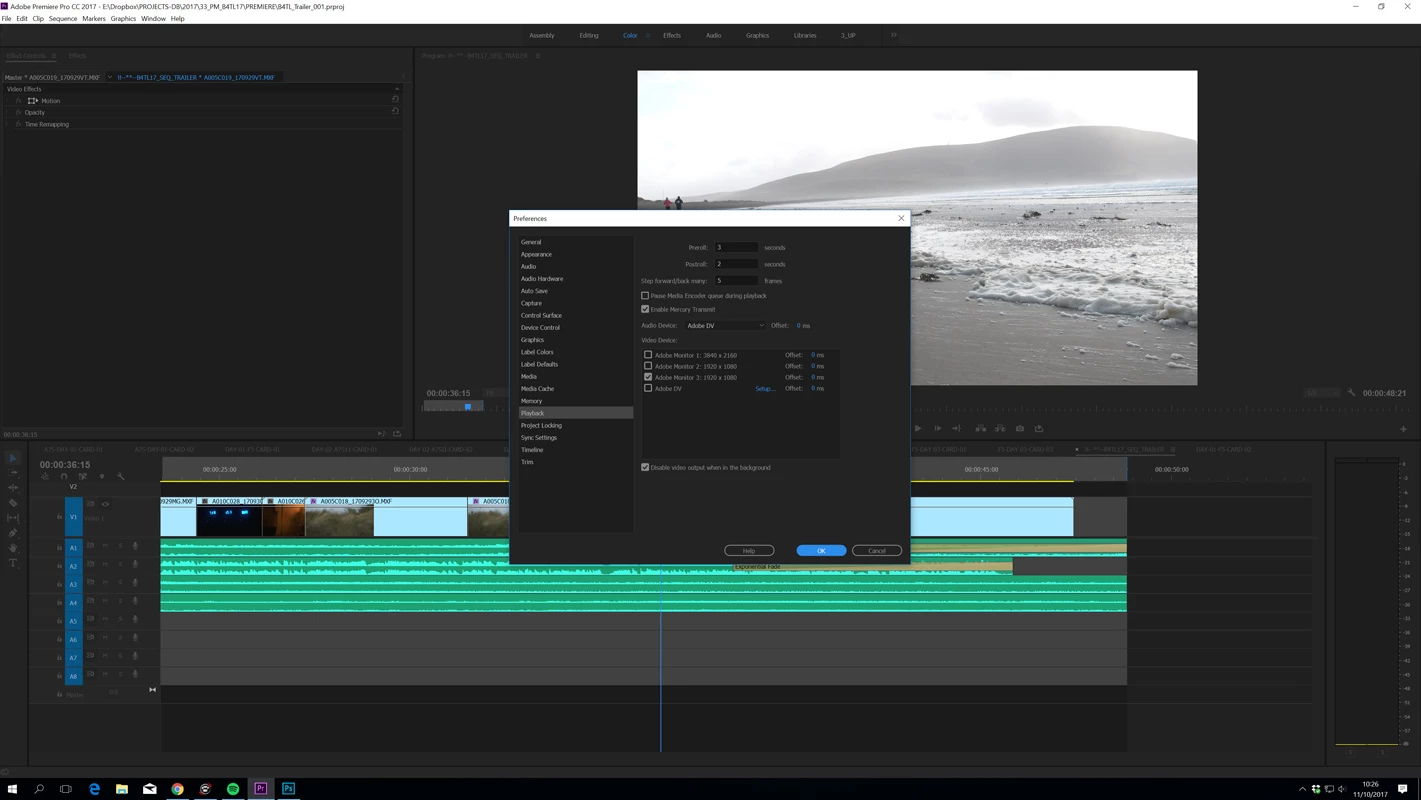
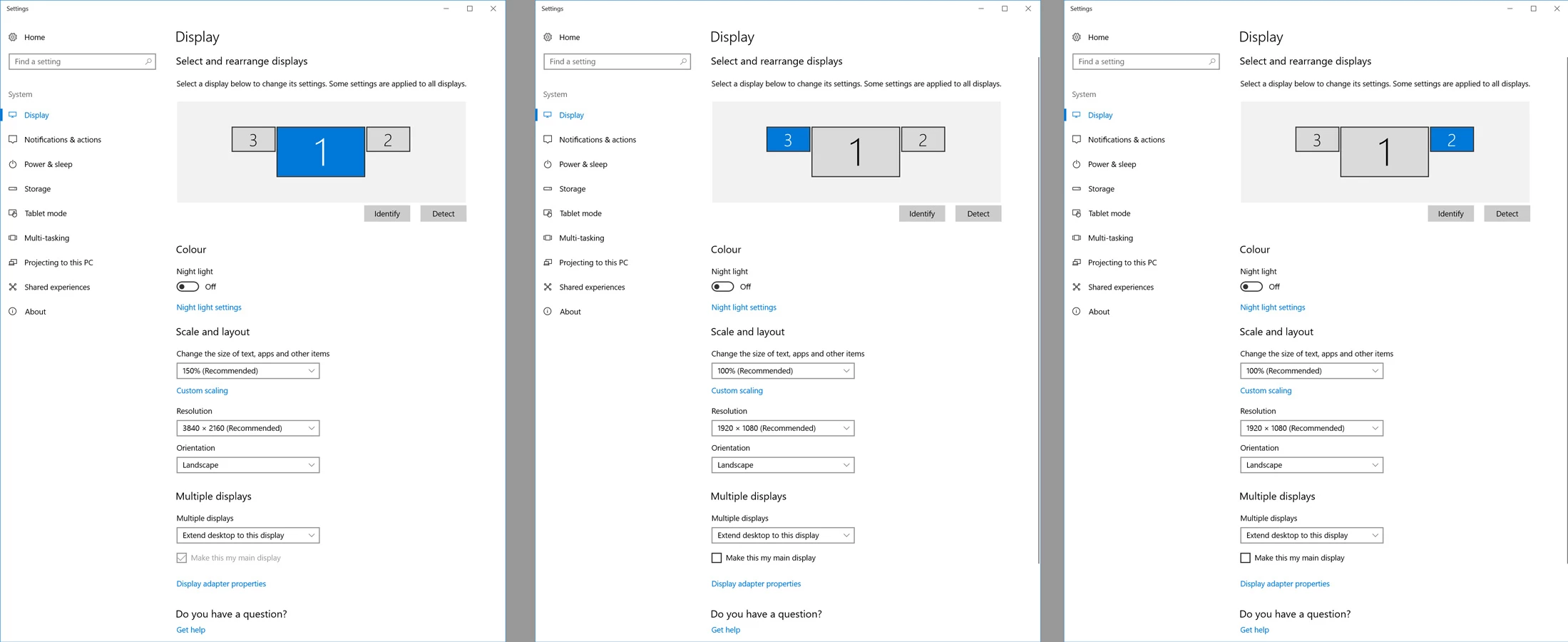
I've attached a screen grab of the issue as I see it (primary monitor in the centre with two smaller HD's left and right, the left hand monitor should be full-screen playback) also attaching the system display settings for all three monitors along with a system overview -- system is running dual GeForce GTX 1080 Ti's, Current Driver Version 385.41
Primary Display: Dell PQ2715Q

Secondary: 2x DELL U2414H

All connected by HDMI
Any help at all would be hugely appreciated,

Cian

    7 replies

    JacobJC
    Inspiring
    January 29, 2026

    I think I finally found a definitive fix. For multiple monitors, at multiple resolutions, multiple aspect ratios and multiple Windows scaling per monitor. Any combo.

    @R Neil Haugen would appreciate your expertise in double checking this solution.

    I’ve been plagued with this problem for quite a while, went down the rabbit hole of ​@Paulo_Conceição ‘s method in a comment below. It didn’t work, however, I discovered using “Application” scaling instead of “System (Advanced)” did the trick. See method below:

    Tested on Windows 10 Pro with Premiere 2025 & 2026.
    My setup:

    1: 3840 x 2160 – Scale 175% (preview monitor)

    2: 3840 x 2160 – Scale 175%

    3: 3440 x 1440 – Scale 125% (main, ultrawide)

    4: 3840 x 2160 – Scale 175%
    Again, I tested this at multiple scaling combinations.


    BEFORE FIX: 

    PP tries to scale the preview incorrectly (larger than display). With the correct scaling combination on your monitors, this doesn’t happen. But when you want to have different scalings per monitor, or to have panels open across multiple monitors, or when you do certain things, like “Replace Footage” - it brings back the incorrect scaling (seen above).


    AFTER FIX: 

    Test 1: Premiere panels open across multiple monitors.
    Test 2: “Replace Footage” popup is active, different windows scaling settings.

    I am no longer having issues, switching displays, regardless if Mercury Transmit or “disable video output when in the background” is active or not.

    THE FIX:

    Make sure to click apply after changing. Remember this will need to be redone for yearly updates since PP25’s exe is a different file than PP26’s.

    R Neil Haugen
    Legend
    January 30, 2026

    Nice work!


    That also seems to fix the issue where you have the Transmit Out on, on a UHD monitor … minimize Pr … and go to another app. Suddenly that image on the UHD monitor expands to cover not only that monitor, but spreads onto others. Messing up the whole screen.


    I’ve never been able to leave TO on if I go to another app due to this. And at the moment, it’s working perfectly … so thanks!

    Everyone's mileage always varies ...
    Known Participant
    March 25, 2025

    It wouldn't be so bad if you just could use the old reference monitor linked to the program monitor as a workaround... but they removed it. That's exactly why this feature needs to work flawless no matter the monitor setup.

    Having a second instance of the program monitor would be great (e.g. if want the program on another screen also, nut not fullscreen).

    Participating Frequently
    December 13, 2024

    Hi team,
    Sharing this post to talk about what helped me.


    I'm using two Full HD monitors and one 4K monitor with a 150% scale.


    What worked for me was changing the DPI settings on the Premiere executable file so it could override the system scale.


    Go to the Premiere executable file, right-click, select Properties, go to the Compatibility tab, and change the DPI settings to System (Enhanced).


    Hope this helps others.

    Cheers,


    Participant
    December 18, 2024

    Thanks Paulo_Conceição,


    what a crazy workaround. I do not want to imagine how long it took you to find out ^^


    For me it has become unnecessary to test your workaround. Because my Display situation changed in the meantime (luckily). So I can say with a 4 display solution of resolutions like this it works fine:

    1: 3.840 x 2.400 – Scale 200 %

    2: 3.840 x 2.160 – Scale 200 %

    3: 3.840 x 2.160 – Scale 200 %

    4: 2.560 x 1.440 – Scale 200 %

    Participant
    February 13, 2025

    my best work around for this problem, change the monitor you have your timeline on to "make this my main display" in you windows display settings. Problem solved.


    Participant
    November 12, 2020

    This is still a huge problem 3 years later.

    Participant
    July 23, 2022

    Also 5 years later.

    R Neil Haugen
    Legend
    July 25, 2022

    Hello Neil, thanks for replying!


    I’m using two Viewsonic VA2719-2K-smhd monitors, one is connected via HDMI, one via HDMI to Mini DisplayPort, to a ZBook.


    I’m on Windows 10. I extended the ZBook monitor to the external monitors. The external monitors are scaled to 100% (at 2560x1440) the ZBook is at 125% (at 1920x1080). In Premiere, Mercury Transmit is enabled and I selected monitor 3 as my video device. The full screen playback always starts out fine, then is displaced after a few seconds.


    Have you tried setting the screen that's scaled to 125% to either 100% or 150%?


    Premiere oft stuggles with 125 and 175 settings for many users.


    Neil

    Everyone's mileage always varies ...
    Participating Frequently
    May 12, 2020

    I also have been having this problem for a while...  Trying to use the Playback Preview feature so that it uses a dedicated monitor has really never worked right for me.... It always displays the playback content 'off kilter' the wrong size, kind of spread between two screens in a strange way.  I've had this problem for years..

    Jeff Bugbee
    Community Expert
    Community Expert
    May 12, 2020

    In OP's post, his issue likely stemmed from the fact his leftmost monitor is at 150% scaled in his Windows settings. Do you have any scaling turned on?

    raffaele di nicola
    Participant
    May 25, 2020

    Hi everyone. Seems like I was able to figure it out (at least on my dual monitor setup)


    As Jeff said, both monitors need to be scaled 100% (make sure you select each display individually and choose 100% under scale and layout settings)


    Hope it helps


    Shtoner
    Participant
    March 10, 2018

    I am having the same issue. I have connected a third display which is a 55" LG LED HD TV, and when I check in the playback the TV as a playback monitor, the display comes displaced or cropped. It also sometimes come back if I do random things like switching programs and coming back. It is odd after all this time that Adobe hasn't answered to this particuliar problem. I'm running an Nvidia GeForce 1060 6GB, and no matter how I put my displays, I still have the same problem. It sucks that I bought a 1300$ TV and not be able to have my footage on the whole screen. Any new updates from anyone?

    Community Expert
    October 11, 2017

    Not much help but I have a similar issue, any new panel being opened appears half way off my leftmost screen. I running 4 screens on a GTX 970, Windows 10

    cianm68024762
    Participant
    November 15, 2017

    Hi Richard, yeah sounds familiar, with my situation the problem is limited solely to the programme monitor being sent to my external monitor (via the Preferences > Playback > Transmit Options). This should give me full-screen playback but is being cropped as per the screenshots above.

    The plot thickens now, if I move into another application and return to Premiere (after about 2-3minutes) the Playback is now, magically, full-screen, but the topmost third is cropped black, and will suddenly return to it's normal error state if I got back into preferences and change something.

    Also worth nothing that no matter what Video Device check-box I select in the Preferences > Playback window, Premiere will always send the video to my leftmost Monitor, (Monitor 3), even if I check Monitor 2…

    I recently moved system having worked on Mac's for years and never encountered this issue, (running an identical three monitor setup on a 27" iMac with two external HD monitors, on Premiere CC.17, I never encountered this issue at all) I'm completely lost in a mire of possible conflicts between Nvidia drivers and Windows system settings or Premiere just acting weird…

    Anyone from Adobe care to help?