
Inspiring
August 25, 2020
Answered

Pr 2020: Video playback button keeps disappearing

  • August 25, 2020
  • 4 replies
  • 10629 views

Hi all.


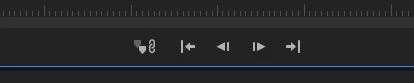
Since yesterday, the video playback button disappears quite frequently. For example, if I play a video, then stop the video, the playback button disappears. Or I open Pr and start a new project, and the playback button is not even there!


I have to keep selecting Window -> Program Monitor -> (project name) to bring it back. Doing this once per session is ok, but doing this 10+ times each session is not right. This all started yesterday. I also notice an icon that says "Gang to program monitor" appear on the left of the video rewind button. I am not sure if it was there before or not.


What can I do? Thanks in advance.


Correct answer Ann Bens

The play button has not disappeared as the Reference Monitor (which your are looking at and not the Program Monitor) does not have a play button.....

4 replies

Participant
January 11, 2022

Make sure Show Transport Controls are toggle on, under the monitor wrench menu

Ann Bens
Community Expert
Ann BensCommunity ExpertCorrect answer
Community Expert
March 8, 2021

The play button has not disappeared as the Reference Monitor (which your are looking at and not the Program Monitor) does not have a play button.....

Jeff Bugbee
Community Expert
Community Expert
March 8, 2021

Next time it disappears, click the + button on the right, then drag the Play button down to the controls, see if it stays after that.


Participant
March 8, 2021

Adjusting the workspace solved this, but I will try this when it happens again. 

Joost van der Hoeven
Community Expert
Community Expert
August 25, 2020

Have you tried to reset your workspace? See https://helpx.adobe.com/premiere-pro/using/workspaces.html#customizing_workspaces

And second, does it also happens when you use other workspaces?


Participant
March 8, 2021

This happens to me every minute. I tried to follow the link above about resetting workspaces, but that link no longer works.


Peru Bob
Community Expert
Community Expert
March 8, 2021

Resetting the Workspaces:
Reset a workspace
Reset the current workspace to return to its original, saved layout of panels.
1. Do one of the following:
• Click the Workspace menu icon and select Reset to Saved Layout.
• Choose Window > Workspace > Reset to Saved Layout.
from here:
https://helpx.adobe.com/premiere-pro/using/workspaces.html