

AndrewTheGreat
Known Participant
June 11, 2024
Answered

Pr 24.4.1: insane lags upon changing Scale and Position for a... picture

  • June 11, 2024
  • 3 replies
  • 4883 views

Working with a new project I've come across a problem described in the title - there's a picture from the Internet in my timeline. It's a generic webp (tried a jpeg as well) of 154,29 KB and 2000 x 988 pixels. If I change it's scale and position there is a 1-2 ceconds lag before I actually see the change. On a 14700K, RTX4080 and 64 Gigs Ram.

This project differs in now way from any previous one but for Premiere Pro version I'm using now.

See the video below.

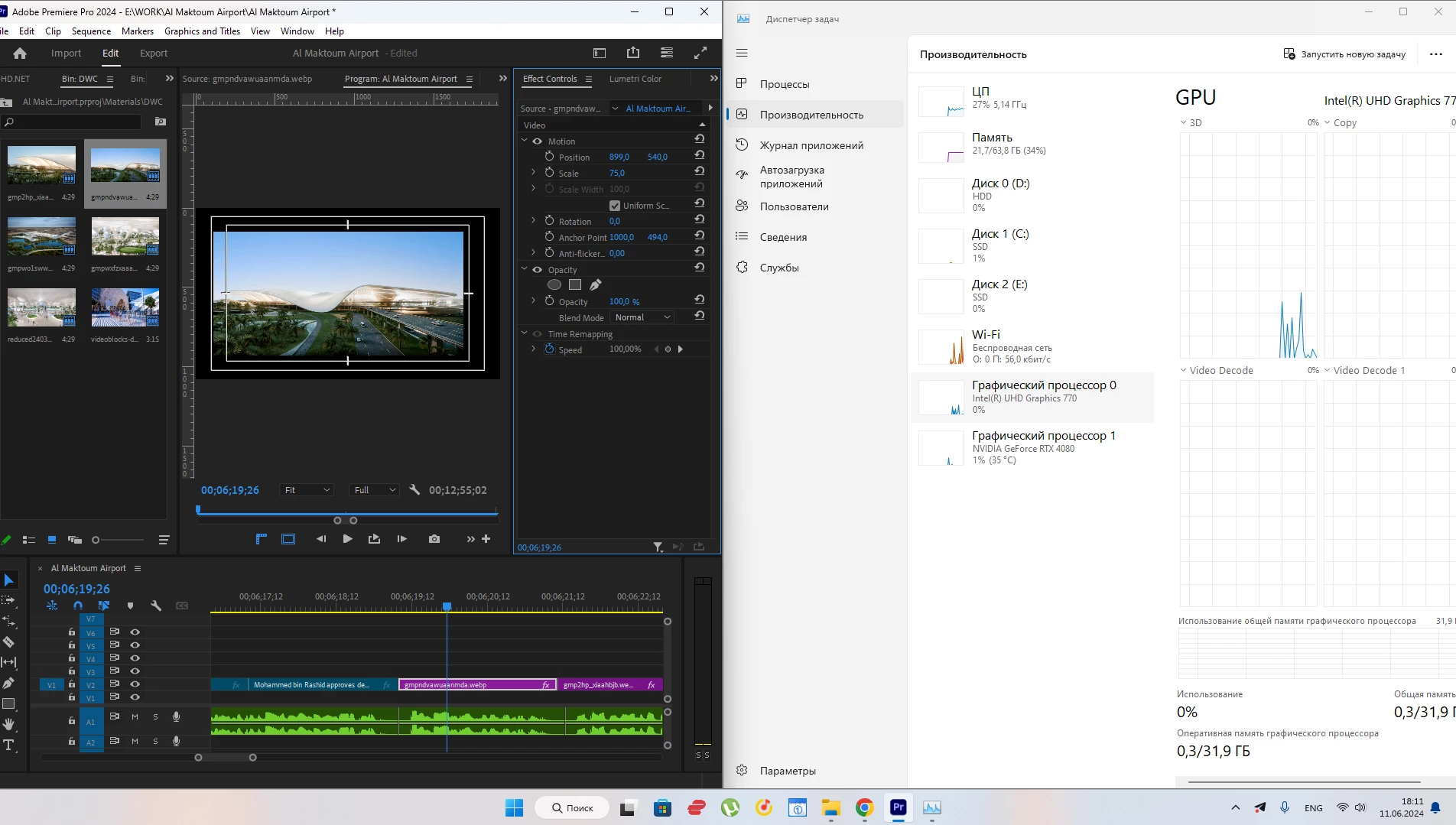
My system is nearly idle when I get this lag.
 

Correct answer Richard van den Boogaard

Yes, I understood that you meant, but how this can be if nvidia is turned on everywhere, of which I added 2 screenshots above?


I have never had to deal with this issue, but a search on YouTube gave me this: https://www.youtube.com/watch?v=xaVdYtRBeB8


Hope it helps.

3 replies

Participant
March 13, 2025

Hello Came across with the same problem on 2025,  using mac book pro m4 max, just realize just hapen when working whith adjustment layer. 

Richard van den Boogaard
Community Expert
Community Expert
June 12, 2024

Please try to save the picture as a PSD file in Photoshop and import that to PPro.


Let us know if that works


The webp picture is optimized for use online, not for editing in an NLE. Hence the step to prepare the footage by running it through Ps.

AndrewTheGreat
Known Participant
June 12, 2024

same picture. I have jpgs and pngs as well - they act same way

Stop trying to edit and EDIT!
Richard van den Boogaard
Community Expert
Community Expert
June 12, 2024

From the video it seems like you're using the onboard GPU, not the RTX4080.

Community Expert
June 11, 2024

Hi,

Thank you for reaching out. To assist you better with the lag issue you're experiencing in Premiere Pro, could you please provide the following details about your setup and software:

  1. Full System Specifications:
    • CPU Model (You've mentioned it's a 14700K, which is helpful)
    • GPU Model (RTX4080 as mentioned)
    • RAM (64 GB as mentioned)
    • Storage (Type and capacity of your primary drive and the drive where your project files are stored)
  2. Software Details:
    • Operating System (Version and build)
    • Exact version of Adobe Premiere Pro you're using (You mentioned that this version differs from previous ones, which is a crucial detail)
    • Any plugins or third-party effects currently in use
  3. Project Details:
    • Resolution and frame rate of your sequence
    • Any other media types in your timeline (video formats, audio files, etc.)
    • Effects or transitions applied to the problematic clip
  4. Performance Settings:
    • Premiere Pro's settings (Renderer, GPU acceleration settings, etc.)
    • Memory and cache settings in Premiere Pro
  5. Other Information:
    • Whether the issue occurs with all media types or just with certain files
    • Steps you've already taken to troubleshoot the problem (e.g., clearing cache, updating drivers)

With this information, we'll have a clearer understanding of your environment and can provide more targeted advice to help resolve the lag issue.


For the time being, please try the following troubleshooting steps to see if they resolve the lag issue in Premiere Pro:

  1. Clear Cache:
    • Go to Edit > Preferences > Media Cache and clear the media cache files. This can sometimes resolve performance issues.
  2. Update Graphics Drivers:
    • Ensure your graphics card drivers are up-to-date. Visit the NVIDIA website to download the latest drivers for your RTX 4080.
  3. Adjust Playback Settings:
    • Lower the playback resolution in the program monitor (e.g., from Full to 1/2 or 1/4).
  4. Optimize Media:
    • Consider transcoding your media to a more Premiere-friendly format like ProRes or DNxHD/HR. These formats are easier for Premiere Pro to handle.
  5. Turn Off High-Quality Playback:
    • Go to Program Monitor Settings (wrench icon) and ensure "High Quality Playback" is unchecked.
  6. Check Sequence Settings:
    • Ensure your sequence settings match your media properties to avoid unnecessary rendering.
  7. Disable GPU Acceleration:
    • Try switching from GPU Acceleration to Software Only in Project Settings > General to see if the issue persists.
  8. Update Premiere Pro:
    • Ensure you're using the latest version of Premiere Pro. Adobe frequently releases updates that address performance issues.
  9. Close Background Applications:
    • Make sure there are no heavy background applications running that might be consuming system resources.
  10. Check System Resource Usage:
    • Open Task Manager (Windows) or Activity Monitor (Mac) to see if there are any unusual spikes in CPU, GPU, or RAM usage while you experience the lag.
  11. Reset Preferences:
    • Sometimes, resetting preferences can help. Hold down Alt (Windows) or Option (Mac) while launching Premiere Pro to reset the preferences.

If none of these steps resolve the issue, please provide more detailed information about your setup and the problem as mentioned in my previous message.


Looking forward to your response!


T-Sal
AndrewTheGreat
Known Participant
June 12, 2024

Hi, @T - Sal 

The multi-layered AtomX seems to be the culprit. And that is strange since in Premiere Pro of previous versions I never had any problems with it. As I mentioned before, AtomX transitions and effects are basically presets consisting of adjustment layers with Premiere Pro own effects animated. You drag and drop an AtomX preset on the timeline and get 2-4 adjustment layers each having a set of Premiere Pro effects. So it's basically not a third party plugin since it uses Premiere Pro effects only. So I removed all the AtomX effects from the timeline and immadiately got a fast Position and Scale response for any media on the timeline. I repeat, my CPU is idle when this lag happens, Ram is abundant, the only thing which is loaded is my processor's iGpu. So it seems Premiere Pro distributes the workloads in the wrong way, making the iGPU sweat while the rest of the system keeps going idle, thus making it lag with such a simple thing as positioning and scaling an image.... Andthis is not the only one time I'm having such Premiere Pro behavior. Normally if my sequence has some 10-20 layers of just simple texts created via the text tool or in the EG panel at a certain moment Premiere Pro starts lagging when you fiddle the position or any other motion value in the effects controls panel. It always happens. The system keeps being idle or loaded only by half of its potential, the timeline is perfectly fast but the position=scale-rotation and so on start lagging...

Stop trying to edit and EDIT!
Community Expert
June 12, 2024

Please check your sequence settings and try opening a new sequence that matches your footage. If that doesn't work, you might need to convert and export the photo from Photoshop.


T-Sal