Copy link to clipboard
Copied
Copy link to clipboard
Copied
What are the complete computer specs, including hard drives (how many, what kind, what is on each, what capacity, and how full)?
If NVIDIA graphics, make sure to use the latest Studio Driver from NVIDIA (NOT the Game Driver).
Copy link to clipboard
Copied
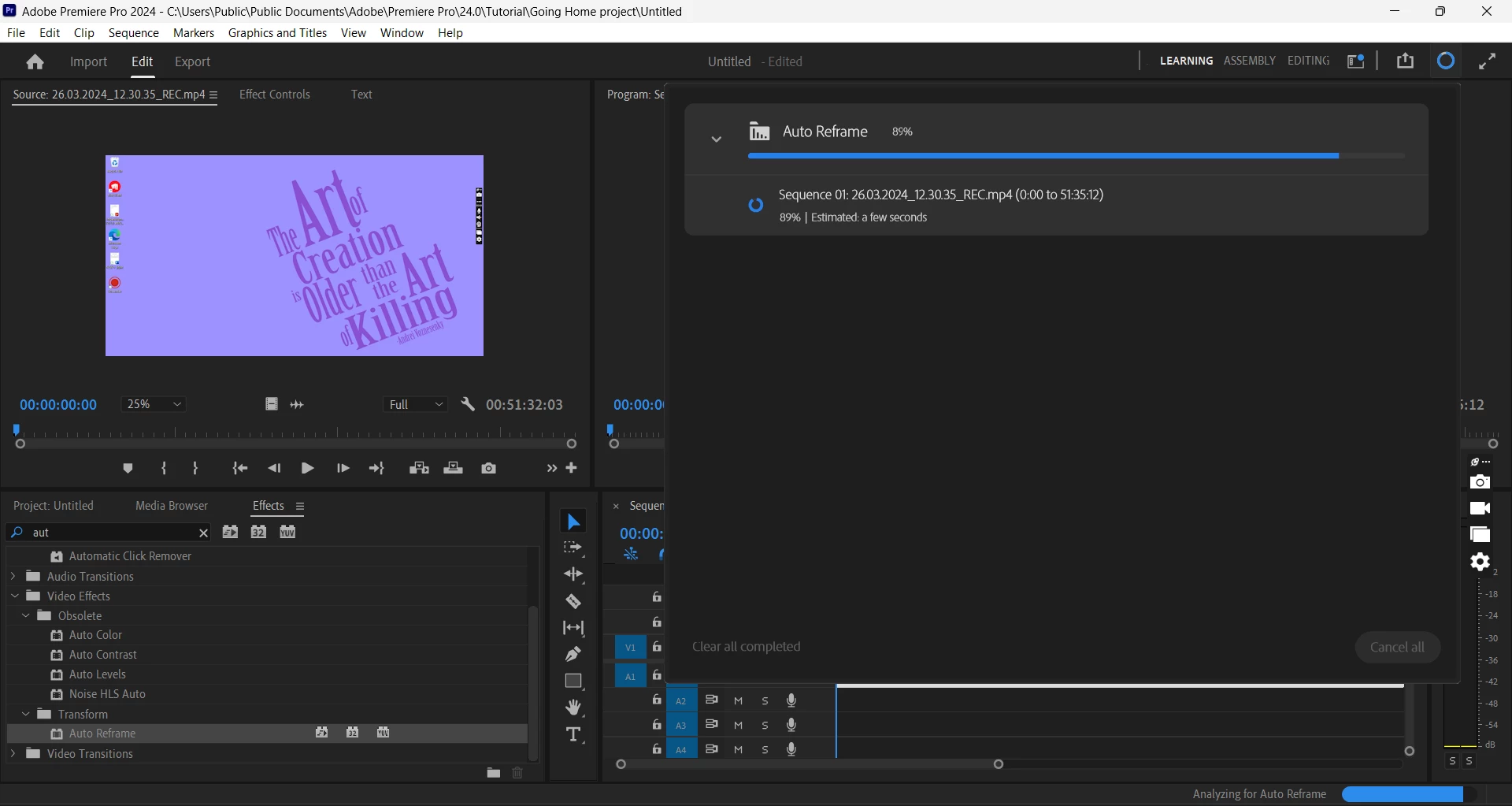
Not OP but identical problem - freezing at 89%
Latest NVIDIA Studio update installed
Specs
Windows 11 64 bit
Intel(R) Core(TM) i7-9750H CPU @ 2.60GHz 2.59 GHz
32.0 GB Ram
Copy link to clipboard
Copied
Two hard drives one with 79GB free one with 54GB free
Copy link to clipboard
Copied
Update - No joy as of yet - list of attempted resolutions:
1) Driver update - NVIDIA Studio update
2) Clean install
3) Media cache cleared
4) several PC restarts
Any further advice, greatly appreciated
Copy link to clipboard
Copied
Two hard drives one with 79GB free one with 54GB free
By @Mark29589558il8b
You may need more free hard drive space.
What kind of drives are they?
What capacity are they?
What is on each?
Copy link to clipboard
Copied
Looks its stuck on the background rendering.
Copy link to clipboard
Copied
You may want to try going into preferences and clearing the Media & Disk Cache.
Copy link to clipboard
Copied
Thanks for this, I did have a try at both Cache clearing options, but with no joy!
Copy link to clipboard
Copied
Did you try running Scene Detection before Auto Reframe?
Copy link to clipboard
Copied
I think whatever the problem - it's something to do with processing power - ultimately I chopped the file into three even chunks and that resolved it - Not ideal - but a workaround for the moment. Curious to work out why it suddenly stopped working mind you
Copy link to clipboard
Copied
Will it be possible for you to collect your project and share it with me through a private message? I can try to reproduce the issue on my end. Hopefully we can figure out what's causing it.
Thanks,
Ishan
Find more inspiration, events, and resources on the new Adobe Community
Explore Now