This topic has been closed for replies.
Correct answer ravenise

I will check the auto-save folder and see if there are any viable backups!


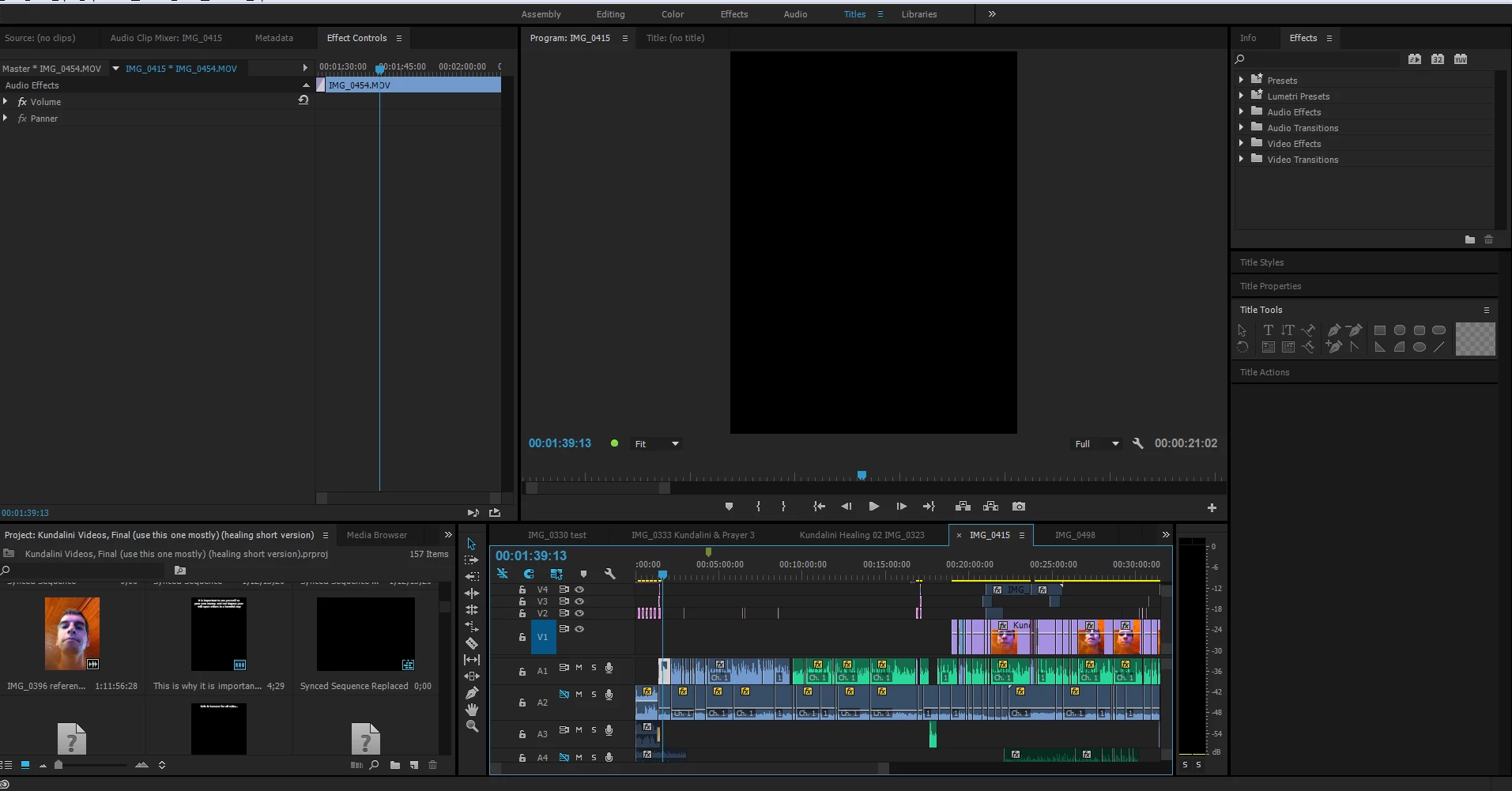
Okay, the previous auto save has all the videos. Premeire Pro crashed, then restored a corrupted copy of the timeline.

2 replies

Jogen
Inspiring
April 27, 2017

With "matchframe" you get the way back to your footage with all your In and Outs.

Go to the beginning of your audio clip, highlight it, look at menu -> clip -> matchframe (or use your shortcut, mine is "f")

and the video will be shown up in source viewer.

Just insert video only - done!

raveniseAuthor
Inspiring
April 28, 2017

Thank you Jogen. I did this, there is a mark in and out point set in the source viewer, however dragging the video over, it appears longer in the timeline than the audio segment.  is there a way to define only what is within the in and outs or must this be done manually after dragging?

raveniseAuthor
Inspiring
April 28, 2017

Ok I see it can be defined by setting the in and out points in the timeline... unfortunately it appears on some clips only the audio is able to be transferred onto the timeline, even video where with audio embedded. The video will not transfer.

raveniseAuthor
Inspiring
April 27, 2017

it should be as easy as dragging and dropping from the audio file! There should be a backup stored somewhere in the project file.  This sucks!

raveniseAuthor
Inspiring
April 27, 2017

some of the audio files were encoded separately from the video tracks to begin with!

raveniseAuthor
Inspiring
April 27, 2017

Probably it was not Premiere, who deleted the clips :-)

If your audio correspondece with the video, you can use "matchframe" and get back your missing clips.

Or you have a look into your auto-save-folder, and copy/paste the missing clips by media browser.

Best,

Jo


The videos are long 40 plus minute clips, the segments were very short cuts. Copying the videos over would require redoing the cuts individually, I assume.