


- Home
- Premiere Pro
- Discussions
- Re: Premiere media cache location has a mind of it...
- Re: Premiere media cache location has a mind of it...

Copy link to clipboard
Copied
longtime user of Premiere. for many months now Premiere is using the default media cache folder that it creates in the C:\Users\josh\AppData\Roaming\Adobe\Common\Media Cache Files location. however, my settings in Premiere put it on a different drive, but it seems to put all of the IMS files in the location above, then the MCDB files in the location i specify. anyone know why they aren't all going to the same folder? i'd rather they all take up space on my data drives, not my system drive. thanks!
[Here is the list of all Adobe forums... https://forums.adobe.com/welcome]
[Moved from generic Cloud/Setup forum to the specific Program forum... Mod]


 1 Correct answer

Hi JoshBCreative,
I know this is quite confusing, but this is something by design (not a bug).
'IMS' files are system specific & they are not supposed to travel with the preference or to the custom location. Only the '.cfa' & '.pek' files will get generated into the new custom location.
Thanks,
Kulpreet Singh

 12
Replies
12
12
Replies
12

Copy link to clipboard
Copied
Hi JoshBCreative,
I know this is quite confusing, but this is something by design (not a bug).
'IMS' files are system specific & they are not supposed to travel with the preference or to the custom location. Only the '.cfa' & '.pek' files will get generated into the new custom location.
Thanks,
Kulpreet Singh
Copy link to clipboard
Copied
so there's no way to change that? most people don't keep track of folders like that and it just gets bigger and bigger over time. i don't remember how big mine was before i just cleared it, but i think at least 50gb

Copy link to clipboard
Copied
I have EVERYTHING pointed at my SSD, but it is putting 55 GB on my C drive and only 2 GB on the SSD. The CFA files total 52 GB! This is by design?

Copy link to clipboard
Copied
Didn't you actually read Kulpreet's post?
He's quite clear about the difference between IfS files and the cfa/pek files.
Manually delete the current cache files. Reboot.
Trash your preferences on starting.
That might help.
And make sure the permissions on the intended cache drive are clear AND that you put your cache files a folder or two down from the root.
Hopefully that will get this sorted.
Neil

Copy link to clipboard
Copied
You can delete ONLY if you know where Premiere Pro has put it.
The location is Opaque and as a result my PC is slow, despite uninstalling PP and rebooting multiple times.
Not installing PP ever again.
Copy link to clipboard
Copied
Go to your Project settings dialog, it shows where all the cache files are stored.
And Premiere is no more "opaque" about where it stores things than Resolve ... or OBS, for that matter. They can all be a bit frustrating at times.
Neil

Copy link to clipboard
Copied
If I put cfa and pek files in that specific location waveforms on audio files will not show up unless I zoom into them. I have to have the cfa and pek next to the original files for it to generate a waveform. I never had this problem come up until a couple of days ago. Noting changed on my system, as a matter of fact it did it wile I was in a project editing.
Copy link to clipboard
Copied
R Neil Haugen I did read Kulpreet's post. I did all that. Several times. I uninstalled and reinstalled several times, cleaned the registry, erased every vestage of Adobe everywhere just to make sure.
My cache is pointed at E:\Adobe\Data\Common, which has 5 GB in it. After after purging cache it has 169 MB in it.
NOTHING is pointed at C:\Users\[user]\AppData\Roaming\Adobe\Common, which has 52.5 GB in it. After purging cache it still has 52.5 GB. Mostly CFA files.
I posted these details in another post, which got an "already answered that don't post twice" reply.
Copy link to clipboard
Copied
Ok.
Have you trashed preferences? Then reboot, re-launch?
If so, and you're still getting this, download the Adobe CC Cleaner Tool. The instructions say to uninstall the app first with the CC desktop app, then run the Cleaner. DON'T.
Start with the Cleaner ... it can do both the uninstall & cleanup, and if you start with the CC app uninstall, you may need to go through uninstall/clean/re-install/uninstall-clean/re-install a couple times. Doing both with the CC Cleaner tool does the full removal of stray files in one go at it.
After removal of PrPro and all it's stray files with the CC Cleaner Tool, re-boot. From the CC app download/install a fresh copy of PrPro.
On launch, create a new project. Set the options in the Project file where you want them. Then after the project starts go into Preferences and set the cache files where you want. Then import some media, and test.
Hopefully this straightens out your issues. Yea, you don't wan't all the cache files on the OS drive. Still, you need to track where PrPro puts stuff ... and there's some files you will want to manually clean every so often.
Neil
Copy link to clipboard
Copied
Having the same problem . Does it with cc2018 and 2019. I just got done resetting everything because now it needs to write the cya and pen files next to the original files or the waveforms won't appear with audio files. I never had to do this before now it feels everything is running slower.
Copy link to clipboard
Copied
Huh ... that's a pain.
Wonder what's the problem ... Kevin-Monahan ... can you or someone hop in on this?
Neil

Copy link to clipboard
Copied
This is easily fixable.
Have a look at how I set mine up on a seperate SSD and it NEVER moves:
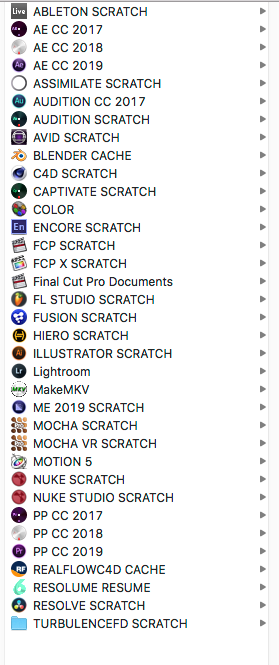

As you can see the scratch SSD houses all my applications scratch folders.
The only time I have ever had Premiere's cache or cache database move back to default location was on a big update or when I reinstalled. Besides that it has remained fixed.
After each run I ensure I clean the cache build. up from within PP.
Once a project is completed I use the Project Manager to tidy up everything into one main folder, archive it and then go in and manually delete remnant files off teh Scratch disk
Mo


Find more inspiration, events, and resources on the new Adobe Community
Explore Now
 AdChoices