A little late, but as promised I've included more detail on monitoring 5.1 in Adobe Premiere Pro below.
Edit Suite Details
2013 Mac Pro Trashcan
Blackmagic Decklink Extreme 4K 12G mounted in an Akitio Thunder2 Box
Flanders CM 250 Monitor
55" LG OLED 4K TV
Onkyo TX-NR646 Home Theater Receiver
Mackie Mr5 Mk3 Studio Monitors (Pair)
Polk Audio Center Speaker, Surround Speakers & Powered Sub
Getting the Blackmagic Decklink Extreme 4K 12G installed in the Akitio Thunder2 Box was super easy and took only a few minutes. I connected the HD-SDI output to the Flanders CM 250, and the HDMI output to the Onkyo receiver, and the HDMI output from the receiver to the LG OLED TV.
I purchased a Russound ADP-1.2 Speaker-Level to Line-Level adapter to feed the Mackie speakers from the Onkyo receiver. The Mackie speakers serve as my left and right speakers in my 5.1 monitoring setup, as well as my main stereo speakers.
Russound ADP-1.2 Speaker-level to Line-level Adapter at Crutchfield.com
I downloaded and installed the latest version of BlackMagic Desktop Video. After launching Premiere Pro and verifying that the Decklink Extreme 4K 12G was working properly, I started the 5.1 monitoring setup test.
I knew that the audio production house would be delivering a single WAV audio file that would contain all 6 channels of the 5.1 mix as opposed to 6 separate mono audio files. The following workflow is based on what I needed for my project.
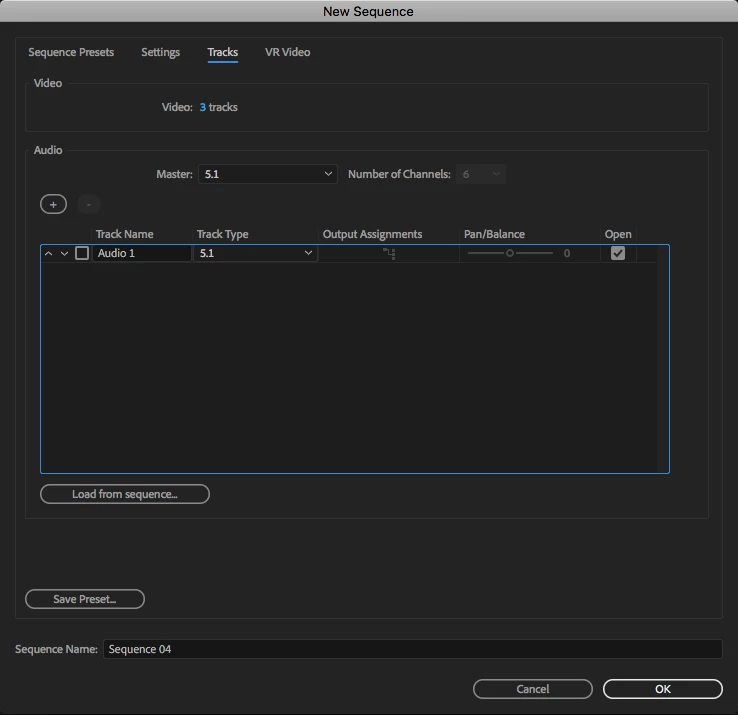
I created a 5.1 sequence first before importing my media. Make sure that the master is set to 5.1, and that the Track type is set to 5.1.
I then downloaded a 5.1 test file from here:
AAC Multichannel Playback Test
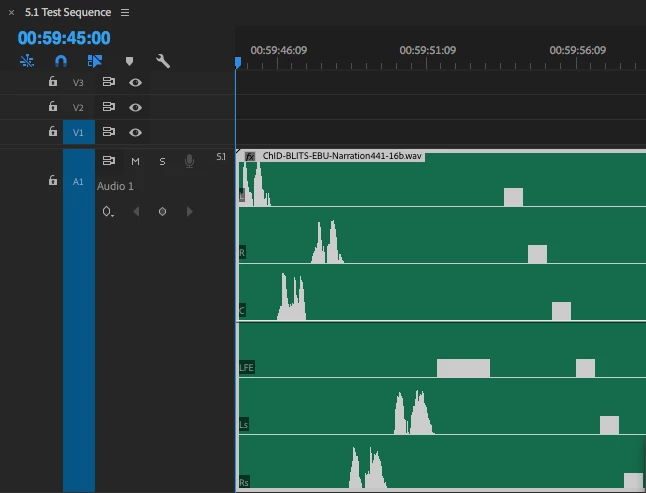
When I imported the 5.1 audio file into Premiere and placed it in the sequence it displayed the channels correctly for my 5.1 needs; L, R, C, LFE, LS, RS. The audio track in the sequence also had the "5.1" label which meant everything was setup correctly so far.
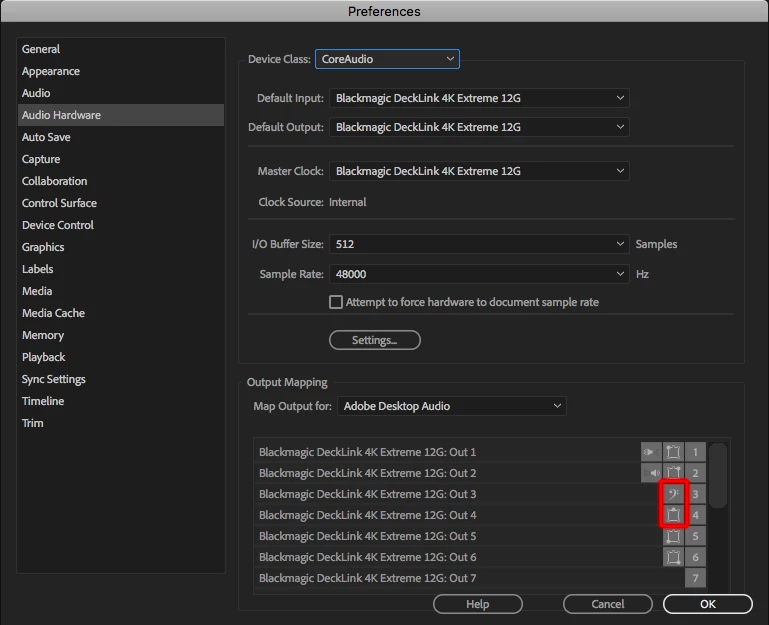
When I played the file back, as others have noted on the forum, audio channels 3 & 4 were swapped during playback. I fixed this by going to the Audio Hardware preferences and flip-flopping the center channel and LFE channel. They are highlighted in red below. By default the center is on channel 3 and LFE is on channel 4. In order to monitor properly, these have to be switched. They are in the correct monitoring position in the image below.
In addition to successfully monitoring 5.1 audio, we were also able to monitor 4K UHD on the 55" LG OLED TV, and 1080p on the Flanders CM 250 using the Decklink Extreme 4K 12G. This was something we had also been trying to achieve at the same time we were trying to monitor 5.1 audio mixes. BONUS!
Feel free to ask any questions about the process or setup and I will answer as quickly as possible and update this post to have all of the information in one place.

 AdChoices