

jan-christophs90880216
Known Participant
June 30, 2024
Question

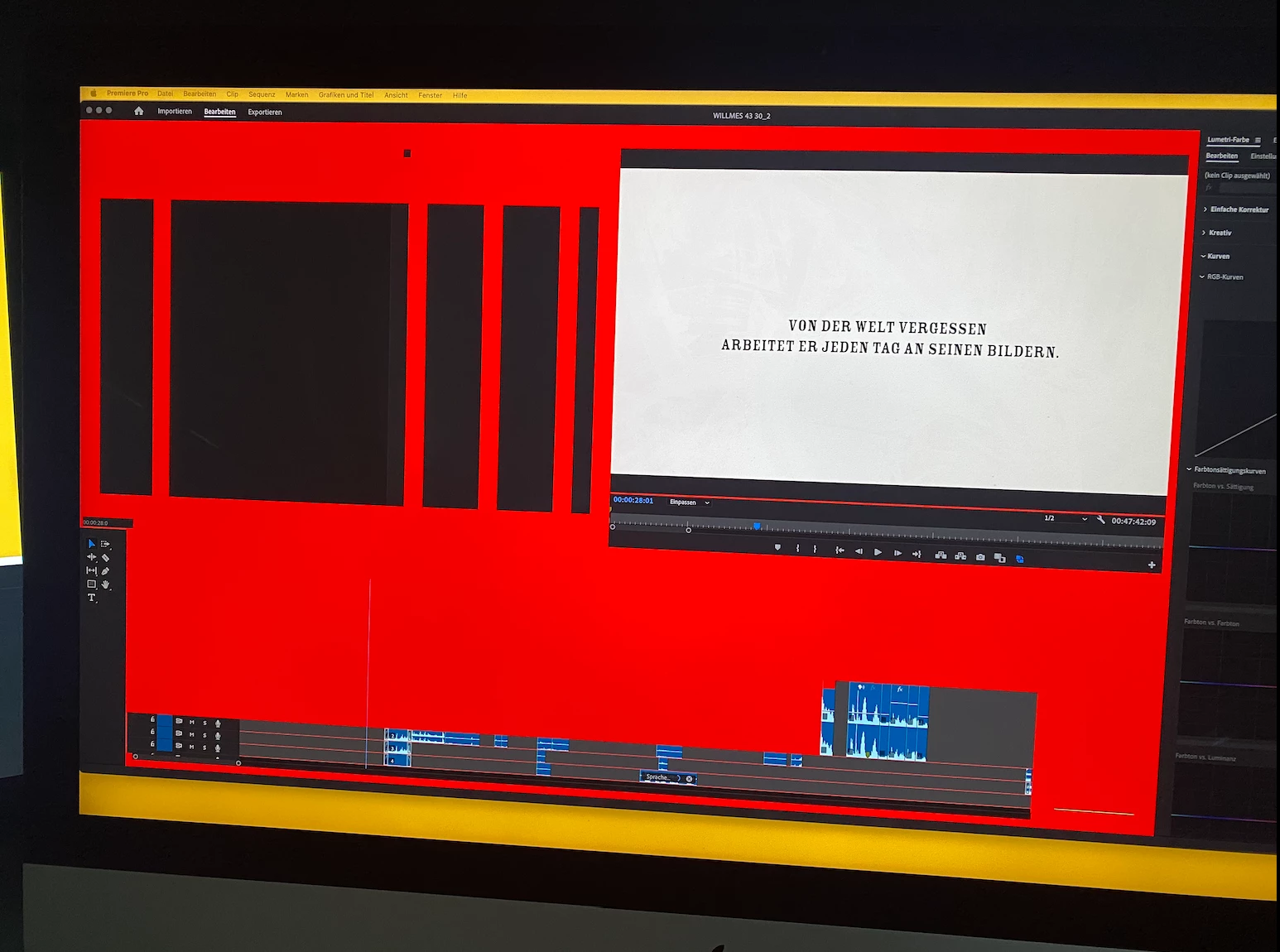
Premiere Pro 24.5 becomes extremely slow, then crashes Mac OS

  • June 30, 2024
  • 3 replies
  • 6313 views

What might the fundamental Problem? I am facing mulitple crashes on multible occasions - solving one problem causes the next one. Premiere becomes extremely slow, then causes the UI of the whole Operating System to crash. I am going constantly trough all the common routines ( 10 things to do when Premiere is slow): Clearing cashes, resetting everthing, updating everything ... you name it. On top Premiere keeps loosing render files. Im am just a (very) frustrated user and don´t want to be forced to become a computer nerd. Recently editing Takes with applied effects like KI-voiceenhancement causes immediate crashes. Editing Subtitels: Boom. Spinning Beachball of death. Premiere Beta does it too. But only Premeire. No other App! 


I am runnig Sonoma on an i9 iMac from 2020 with 64 GB RAM and a Radeon Pro 5700 XT 16GB - should be capable enough!? Datas are on on SSD G-Raid Shuttle connected via TB3. 


What am I missing?


This topic has been closed for replies.

3 replies

Participating Frequently
September 19, 2024

Im having the same issues. Deleted Cahces, Uninstalled and reinstalled. I have a super simple timeline with 2 minute duration simple mp4 and wav audio track. No plugins installed. In addition to the screen above which I have experienced, I also get prompted that I should update Premiere but as stated its been totally uninstalled and reinstalled. 


Retina 5k imax with 128 Ram, 3.6 gig 10 core i9 5700 Radeon Pro XT 16 gig

Community Expert
July 4, 2024

Hi Jan,

I have a similar iMac, and Enhance Speech has been constantly freezing and crashing my machine. When possible, I've been using Adobe Podcast instead. If I do use Enhance Speech, I avoid touching my machine until it's finished processing, as any interaction can cause a crash.

I also notice your timeline is approaching 50 minutes. Long timelines can cause significant slowdowns. I recommend breaking your sequence into smaller reels while editing, and then re-combining them at the end.

Cheers,
Paul

jan-christophs90880216
Known Participant
July 8, 2024

Thanks for sharing your observations! You are right. It is a documentary in its final version and I have to do some touch ups here and there. So I like to hop around in the timeline. That seems to work quite well. As I wrote above the problems come and go. It feels a little like the first Apple Final Cut in it´s last days witth it´s kown bugs. Troubleshooting and workarounds have become a big part of my work. And it´s not just the software. The hardware may causes problems too like lousy cable connections such as the TB3 plugs that tend to fail just by looking at them - regardless how expensive they were.

Community Expert
June 30, 2024

Hello, 

It sounds like you're facing some serious stability and performance issues with Adobe Premiere Pro, which is frustrating, especially when you're following all the common troubleshooting steps. Let's try to identify some potential causes and solutions that might not have been covered in the usual routines:

Potential Issues and Solutions

Compatibility with macOS Sonoma:

  • Ensure that Adobe Premiere Pro is fully compatible with macOS Sonoma. Sometimes, new OS updates can cause instability with existing software. Check Adobe's website for any known issues or updates related to Sonoma.

GPU Acceleration:

  • Premiere Pro heavily relies on GPU acceleration for many tasks. Try turning off GPU acceleration to see if stability improves:
    • Go to File > Project Settings > General.
    • Change Renderer from Mercury Playback Engine GPU Acceleration to Mercury Playback Engine Software Only.
  • If this resolves the crashes, there may be an issue with your GPU drivers or compatibility.

Third-Party Plugins:

  • Sometimes third-party plugins can cause instability. Try disabling or removing any third-party plugins to see if that improves stability.

Preferences and Media Cache:

  • Corrupted preferences and cache files can cause issues. You've mentioned clearing cache and resetting settings, but try deleting them manually:
    • Close Premiere Pro.
    • Navigate to /Users/[Your Username]/Library/Application Support/Adobe/Common.
    • Delete the Media Cache and Media Cache Files folders.
    • Reopen Premiere Pro and see if the issue persists.

Hardware Issues:

  • Although your hardware should be capable, there might be underlying hardware issues. Run diagnostics to ensure your RAM, SSD, and GPU are functioning properly.

Software Conflicts:

  • Background applications or system processes might be conflicting with Premiere Pro. Try running Premiere Pro in Safe Mode or create a new user profile on your Mac to see if the issue persists.

Project-Specific Issues:

  • Sometimes, specific projects can become corrupted. Try creating a new project and import your sequences one by one to see if a specific file or effect is causing the crashes.

Detailed Steps

Disabling GPU Acceleration:

  • Open Premiere Pro and your project.
  • Go to File > Project Settings > General.
  • In the Video Rendering and Playback section, select Mercury Playback Engine Software Only.
  • Click OK and restart Premiere Pro.

Running Diagnostics:

  • Use Apple's built-in diagnostics tool to check your hardware:
    • Shut down your Mac.
    • Turn it on and immediately press and hold the D key.
    • Follow the on-screen instructions to run diagnostics.

Safe Mode:

  • Restart your Mac and hold down the Shift key to enter Safe Mode.
  • Open Premiere Pro and see if the issue persists.

Creating a New User Profile:

  • Go to System Preferences > Users & Groups.
  • Click the + button to create a new user profile.
  • Log in to the new user profile and open Premiere Pro to see if the issue persists.

Using Adobe CC Cleaner Tool:

  • Download the Adobe Creative Cloud Cleaner Tool from Adobe's website.
  • Follow the on-screen instructions to run the tool and remove all Adobe-related files.
  • After the cleanup, reinstall Premiere Pro and check if the issue persists.

If these steps do not resolve the issue, it may be worth reaching out to Adobe Support directly, as there could be more specific issues with your setup that need professional assistance.

T-Sal
jan-christophs90880216
Known Participant
July 8, 2024

Right now my Premiere runs stable - except that I now get error 512 on export. It is no longer able to process a simple 8-MB-Jpeg. Problems are coming and going. The acquisition of a brand new maxed out  Mac Studio will be the only way left to go - which I can´t:-(