
Participant
April 7, 2017
Question

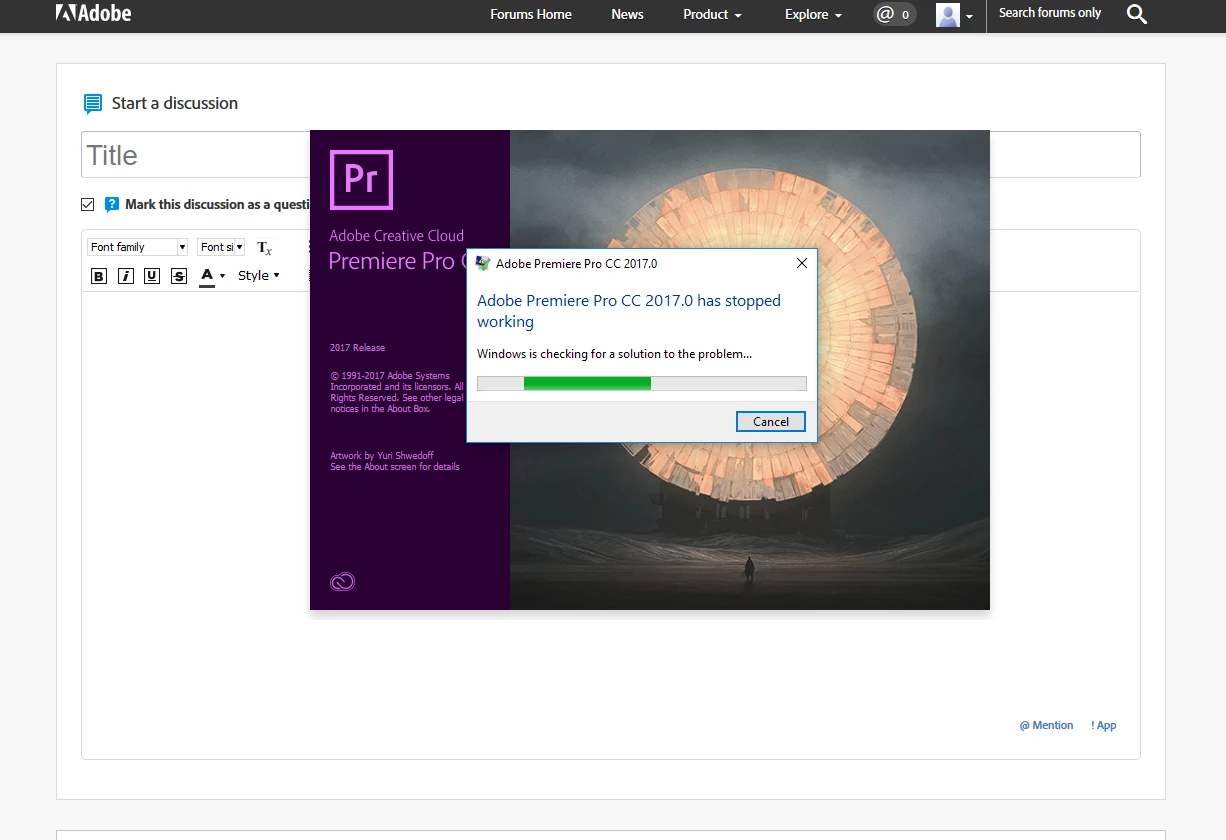
Premiere Pro CC 2017.0 has stopped working

  • April 7, 2017
  • 4 replies
  • 3484 views

Hi have recently update to Premiere Pro CC 2017 and now the application does not load.

This worked successfully on my system prior to update
Event Log

Fault bucket , type 0

Event Name: APPCRASH

Response: Not available

Cab Id: 0

Problem signature:

P1: Adobe Premiere Pro.exe

P2: 11.0.2.47

P3: 5876029b

P4: dynamiclink.dll

P5: 11.0.2.47

P6: 5875d48d

P7: c0000005

P8: 000000000001ebb3

P9:

P10:

Attached files:

These files may be available here:

C:\ProgramData\Microsoft\Windows\WER\ReportQueue\AppCrash_Adobe Premiere P_389a44e7f832e871fa31e6ec6d6927e44413e_a281e0f3_3ca7d0ae

Analysis symbol:

Rechecking for solution: 0

Report ID: 1be58088-3eee-4ac2-ab48-69a529bb0959

Report Status: 96

Hashed bucket:

This topic has been closed for replies.

4 replies

Participant
June 19, 2017

i update my gtx drive and its fixed

Participant
May 25, 2017

hi i have the same problem

but my pr pro is starting fine but when i import a video it crash

and this is happen when i update the windows    

Participant
April 25, 2017

I've been dealing with this same issue and I've been researching for 2 days still can't find a solution I've troubleshooted over and over and nothing works...

R Neil Haugen
Legend
April 25, 2017

If you still can't load ... first to make sure:

Have you downloaded and used the Adobe CC Cleaner Tool? If not, ​do​. The instructions say to uninstall via the system uninstall routine, then run the Cleaner. I do ​not​ recommend that ... it has at times worked for me, but the best way is to use the Cleaner tool to do both the uninstall and the cleanup of the files that Adobe programs put in User folders and such so that a fresh install is a completely ​clean​ fresh install.

If you've got a corrupted file in one of the many files PrPro parks outside the Program files folder, re-installing won't do squat, as when PrPro starts up, it looks for those external files for many of the user choices and previous settings ... if it  finds them, it uses them. Delete them, and it builds new ones.

https://helpx.adobe.com/creative-suite/kb/cs5-cleaner-tool-installation-problems.html

After running the Cleaner Tool, reboot the computer, and using the CC Desktop app, download/install a fresh copy.

This will remove all your preference files, so looking in the User/Adobe folder for such things, re-naming the folders they're in, then running the Cleaner tool gets those files left ... and you can try putting them back in place and re-start PrPro to see if those files are usable.

​IF​ you've done the above as I list, and it's still not loading ... use the Adobe Help system, either phone or "live chat", ​but ... on getting a live person, ​immediately ​ask for the "video que" ... which should get you past the initial level of generalist helpers to those with some to decent experience in PrPro.

Neil

Everyone's mileage always varies ...
Legend
April 7, 2017

First thing I would try is updating to 2017.0.2.

HypertwoAuthor
Participant
April 8, 2017

Hi Simon,

I had Adobe Premiere Pro installed on the computer with no issues.

I updated two weeks ago via the Creative Cloud App, so I presume it updated with the very latest version.

To be sure I have uninstalled and reinstalled Premiere Pro. The Creative Cloud app shows the program name Premiere Pro CC (2017).

When the program tries to launch I see Adobe Premiere Pro CC 2017.0

How do I get the latest version????

Many thanks VIcki

Peru Bob
Community Expert
Community Expert
April 8, 2017

Thanks for guidance.

I have done both of the suggestions above and completely uninstalled all Adobe products from the computer including Creative Cloud app. Then used the Adobe cleaner, rebooted the computer and reinstalled Creative Cloud then Adobe Premiere Pro - still exactly the same error.

How can I find out more about what is causing the conflict?

I did contact Adobe help, installed the application from https://screen.share.adobe.com

But I have problems with the program being blocked by my firewall. I turned off all firewalls include Windows firewall but still no luck connecting to Adobe. They stated I have a firewall on my router, contacted my Internet service provider and there is absolutely no firewall or block on my router. I'm hitting a lot of walls here. I just need a solution so I can get my work done

Is there a way to just go back to the previous program version I had that worked ?


Hypertwo  wrote

Is there a way to just go back to the previous program version I had that worked ?

Have a look here:

How to Find and Install Previous Version of Adobe Apps in CC 2015 | Adobe Customer Care Team