May 10, 2012
Answered

Premiere Pro could not find any capable video play modules

  • May 10, 2012
  • 39 replies
  • 194621 views

I downloaded the trial of Premeire Pro CS6 today, and after I launched the application, it said "premiere pro could not find any capable video play modules".

Tried again, no luck.

My graphics card is at the latest driver that HP has out.

What should I do before I give up?

HP DV7t Quad 17'' Laptop

i7 2720

AMD Radeon 6770HD (Switchable Graphics)

8GB Memory

    This topic has been closed for replies.
    Correct answer alexandrepitre

    Has any one found a solution? every other CS6 app works fine but PP yet my laptop (same as the one mentioned above, HP dv7) is well within the specs (2.5gb 1920/1080 /w OpenGL 2) it is however a Radeon dualed with an intell HD... could this be the issue (dual cards OR Radeon) as I have noticed Adobe plastering Nvidia all over the website and the laptop won't initeate the higher end card until the program launches (i have mannualy configed it but have noticed that games that set the graphics before loading (Skyrim, Witcher2) willnot detect the higher graphics card, nore will dxdiag) have included some screne shots to hopefully help.
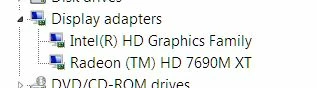
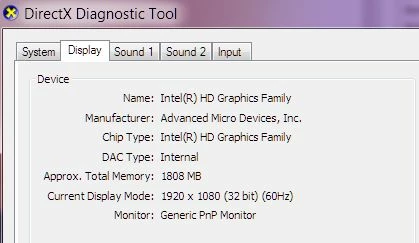
    I was able to resolve this problem on a laptop. In the AMD control panel, the main GPU selected was the Intel integrated video card that come with the processor instead of the more powerfull AMD video card.

    So, for those of you out there that have an Intel processor with the integrated GPU, make sure adobe premiere isn't using the Intel GPU to launch.

    39 replies

    Participant
    September 8, 2012

    Hello everyone, I'm having the same issue... I have a HP Pavilion dv7, with the 6770 series AMD card similar to the original poster. Im assuming its an issue with the switchable graphics card thing. Just purchased CS6 Production Premium and Im eager to edit on Premiere. I have tried almost everything that was suggest previously on this thread that was applicable. I still cannot get the software to work. Any additional ideas?

    Participant
    August 27, 2012

    I am having the same problem now. I was getting the "could not find any capable video play modules" message. I tried solution 1 and 2 provided by Adobe support to no avail. Then I went to BIOS and changed the Switchable Graphics from Dynamic to Fixed. I was able to access the program, but every few minutes Premiere Pro stops working and I get a message saying that my "AMD display driver has stopped responding and has recovered." The preview windows in Premiere then black out and I can't view anything. I have to go to my task manager, end the premiere process and then restart using task manager to get it working again for a few minutes before I have to do it all over again. My graphics card is a Radeon HD 6490M, I have 8gb RAM, and I am on Windows 7 64-bit Premium. Please help.

    the_wine_snob
    Inspiring
    August 27, 2012

    Have you gone to the ATI/AMD Web site, and checked that you have the latest version of the Catalyst drivers? Do not trust Windows, or any utility to tell whether you have the latest drivers - check for those on the site.

    Good luck,

    Hunt

    Participant
    June 21, 2012

    Hi I had a similar problem with my Vaio VPCCA35FG and I found this solution which worked for me

    1. Go to Catalyst Control Center/Graphics Properties

    2. Choose Power/Switchable Graphics Method

    3. Change from "Select the graphics processor based on application needs." to "Select the graphics processor manually or based on power source."

    4. Click Apply, wait for a few screen flashes and you are all set to start Premier Pro CS6

    Participant
    June 15, 2012

    Hello I had a similar problem and I fixed it changing a parameter in the BIOS, as suggested here (same problem for Prelude)

    http://helpx.adobe.com/prelude/kb/error---preludevideo-play-modules.html

    The steps you need are:

    1) restart your computer

    2) press F10 to access the BIOS while restarting

    3) change the Switchable Graphics from Dynamic to Fixed.

    That worked for me.

    Roberto

    Participant
    June 13, 2012

    Hey, I found a solution that worked for me!

    I'm a long time Adobe Suite user, had CS5.5 on my laptop and everything worked great. Updated to the CS6 suite and everything worked fine except for Premiere Pro 6. I was getting the "Could not find any capable video play modules. Please update your video display drivers" error.

    I have a HP Pavilion dv6 (Win 7) with a Intel® Processor Graphics 3000 and AMD Radeon HD 6700M Series Display Adapter.

    I tried the tip above to disable the Intel Graphics and and it reverted to the VgaSAVE driver instead of my AMD Radeon. My resolution shrunk down to 1024 but Premiere CS6 now opened without a problem. Working with the low resolution, however, was just not an option.

    So I went on the HP website and although Windows said my Intel Graphics 3000 driver was up to date (9/3/11), I found a newer driver (1/21/12). Here's the driver link:

    http://downloadcenter.intel.com/Detail_Desc.aspx?agr=Y&ProdId=3231&DwnldID=20841&ProductFamily=Graphics&ProductLine=Laptop+graphics+drivers&ProductProduct=Intel%C2%AE+Core%E2%84%A2+Processors+with+Intel%C2%AE+HD+Graphics&lang=eng

    I installed it, restarted my computer, and now Premiere CS6 opens up with no problems.

    Hopefully this helps!

    Participant
    May 17, 2012

    If yours is HP pavillion g4 2002tx and adobe is not treating ur AMD radeon HD 7670m as the primary video card, then go to control panel-->system and security

    -->power options-->(look for 'personalization' at bottom left)-->(look for 'display' at bottom left)-->Change display settings-->advanced settings-->go to 'Adapter' tab

    Try to disable the Intel Graphics 4000 in the 'Properties' key. Adobe should work then. But might have prob if you need the intel graphics again. but you can always revert your settings using a earlier restore point for windows. Please correct me if there is any wrong and i hope it helps.

    June 5, 2012

    go to control panel-->system and security-->power options-->(look for 'personalization' at bottom left)-->(look for 'display' at bottom left)-->Change display settings-->advanced settings-->go to 'Adapter' tab

    Try to disable the Intel Graphics 4000 in the 'Properties' key. Adobe should work then. But might have prob if you need the intel graphics again. but you can always revert your settings using a earlier restore point for windows. Please correct me if there is any wrong and i hope it helps.

    I might be able to add something here...

    I've got a Dell Inspiron 15R, with an AMD Radeon HD 7670M, so I tried the same thing to force the dedicated GPU as default, but I found that if I disabled the Intel Graphics 4000 adapter, Windows (7) reverted to the VgaSAVE driver...

    (I also tried the BIOS, but that didn't give me any graphics options at all, and 'run as administrator' didn't work either... that just returned the standard 'no video play modules' error...)

    The only way I could get it working was to open up Catalyst Control Center and manually add the Premiere Pro exe file to Power/SwitchableGraphics/OtherApplications... I know that hasn't worked for everyone, but I haven't had any problems since...

    (Also set both 'PowerPlay' settings to maximum performance if you're still having problems...)

    If this worked for you, I know it's a bit of an annoying way to configure your system just to get applications to run properly, but once you've set up your core high performance programs, it's really handy for conserving power. After I got Premiere Pro working, I went ahead and did the same thing for Photoshop, Illustrator and Flash, but not Audition (so I can scrape a little more juice out of the battery when editing audio tracks on the road...)

    PECourtejoie
    Community Expert
    Community Expert
    June 11, 2012

    A user in the French forum is in the same case, with a HP DV7. He deactivated the intel GPU, and is facing lower resolution with his Radeon HD7470M.

    New Realm Media
    Participant
    May 13, 2012

    http://helpx.adobe.com/prelude/kb/error---preludevideo-play-modules.html

    this worked for me after several days with Adobe and HP for HOURS!

    Todd_Kopriva
    Inspiring
    July 19, 2012

    Here's a more complete document with solutions for Premiere Pro for this issue:

    http://bit.ly/Mur4jo

    Error: "Premiere Pro could not find any capable video play modules"

    Participant
    December 14, 2012

    yeah i can find that page with google. I tried all three solutions and none worked.

    I usea HP Pavillion g series. Win 7

    May 12, 2012

    There are many different steps you can try to resolve this error.

    1) Recreate preferences.

    Go to start & type "%appdata%" in the search box & you will see a roaming folder in the search results.

    Open the roaming folder & then go to the adobe folder & then the Premiere Pro folder. Inside you will find the 6.0 folder. Right click on that & select rename & change the folder name to "6.0old".

    Then try launching Premiere Pro while holding down the shift key while it loads the various components on the splash screen.

    (Holding down the shift key refreshes the plugin information)

    2) Update the NVIDIA & AMD drivers to the latest version. Do not run the automatic update. Manually go the NVIDIA or AMD website & then look up the latest available graphics drivers for your graphics card & then download & install them.

    NVIDIA - http://www.nvidia.com/Download/index.aspx?lang=en-us

    AMD - http://support.amd.com/us/gpudownload/Pages/index.aspx

    3) Try disabling the startup items & services at some services running in the background could be blocking access to the graphics card for Premiere.

    Click on start & type in "msconfig" in the search box & press enter.

    It will open the System Configuration utility. Under general>startup selection select the option for selective startup & then uncheck "load startup items".

    Go to the "services tab" & make sure to check the option for "hide all microsoft services" (Very Important)

    Then click on disable all.

    Now go through the list of services that are given & check any of the following adobe services you might find in the list like :

    FlexNet Licensing Service

    Adobe Switchboard

    After checking the above services click on apply>ok>restart.

    After restart try to launch Premiere Pro again.

    Note : To re enable all your services again open the System Configuration utility again using "msconfig". Under general>startup selection select the option for "normal startup". Click on apply>ok>restart. This will reenable all your services.

    4) Try logging in to the hidden administrator account.

    Click on start & type "cmd" in the search box. At the top of the windows you will see cmd in the search results. Right click on that & select run as administrator.

    It will open the DOS prompt windows.

    In that type in "net(space)user(space)administrator(space)/active:yes" & press enter.

    You should get the message comand completed successfully.

    Close the window & restart your computer. After restart once you get to your login page you will see a new account called administrator. Login to the account & then try to launch Premiere.

    For those users for whom the above DOS command does not work might have the administrator account disabled, just try to create a new administrator type user account & then try to launch Premiere in the new user account.

    The above steps should solve the problem for atleast NVIDIA card users. For AMD card users it might not solve but I am looking into it & I will post try to post further steps after research.

    Participant
    August 25, 2012

    I am having the same problem. My graphics card is Nvidia 9800 GTX+. Drivers are up to date. I have gone through all the steps described above  and still unable to get Premier Pro 6 to start up. Had been running verion 5/5.5 successfully before. Any other thoughts out there? I am about to uninstall and go back to previous version?

    Later that day..

    OK, I now know why I can't get it to run. I ran GPUsniffer and found that it was rejecting my card due to insufficient memory.  My 9800 GTX+ has 512mb of memory. That seems to be less than the minimum required.  Guess I either have to upgrade my card or go back to last version.

    John T Smith
    Community Expert
    Community Expert
    August 25, 2012

    You "should" be able to use "just about any" card with CS6... but in software only mode if the card has less than 1 gig of video ram

    If you have the card name entered in the supported cards file, you will have to reverse the hack and remove the name

    Participating Frequently
    May 10, 2012

    I downloaded the trial of Premeire Pro CS6 today, and after I launched the application, it said "premiere pro could not find any capable video play modules."

    I'm having the same issue and can't figure it out. I have tried too many things to remember and put down!

    Here is my computer setup:

    HP h8-1080t Quad w/ i7 Quad-Core Processor

    Windows 7 Professional

    NVIDIA GTX-580 (using driver version 295.73)

    24 GBs DDR3 RAM

    I have tried using previous driver versions - didn't work

    I have tried creating another account on my computer - didn't work

    Is there an answer out there? It appears my computer is setup according to Adobe's recommended specs - but I can't get Premiere Pro or Prelude to start. All other programs work great!

    Participating Frequently
    May 10, 2012

    This must be a bug or some issue with Premiere Pro CS6. This is what I did to solve the issue.

    1. I put the shortcut to open Premiere Pro on my desktop.
    2. I right-clicked the icon and selected "properties"
    3. Once the Properties window opened, I selected the "compatibility" tab.
    4. Under Privilege Level I checked "Run program as administrator."
    5. Then I clicked "OK."

    Now Premiere Pro and Prelude opens with no issue! But each time I open one of these programs, I have to click "yes" in the security window that comes up asking if I want this program to make changes to my computer. Now - how can I stop that from coming up?!?

    HippoHQ_-_Paul_Shaw
    Participant
    May 11, 2012

    For some reason it stopped working for me. It was great for a while today. What is the problem?!? I wanted to get this straight due to my software coming in the mail this coming Wednesday. If I open it and can't use it - I'm stuck. The trial version works great except for Premiere Pro and Prelude. Anyone have a solution yet?


    Has any one found a solution? every other CS6 app works fine but PP yet my laptop (same as the one mentioned above, HP dv7) is well within the specs (2.5gb 1920/1080 /w OpenGL 2) it is however a Radeon dualed with an intell HD... could this be the issue (dual cards OR Radeon) as I have noticed Adobe plastering Nvidia all over the website and the laptop won't initeate the higher end card until the program launches (i have mannualy configed it but have noticed that games that set the graphics before loading (Skyrim, Witcher2) willnot detect the higher graphics card, nore will dxdiag) have included some screne shots to hopefully help.