Participant
January 30, 2020
Answered

PREMIERE PRO INTERLACING/HORIZONTAL LINES ON EXPORT ONLY

  • January 30, 2020
  • 2 replies
  • 20317 views

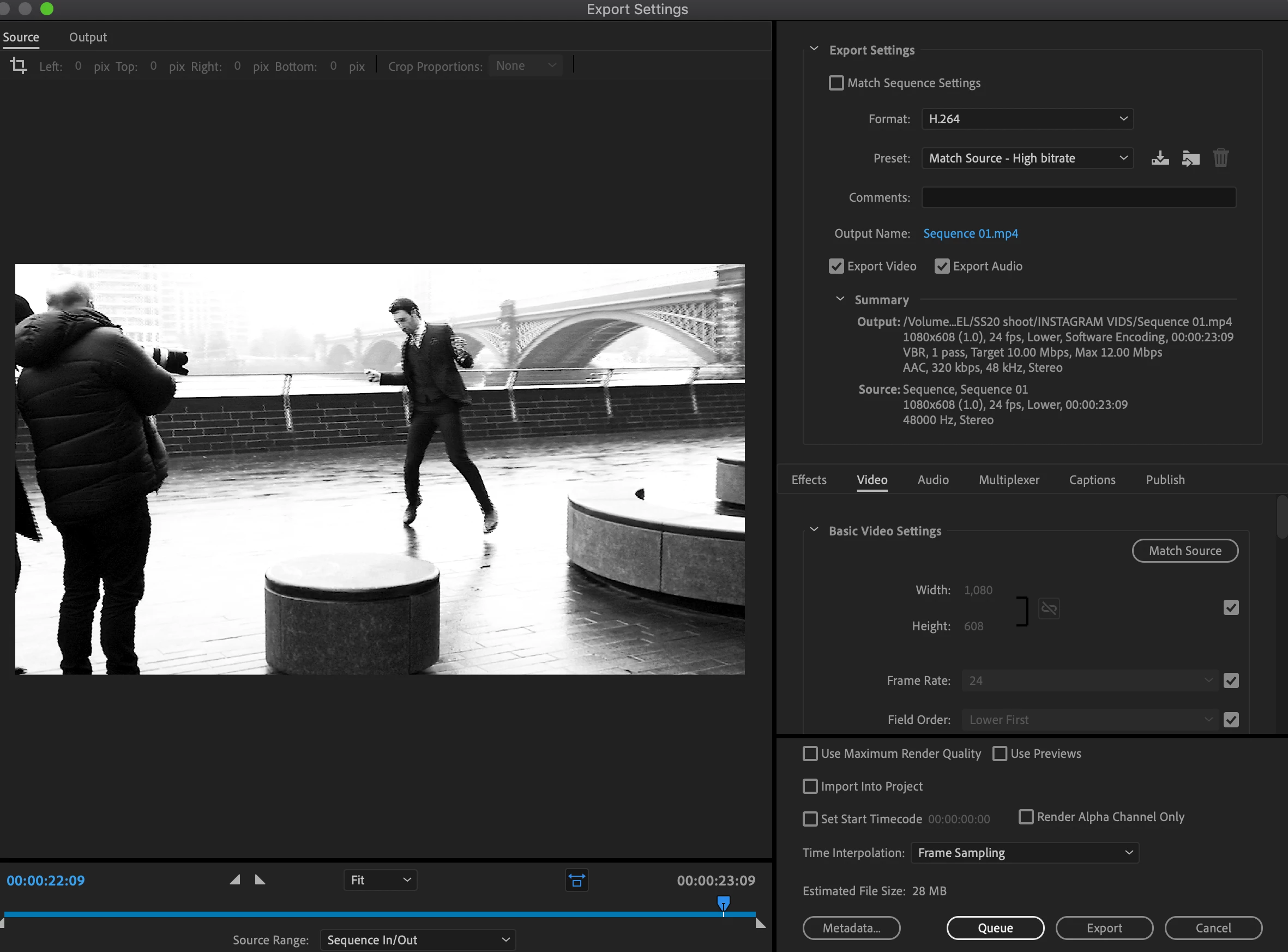
My videos look fine in premiere pro but as soon as i export them they have a strange combing effect which I can't get rid of. The only solution I have is to move my premiere pro into after effects and export from there. I have tried re starting my mac and updating premiere pro but this issue is still happening.


I've never had this problem before and use premiere pro regularly so there must be a setting or shortcut that has caused this issue? 
 

This topic has been closed for replies.
Correct answer Richard M Knight

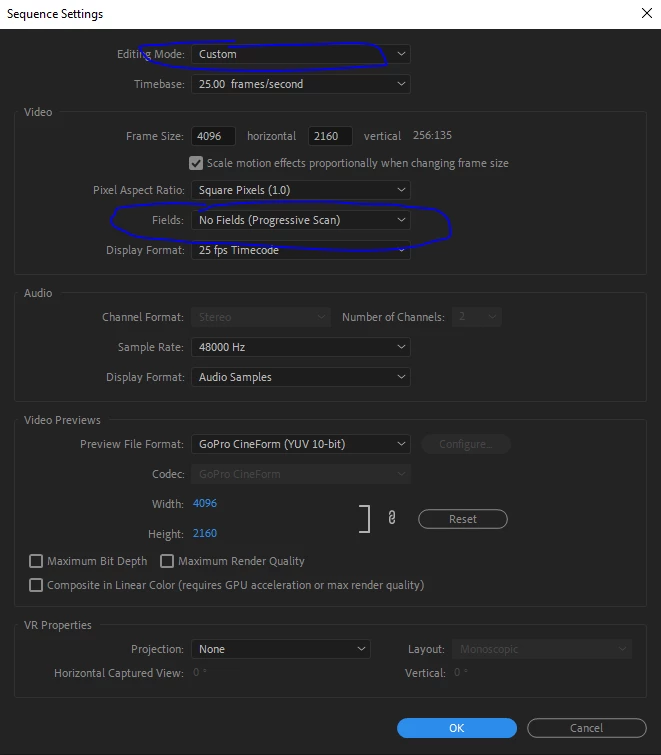
You should have the option in the sequence settings:

2 replies

Richard M KnightCommunity ExpertCorrect answer
Community Expert
January 30, 2020

You should have the option in the sequence settings:

Beatres
Participant
October 5, 2021

Hi! I had the same problem too but I only realized this after I exported. I tried changing the editing mode to customs and this is what showed up. What does this mean? Will any of my clips get deleted if I press ok? Thank you!

Community Expert
October 5, 2021

The preview files will be remade, if needed, with the new sequence settings. You should not lose any of your work but it might take a little while for the previews to be remade.

Community Expert
January 30, 2020

What format is your footage?

You have an odd sized sequence and you have it set to interlaced, lower field first.

enkiAAuthor
Participant
January 30, 2020

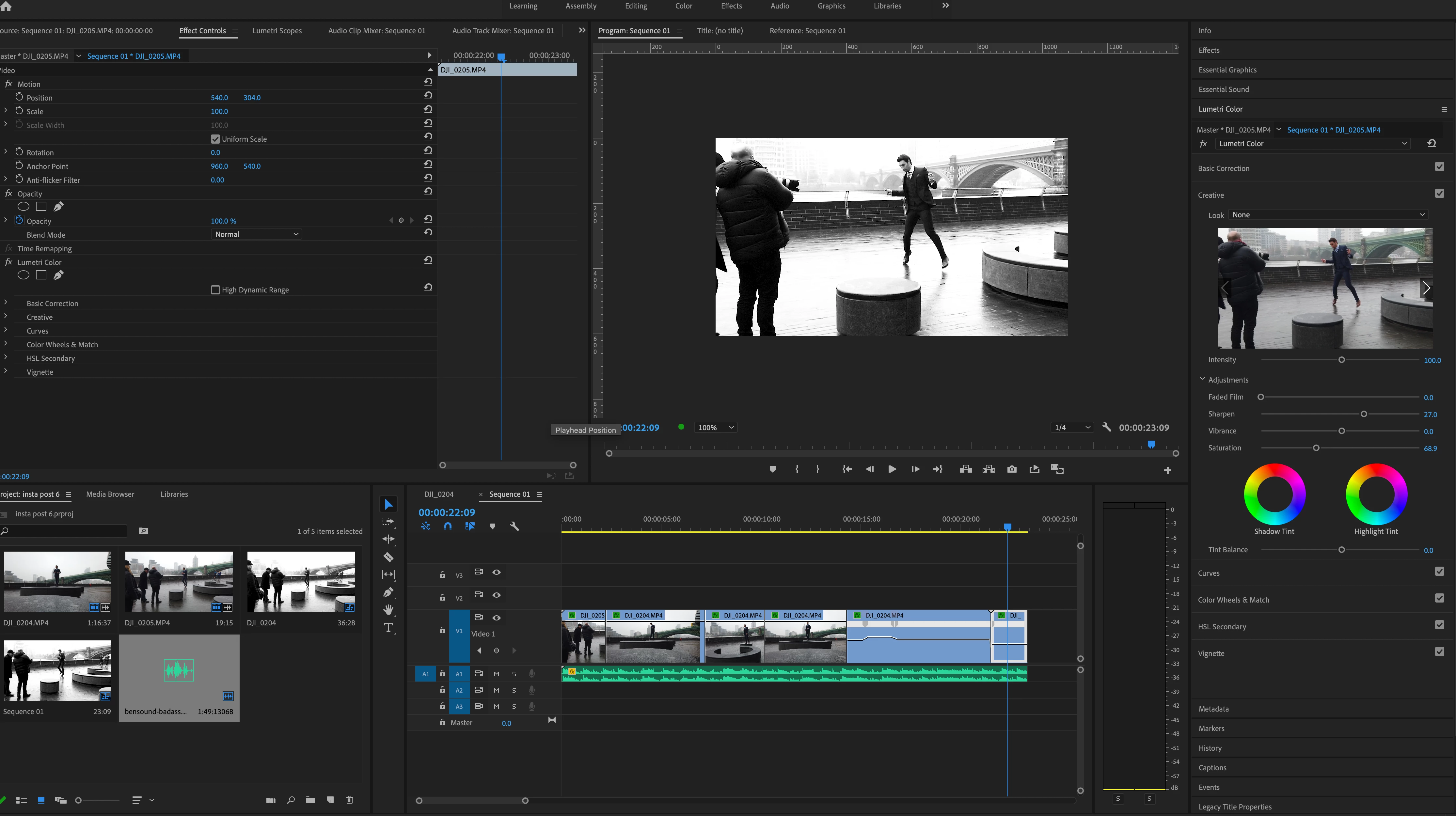
The orginal footage is MP4 files and the sequence size is for instagram but the same problem has happened when the size has matched the orginal footage. 


How do stop it being set as interlaced as I can't find the settings anywhere. These issues have not happened on another machine using the same footage.