
Participant
December 10, 2018
Answered

Premiere Pro Lut Crashes...Enough Already!

  • December 10, 2018
  • 6 replies
  • 7461 views

OK, as an editor and cinematographer for prime time projects with A list actors, I decided to take a dip in the pool with Adobe Premiere due to it's color grading application. Normally I would use Resolve, however for rough cuts I thought Premiere would cut the mustard. For the most part it's a wonderful program that has come a long way. I begin with this program back in the day, many years ago. I currently work and shoot with mostly Red format and Sony FS7. Once upon a time I began to use LUTS inside Premiere as many do. But like the many that have screamed out for help, I too I'm the victim of constant crashed when applying LUTS or scrolling through LUT previews. I have tried many alternatives to fix this problem. Creating LUT folders in the Common folder and even keeping the LUT folders where they originate when application is installed. I have...reinstalled many times, use various LUTS from various third party vendors...and...ready....even seen it crash when using the LUTS that come with premiere when installed. I have used our IMAC 2017 with video raids galore and also a Mac Pro tower, all to no avail. All while sporting 32 GB ram, 4GB video cards and dual processors. Still it doesn't matter as it behaves the same on both machines.  Funny thing is both Avid and Resolve work flawlessly using LUTS to the fullest extent. I still would like to hang on to Premiere as it does have some great features with less work around than other apps. However if it can't hang with LUTS and continues to crash every time you scroll through the LUT preview, then trust me, it's not ready for prime time as time is money. When the pressure is on things have to just...WORK! Also I would love to see a LUT gallery like the one Blackmagic just came out with for Resolve. If you guys could do this and find a solution for the preview crash, you will instantly be kicking down the back door into a world where everybody will know your name. Good luck and hope soon there is a solution to this. In the meantime I have to unfortunately go back to Avid and Resolve. Please convince me there is hope. 
    This topic has been closed for replies.
    Correct answer R Neil Haugen

    So ... you've used the proper places to store additional LUTs and are still getting crashes? That isn't normal at all.

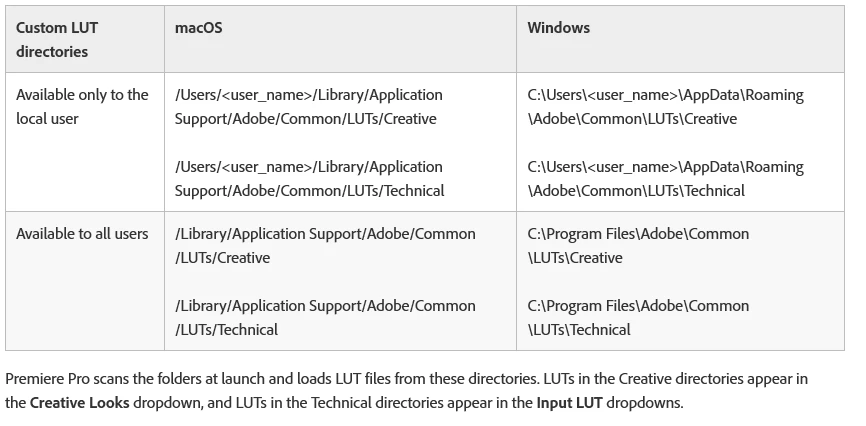
    Just to be sure ... from the chart below, you create the Creative and Technical folders at the end of the chains listed, then park your LUTs there depending on whether you want them to be in Basic tab drop-down list (Technical) or Creative tab viewer/drop-down (Creative).

    Neil

    6 replies

    Participant
    February 8, 2023

    This is a old post, but this problem still exists. Premiere Pro only crashes on me, if I try to click trough the LUT previews. All of them are in the folders which are mentioned here. My PC is a i7-10700KF, 64GB DDR4, GeForce 1650 Super stored on a 2TB SSD machine, so that there should be enough power. This really limits my progress on projects.

    Participating Frequently
    February 22, 2023

    Is there any solution for this issue already? I am also feeling very limited by this

    R Neil Haugen
    Legend
    February 22, 2023

    File a fresh post in this forum as a Bug. Including computer specs, media in use, any other effects in use, and exactly what LUTs stored where on your machine.


    We need to give the devs enough data to find this bugger.


    And though I'm not having the issue, I'll be happy to upvote it.


    Neil

    Everyone's mileage always varies ...
    R Neil Haugen
    Legend
    January 31, 2020

    Ignacio,


    It wasn't clear from your post if you were using the Program/package files folder tree within Premiere for your LUTs, or the proper location as in the chart below? If you're using the Program/package files, move them OUT. That is highly problematic to add LUTs/Looks there.


    If you're already using the proper external locations and getting this, please ... post a report on the UserVoice system with full data for your system, media, and LUT storage locations plus behavior. They do read every post there, and so that gets the information directly to the engineering team. Also ... all posts there are collated and sent up the line to the upper managers who determine engineering budgets, and ... we should show them everything that's a problem needing engineering time. 


    If you do post there or upvote a current report there, please come back here and include the link. I ... and others ... can then go upvote the dang thing.


    I find the differences in working patterns facsinating. As colorists all note, "LUTs are the dumbest math out there". They can quickly and easily crush blacks, clip whites, and cause sat excursions. If a clip wasn't shot with the same lighting and exposure and such of the clip used to create the LUT, well ... it likely needs "trimming" to get within the bounds of the clip used to create the LUT.


    So ... I always use LUTs even for log-correction (especially for log correction!) in the Creative tab, so as colorist's teach, I can go back before the LUT in the Basic tab and adjust the original clip data for best use of the LUT without clipping/etc.


    Neil


    Everyone's mileage always varies ...
    Participant
    January 31, 2020

    I have the same problem users are reporting. I have my LUTs under Technical folder just because I like them to appear on basic instead of creative. Usually after testing 3-4 LUTs under an adjustment layer over a video, Premiere will display aevideofilter:13 ERROR, and after that Im pretty much screwed because it will freeze and crash as soon as I try to click something. My computer is an i7 4770k@4GHz, 16gbDDR3 RAM, GTX980 4Gb and I run both Premiere and the files Im editing from a 250GB SSD. Happens with both CUDA and only Mercury on. Files arent heavy at all, 1080p footage from an old Sony camera. 

    Never have I ever had any problems at all with Premiere except for now with these LUTs presets. For the record, the default LUTs that come with Premiere also cause this problem so I guess you can discard the custom LUTs to be the problem

    R Neil Haugen
    Legend
    October 28, 2019

    Joe,


    That's interesting ... you get the same behavior with the included LUTs. Something is certainly screwy.


    I take it this happens even if you start a new project with new media?


    Neil

    Everyone's mileage always varies ...
    joerih60321235
    Participant
    October 29, 2019

    I think is has something to do with the combination of my videofiles. These are captured with the DJI Mavic Pro 2 and are way more "heavier" than the old Mavic files I worked with before. The combiantion of applying LUTs to these files seem to be crash the machine.


    Altough I am on a (in my opinion) powerfull machine.

    Intel Core i7087ook CPU 3.70Ghz

    16GB of RAM

    1080TI Nvidia Graphics card.


    Any ideas?

    R Neil Haugen
    Legend
    October 29, 2019

    Joe,


    Would you please post this issue on the UserVoice forum for the engineers to look at?


    Adobe UserVoice Bug /Feature form: https://adobe-video.uservoice.com/forums/911233-premiere-pro


    Neil

    Everyone's mileage always varies ...
    R Neil Haugen
    Legend
    October 28, 2019

    Joe,


    Please post screengrabs of your Finder/Explorer window showing the folder tree chain so we can see the location of the LUTs on your computer.


    The vast majority of users have no troubles with this. Most that do are not actually using the proper process and that is sure easy enough to do.


    And there are a few cases (ofcthe total user base) where even following the proper process is problematic. So the first thing is to make sure what is the exact location used.


    Neil

    Everyone's mileage always varies ...
    joerih60321235
    Participant
    October 28, 2019

    It does not matter.. even if I user the default LUTs, after a while I get the same error. I have my folder structure Just as you mentioned above.

    R Neil Haugen
    R Neil HaugenCorrect answer
    Legend
    December 10, 2018

    So ... you've used the proper places to store additional LUTs and are still getting crashes? That isn't normal at all.

    Just to be sure ... from the chart below, you create the Creative and Technical folders at the end of the chains listed, then park your LUTs there depending on whether you want them to be in Basic tab drop-down list (Technical) or Creative tab viewer/drop-down (Creative).

    Neil

    Everyone's mileage always varies ...
    Participant
    December 10, 2018

    Neil,  thank you for your reply. As a matter of fact I had seen your post a while back and followed your schematic seeing I was not aware of creating those folders at the end of the folder chain inside common/luts, etc. However that did not work. As soon as I load a LUT and preview say 5 or 6 lUTS it will freeze. I do have a question. When reinstalling premiere it by default puts the creative and tech folder inside the Adobe Premiere contents folder. By creating the folders and placing them where you suggest would I need to delete the default location folders. It seems to me these may clash if I did not. Anyway other than that Im not sure whats going on. Now I can import LUTS through browse one at a time but as you would know, that by passes preview and defeats the whole purposes. In the meantime Im going to just have to go round trip from Premiere to Resolve for color grading and back which works flawless. Any other ideas please let em know Neil and thank you for replying.

    R Neil Haugen
    Legend
    December 10, 2018

    Don't worry about the folders inside the program/package folders being "the same". Just set up and use the folders as specified in the chart/info thing, and PrPro will display the combined contents in alphanumeric order. Which is why I name mine such that they come up first, like just adding an A, or 1, whatever ... to the beginning of the name.

    I find the process to prep an XML-out, do the conform-in process within Resolve to be enough of a pain even for my small projects that I prefer the saved time/hassle by using Lumetri. Especially with the production upgrades Lumetri's been given in the last couple versions.

    The ability to create multiple "instances" or layers of Lumetri, renaming them for their use ... from the control header for the Lumetri tab ... is a slick joy. As I follow the ideas I've picked up from Alexis Van Hurkman's books and Robbie, Pat & company on Mixing Light ... doing quick multiple passes down the line for the different steps of grading ... this is just a huge upgrade.

    Also ... you can easily save the stuff you do in typical steps within all your work or within a project to presets ... then say, select all the clips from a sequence, drag/drop your named "Base" or neutralization preset onto the sequence, every clip now has that instance/layer of Lumetri with any settings/LUTs/Looks you have set for it.

    Work your way down the line trimming in clip after clip using the Comparison view mode, maybe even the Apply Match button to get closer first ... then select-all/drag-drop your next preset onto them, start at the beginning of the sequence for the next step.

    Especially with the Elements and Ripple panels I'm setup to use, where I've mapped the entire Basic tab to the three ball/ring combos, and on the Elements have a ball/ring do mouse emulation when in Curves mode using those nifty new curves they've got ... this is a very fast & capable process.

    Neil

    Everyone's mileage always varies ...