
Participant
December 5, 2021
Question

Premiere Pro Rec.2100 HLG exporting over-exposed clips

  • December 5, 2021
  • 3 replies
  • 30727 views

I have a Rec.2100 HLG color space timeline, where I put my files from the Sony a7iii recorded with the following settings: Hlg3 & Color mode BT.2020
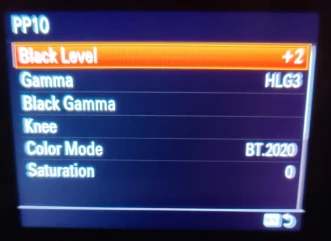


Image of the settings


The image looks fine in the Sequence I have created
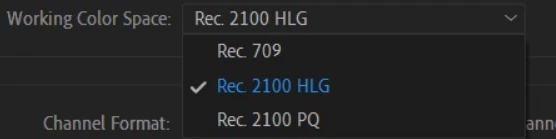
 

The thing is when I export it gets saturated/over-exposed


Image in sequence
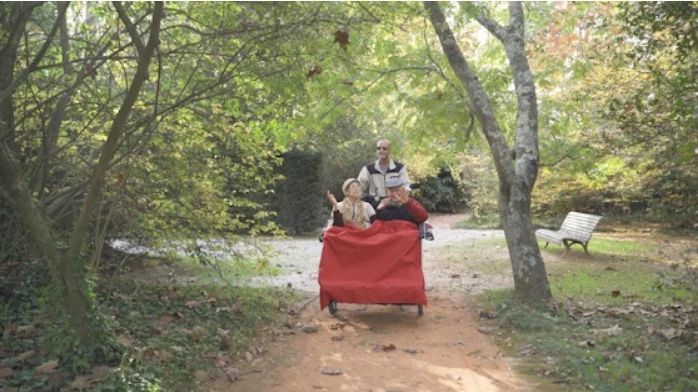
Exported image:


I've tried chancing the export settings, but they all come with the blown-up result:


I can also add that I did a job with the exact same camera & settings in the same computer but before the Premiere Pro update and it was all working without any problem. 


What am I missing here? Thank you in advance for your help.


3 replies

Participating Frequently
September 14, 2023

I've had a similar issue with the iPhone 4. Even in non-HDR mode, it is recording footage in 2100 HLG which is not matching most Premiere timelines and MPEG4 formats (DSLR etc) which are Rec 709.

No matter how much you play with these settings (sometimes 2020 gives the better result) it will always look like it's color-graded and you can't change it except for manual manipulation.

I spent some time talking with Adobe via remote control assistance adjusting various settings.

Long story short, Adobe support said that iPhone uses a broader color range than Premiere is currently capable of.
They said they are aware of the issue and hoping to expand on that in an upcoming update...

A workout they suggested is to upload to imovie in iPhone and then export it as the highest quality of ProRes. I didn't try it because I don't have an iPhone I simply got some footage from it and tried to edit for someone.

R Neil Haugen
Legend
December 6, 2021

You are exporting with Rec.709 setting, NOT HDR.


So when you go to export, set your Format, like H.264. Then scroll down the presets until you get specific HLG preset options.


I go over the massive changes to color managment options, default behaviors, and practical working in Pr2022 in the FAQ listed below.


Neil

FAQ: PremierePro 2022 Color Managment for Log/RAW Media

Everyone's mileage always varies ...
robs2882
Participant
September 25, 2022

Hi Neil,

For some reason whenever I do this the file finishes it exporting but it is un playable. The exported file doesnt have a preview and when I run it it opens Windows the movie player but nothing happens!

Can you advise?


Rob

R Neil Haugen
Legend
September 25, 2022

How about making a screen-grab of your export settings, then drag/drop that image onto the text reply box. That's a good start.


Neil

Everyone's mileage always varies ...
Community Manager
December 5, 2021

Hi SnowCross,


H.264/HEVC codecs are now color-managed in Premiere Pro v22. You may refer to this link to know more about it. Your sequence is in Rec. 2100 HLG color space & you are exporting in Rec. 709 color space. Switch the export color space to Rec. 2100 HLG to match the preview. To do this follow these steps.

  • Navigate to Export Settings > Video tab > Encoding Settings & set Profile to High10.
  • Change Export Color Space to Rec. 2100 HLG & try to export.

Hope this helps. Let us know if you have any questions.


Thanks,

Sumeet

SnowCrossAuthor
Participant
December 5, 2021

Hello Sumeet! Thank you for your answer.


When I go to those options the tab doesn't let me change the setting. 


I have managed to do this (like you can see in the two print screens I sent in the first post) by applying "Match Sequence Settings" and still it gave me the same over exposed file.

Joost van der Hoeven
Community Expert
Community Expert
December 6, 2021

Whre do you check de export? Inside Pr?

Have you tried to set the the Video Export Color Space manually to Rec. 2100 HLG?