
Premiere Pro timeline broken, cannot complete my projects
I have been having ongoing issues with Premiere Pro. The latest 25.1 is installed.
I am editing using for example a nested sequence because I am replacing the orginal spoken voice over narration in a file so I use a nested sequence.
What I usually do is transcribe the original spoken voice over track, then render as captions and use that a key so I know where to insert the replaced spoken audio. Such a sequence will include the video track, audio track and captions. I have not found a way to use either groups or linking to link all three elements som that when I add cut and drag then all 3 will move together. It's always so that the video and audio will drag but the captions do not stay with them.
So I create a nested track so I can see only the video track nested into the main sequence and I can apply cuts there.
So what's been happening is that I am going through the squence to edit it and after a while playback will stop - the program monitor is blank and clicking play does nothing.
I then try to do the following as examples,
1. Set audio input device to None.
2. Reset app and cache preferences.
3. Under Sequence menu use render audio, render in to out and render effects in to out and delete render files. 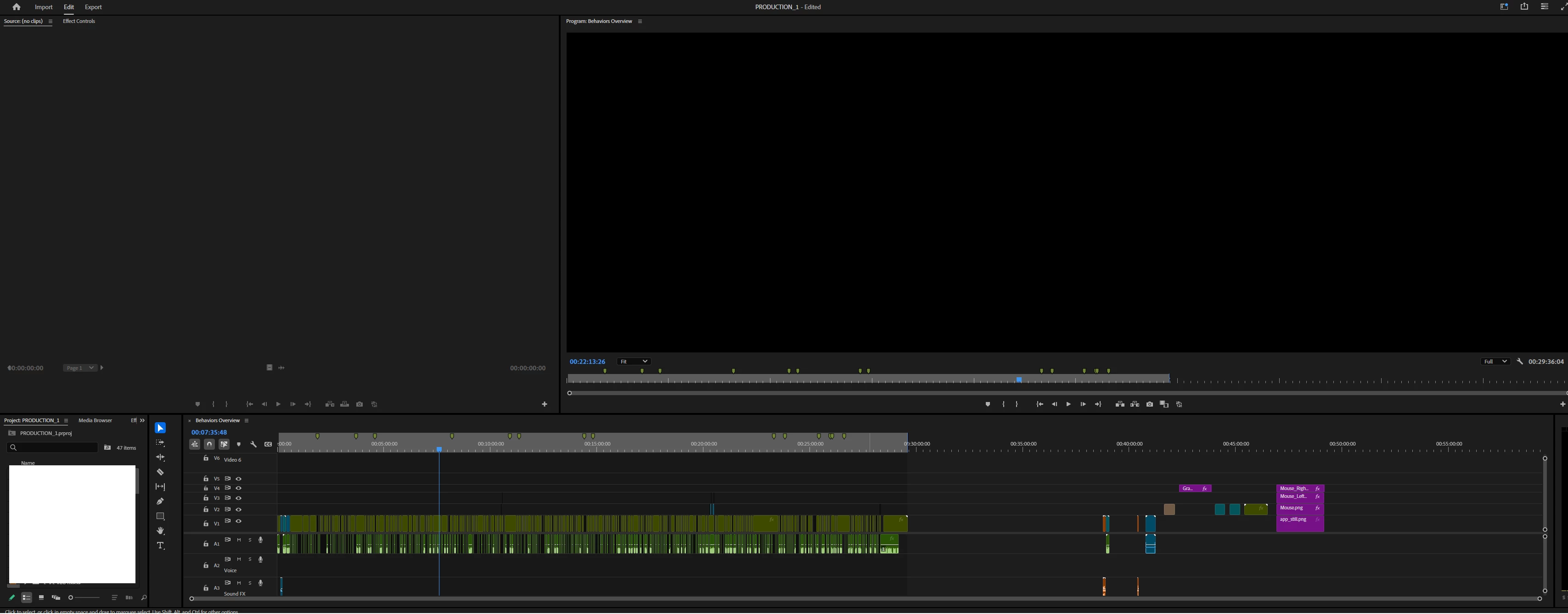
And after a while the video will appear back in the program monitor and playback will continue. And the yellow cache rendered indicator will eventually appear. But the moment I try and add any kind of edit a gap in the yellow cache indicator appears and playback stops completely again.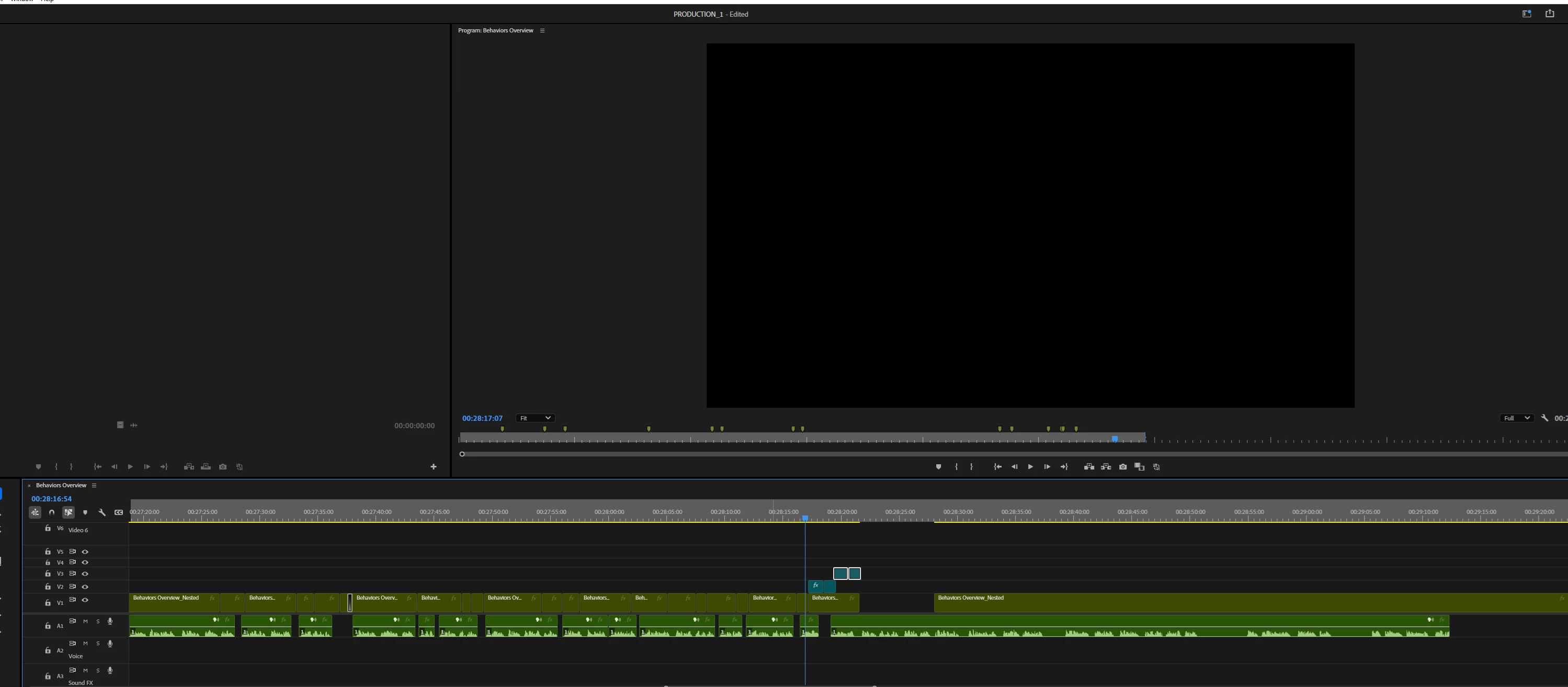
I was beginnig to think that since I am using a nested sequence that contains several individual clips that it might be an issue. But I am at the point where nothing at all is playable now. So a regular sequence where nested clips are not used.
 AdChoices