First, I followed the steps that you gave me and the video sayed that it is 1920*1080 even though the videos turn out to be different. Then, I went to file at the top left, then down to export then over to media. From there I went to the video section and then to Basic Video Settings. There it said the width was 720 and the height was 480. The text saying all that was gray and I couldn't change it.
After that, I saw at the top of the export settings that I could checkmark a box titled Match Sequence Settings. I checked the box and down where the width and height said 720*480 now said 1920*1080 in its place. The text was still gray by the way. Next, I went to the publish section and scrolled down to the youtube area and everything was gray. I could not checkmark the box by the text youtube so I couldn't publish the video.
I would highly appreciate if anyone could help me out with my troubles and I'm sorry if I have caused you any.
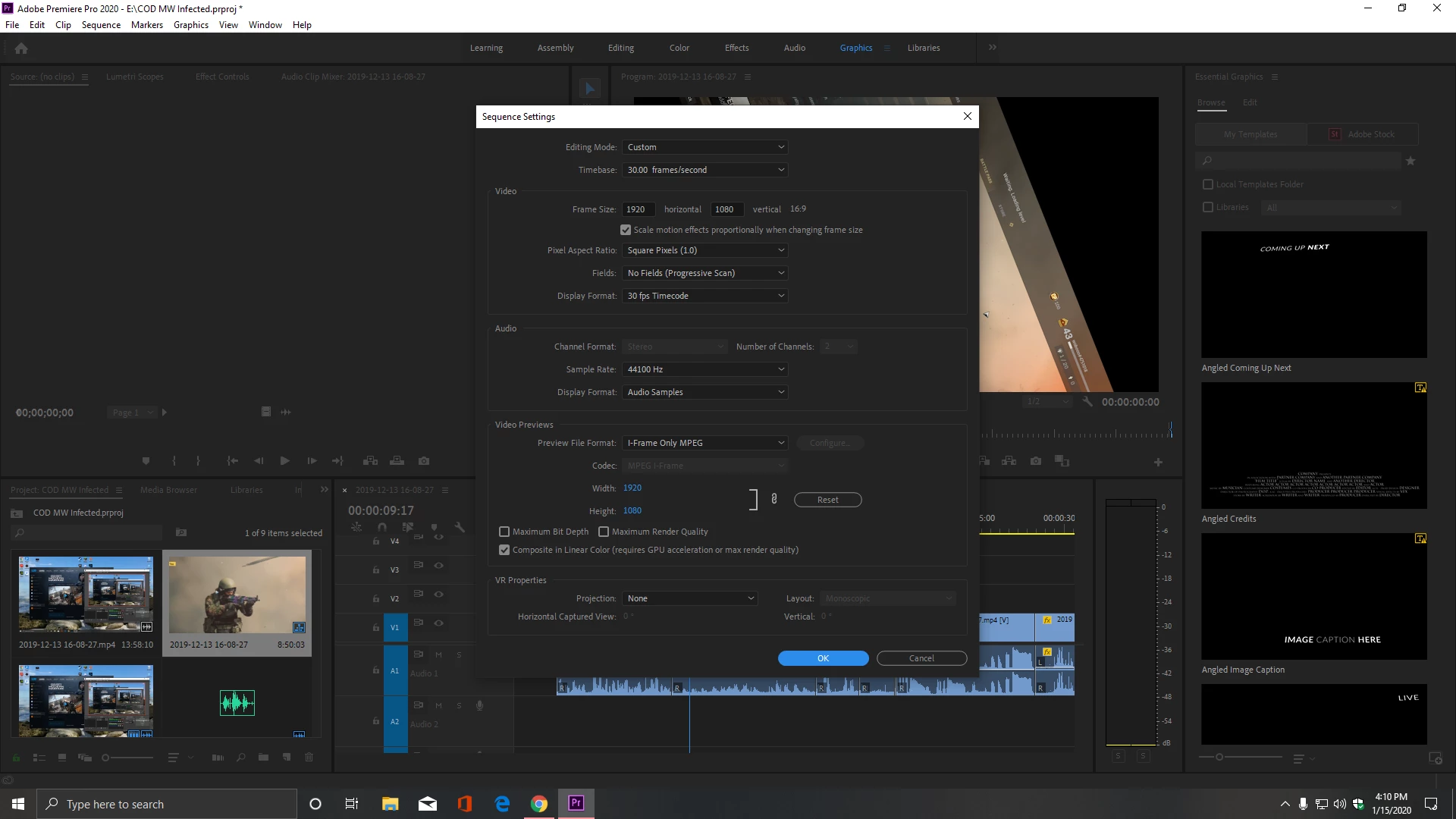
Alright....First...don't use the " Match sequence settings" this option is used for a particular meaning so for now don't use it.
The two first things are to tchek the resolution of your media , I mean the resolution of the videos you plan to use. The second thing is to create a sequence ( the timeline where you put all your videos).
So...Choose one video from your project and right clic and choose " Create sequence from clip". This is the best way to avoid any mismatching with the video you plan to use. The sequence will have the same framerate, same resolution, pixel ratio and so on. Once done, make your editing. When you ready to export, with your timeline selected ( blue stroke around your timeline panel ) Ctrl + M to export. Then in format part choose H264. under preset choose Youtube 1080p Full HD. Output name, choose a name for your render and a location.
In the video tab, you don't need to touch anything from now because it a preset dedicated to Youtube. Later on and when you'll be more familiar with the software, you can adjust the seetings by unchecking the quote in front of each property ( it won't be grey out anymore ).
Render your file. Queue will open media encoder so it will be a background task ( don't forget to push the green play bt to launch the render ) and export will export instantly but you won't be able to do anything in the Premiere until it finish the render. Give a try and let us know.

 AdChoices