
Participant
January 8, 2020
Question

Premiere uses CPU and not Dedicated GPU

  • January 8, 2020
  • 3 replies
  • 2717 views

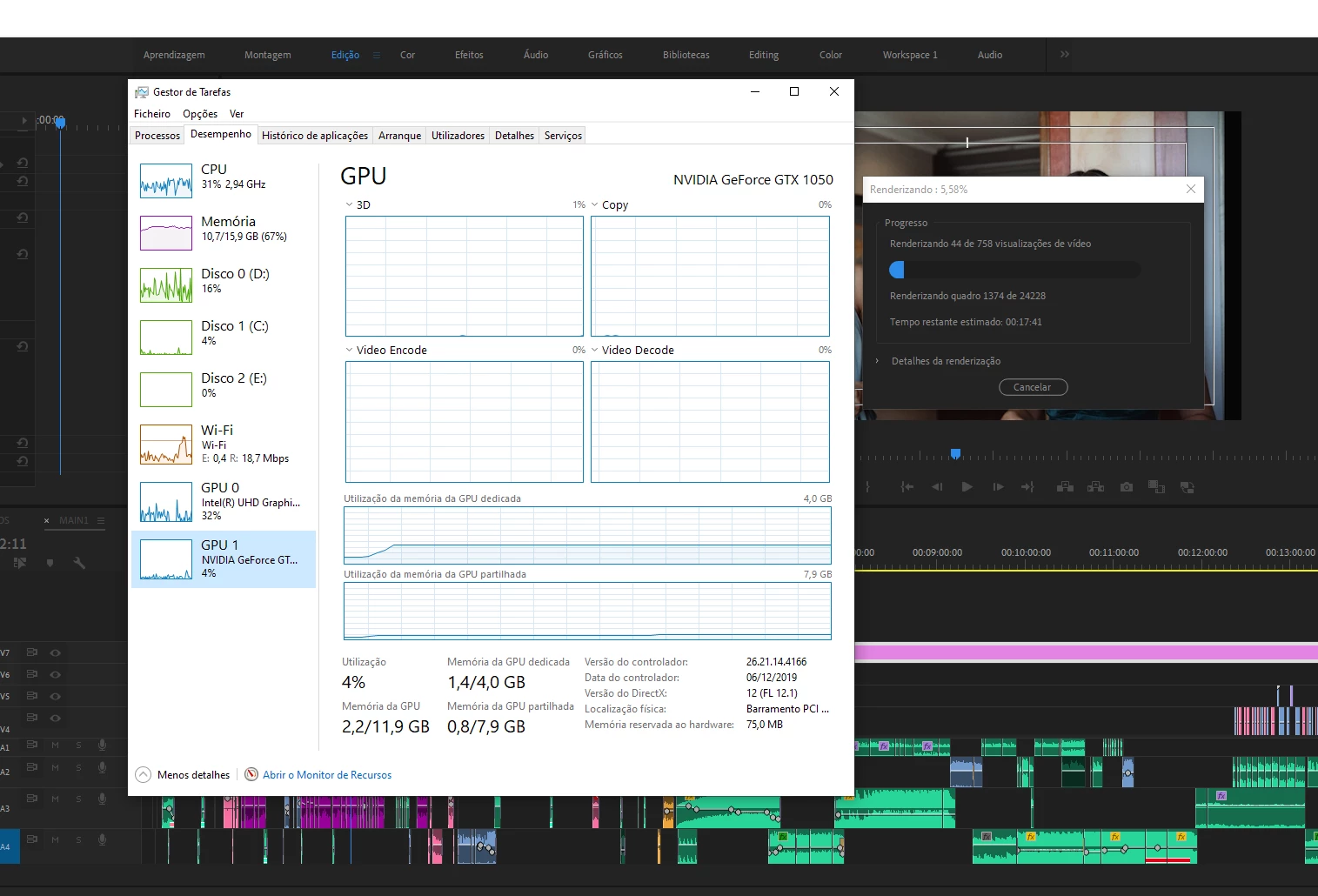
I've seen many people with the same problem. I have a ASUS N580 Series / Intel Core i7 / 16GB RAM / NVIDIA GeForce 1050 GTX 4GB.
Premiere keeps constant freezing with every action that I do, I've tried every solution that I've seen, all definitions are setting to premiere to use the dedicated GPU like:
-Nvidia painel control is all set to high perfomance for premiere.
-Intel Graphic's Control is set to performance and not quality.
-Window's graphical performances is set to high perfomance for premiere (to use the NVIDIA).
I also tried to diseabled on task manager the intel core (that as worked in the past) to force premiere to use the GPU but I was not sucessful.
I bought this computer in summer 2018 (that was as investment) mainly to edit, it is still has warranty, but it's a software problem, I already send it once and they had made mainly updates.
I really need help and some opinions.
Thank you!
This topic has been closed for replies.

3 replies

R Neil Haugen
Legend
January 8, 2020

I think this is from not understanding how Premiere and the computer work.


That computer is using the onboard graphics chip (not really what we'd think of as a full GPU) as an extension of the CPU, for graphic type work and whatever else the CPU is designed to use the onboard graphics chip for. So it's not using the onboard "GPU" instead of the 1050, but for those things the CPU uses that chip for in general processing.


And ... Premiere uses a GPU only for those things on the GPU Accelerated Effects list ... such things as Warp Stabilizer and other major frame-resizing operations and for say color like Lumetri. Period. It does not use a GPU for basic rendering/encoding work. Period.


And ... the GPU is used only when the CPU is ready to send some discrete bit for the GPU to process.


Your displayed track has three audio tracks which look to have effects applied to them ... which could easily be taking a ton of the CPU/RAM capabilities right there. Plus you have up to three layers of video tracks also, perhaps with graphics and/or other effects.


Look at your RAM ... it's running at 67% ... which tells me the CPU is running about as fast as your memory settings allow it to run. The CPU is running and using the available RAM for as fast a work as it can.


I don't think the limiting factor here is the discrete GPU at all.  It's the basic computer being maxed out.


Neil

Everyone's mileage always varies ...
Participant
January 8, 2020

Hi, thank you for your explanation!

I've experienced this issiue before, and it was from graphic problems, and as I search for solutions, I've seen more people with this problem too. In fact, this project is heavier with a lot of tracks but this also happens with projects that are not like this. The solution I found out for the problem before was indeed to disable the intel cpu to make the program using only the gpu, and it started to work a lot better, but that doesn't happen anymore. I also used proxies and it's the same.

Thank you!

Warren Heaton
Community Expert
Community Expert
January 8, 2020

For what it's worth, with MP4 as your Full Resolution format there is no Proxy Workflow to use.


In a Proxy Workflow, your Full Resoultion format would be Apple ProRes422 HQ or a high end flavor of DNxHD or GoPro Cineform.  In that case, MP4 could be your Proxy format, but you'd really want to go with a corresponding format like ProRes422 Proxy or a low end flavor of DNxHD or GoPro Cineform.


Mike Dziennik
Community Expert
Community Expert
January 8, 2020

What exactly do you mean by Premiere keeps constant freezing with every action that I do

Does the cursor freeze/turn into an eggtimer? Does it recover?

Participant
January 8, 2020

Hi! Yes, the program stops responding, it recovers after 3/4 minutes, but if I press it again it will eventually shut down. 

Like this example, applying an audio transition. And also moving the cursor in the timeline, it takes ages to assume the right place. 

Thank you!


Warren Heaton
Community Expert
Community Expert
January 8, 2020

What video format are you editing?

What type of storage media are you using?

In the Project Settings, what do you have the Renderer set to for Video Rendering and Playback?

Participant
January 8, 2020

Hi! I'm keeping the files in a normal partition because the project is too big for the ssd one. It's a 1920x1080, mp4 vídeos (50/100 fps) and I'm using the CUDA option. I've tried to use proxies as well but the problem seems to remain.

Thank you!

Warren Heaton
Community Expert
Community Expert
January 8, 2020

I would immediately switch to a mezzanine CODEC (that is, a CODEC that is good for editing).


You can use the Project Manger to Consolidate and Transcode your Sequence to DNx HD, MXF OP1a or QuickTime.


With MP4 as the source, I'd go with Apple ProRes422 LT for the transcode settings and the Sequence settings.  At 1080, ProRes422 source will play fine from a standard USB3 or USB-C hard drive in a ProRes422 Sequence.  Yes, the files sizes will be much larger (about 1GB per minutes), but you'll be removing the overhead of tying to make MP4 behave like it's something other than a delivery format.


For future projects like this, you can set the Ingest Project Settings to Transcode to Apple ProRes422 LT and start working with the MP4s while Media Encoder does the transcode.