
Exit
  • Global community
    • Language:
      • Deutsch
      • English
      • Español
      • Français
      • Português
  • 日本語コミュニティ
  • 한국 커뮤니티
0

Problem with TC in Metadata & Timecode burn in with subclips

New Here ,
Nov 23, 2023 Nov 23, 2023

I have to create subclips for my project and when I burn the time code to send the video to the lab with Metadata & Timecode burn in, the TC burned is not the same of the subclip one. For example, at the begining of the subclip instead of the begining of the subclip TC it apears the begining of the master clip TC. If I export an EDL I don't have this issue. And if I use the function overlays I don't have the issue either (but I don't know how to export a video with the overlays burned in the export). How can I do to see in the TC burned in the real TC of the subclip instead of something else? I atach a screen shot.
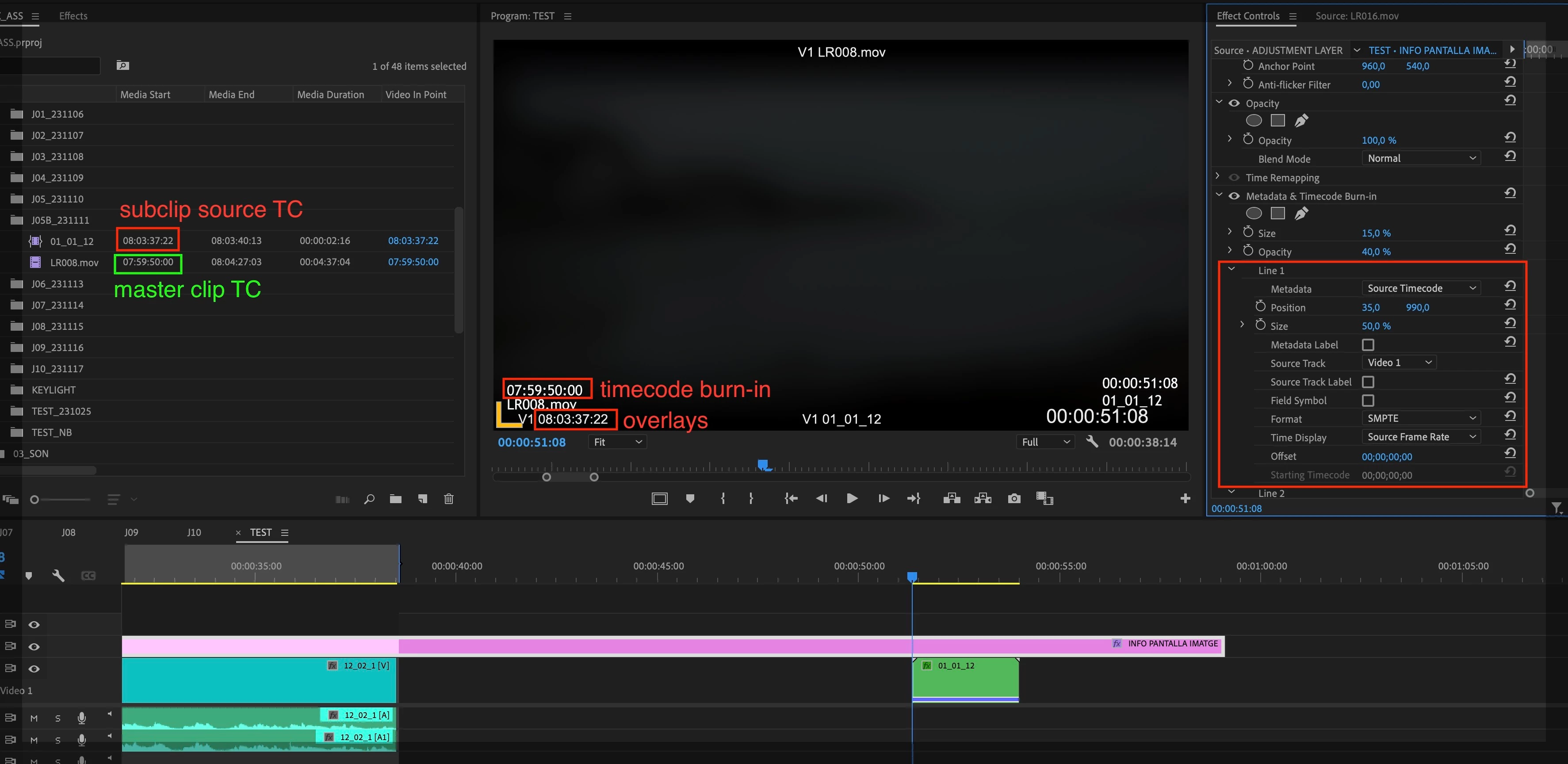
Captura de pantalla 2023-11-23 a les 16.11.25.jpg


TOPICS
Error or problem , Export
134
Translate
Report
Community guidelines
Be kind and respectful, give credit to the original source of content, and search for duplicates before posting. Learn more
community guidelines

correct answers 1 Pinned Reply

Adobe Employee , Dec 06, 2023 Dec 06, 2023

Hi @Marina33580000sxaf,

I got your message. I apologize that the that the community was unable to solve your issue. Please contact assisted support for continued assistance with this issue. To contact Adobe Customer Service, do the following: 


  1. Make sure to sign into your Adobe account. Allow popups and cookies on your browser. You may not be able to see the chat window if using a VPN. 
  2. Click here: https://helpx.adobe.com/contact.html?rghtup=autoOpen. This will automatically open the chat wind
...
Translate
Adobe Employee ,
Dec 06, 2023 Dec 06, 2023
LATEST

Hi @Marina33580000sxaf,

I got your message. I apologize that the that the community was unable to solve your issue. Please contact assisted support for continued assistance with this issue. To contact Adobe Customer Service, do the following: 


  1. Make sure to sign into your Adobe account. Allow popups and cookies on your browser. You may not be able to see the chat window if using a VPN. 
  2. Click here: https://helpx.adobe.com/contact.html?rghtup=autoOpen. This will automatically open the chat window. 
  3. Type "Agent" in the chat box to be connected to a live agent. 
  4. When you get an agent, ask to be connected to the video queue. These are agents that are specially trained to handle issues related to digital video and audio.


I hope they can help you. Let us know what they say so that the community can stay informed and help others having trouble with the same situation.


Thanks,
Kevin

Kevin Monahan - Sr. Community & Engagement Strategist – Pro Video and Audio
Translate
Report
Community guidelines
Be kind and respectful, give credit to the original source of content, and search for duplicates before posting. Learn more
community guidelines