
MattRouse
Participant
August 7, 2021
Answered

Program Monitor Turns White When I Apply Warp Stabilizer

  • August 7, 2021
  • 4 replies
  • 3966 views

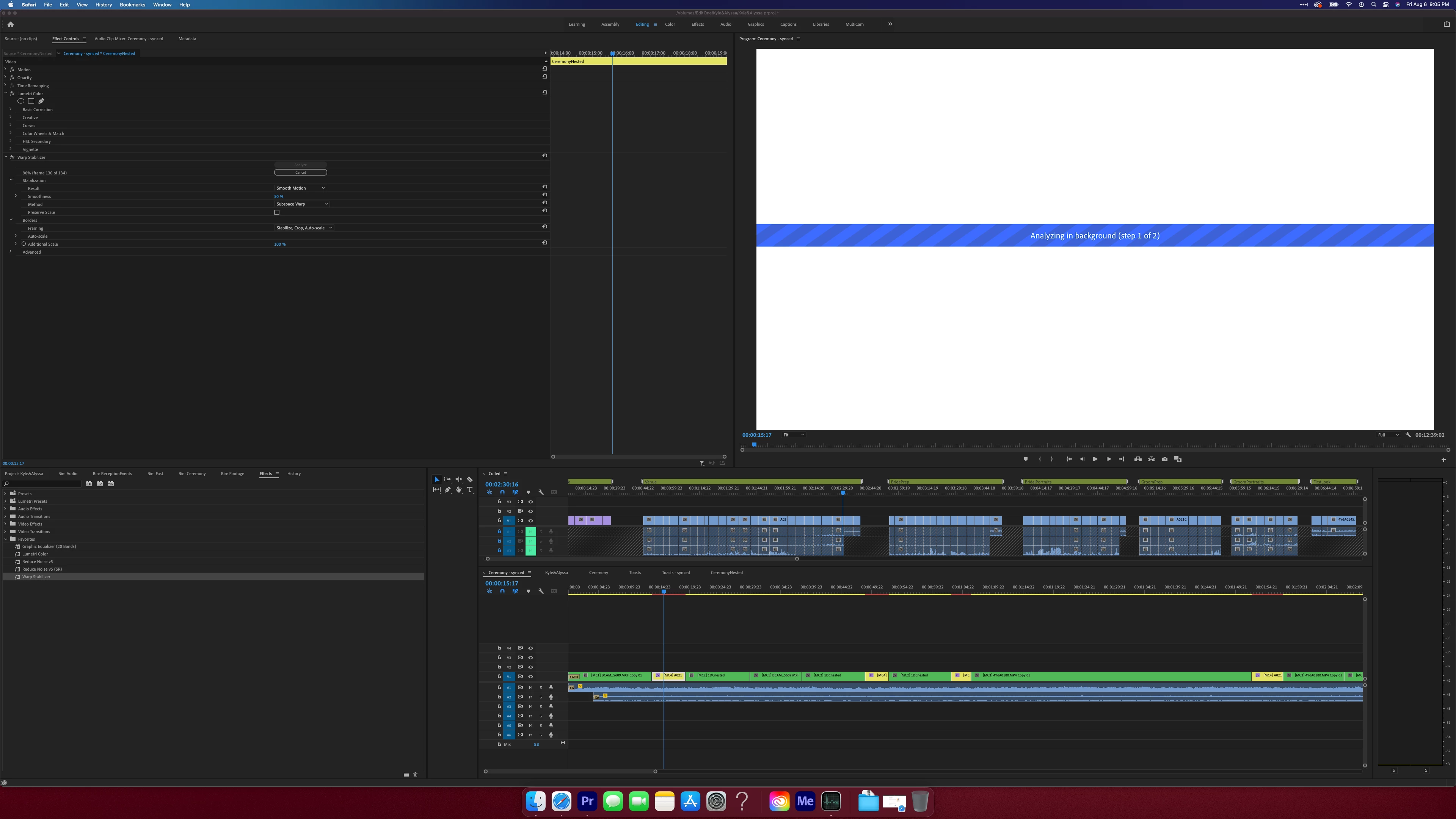
Whenever I apply warp stabilizer the screen turns white and the stabilization fails. This also happened when I tried to use neat video. Any thoughts? 


Macbook Pro Late 2020

M1 Chip

16 GB Ram

Premiere 15.4


This topic has been closed for replies.
Correct answer Brian Melnyk

The same thing has been happenning to me, except I'm using a Mini.


When pres the FX button for lumetri colour, I can see the clip again. Delete your lumetri and reapply after you've stabilized. This should clear things up.


Cheers, 


Brian

4 replies

Known Participant
May 31, 2022

this is still an issue 8 months later. When I lock my macbook pro and then unlock it I often see a white screen. I need to remove my lumetri colour (or restart premiere) in order to get the visuals back. This is happening in full version and also beta premiere pro. Frustrating.

R Neil Haugen
Legend
June 1, 2022

I still recommend never leaving Warp as an effect on a clip. Once you have that bit of clip "warped" to perfection, do a full Render&Replace to a format/codec adequate for a full digital intermediate ... preferably to something like ProRes 422 or better ... as now, that Warp effect is completely removed from the processing chain.


It just works better that way. No matter what effects you add later.


Neil

Everyone's mileage always varies ...
nishu_kush
Community Manager
Community Manager
September 11, 2021

Hi MattRouse & Brian Melnyk,


Thanks for writing in.

Is it happening with a specific type of footage? What are the details of the footage you're using (frame rate, frame size, format/codec)?

Let us know.


Thanks,

Nishu

Serghios
Known Participant
January 13, 2022

the same here, with any kind of footage.
If I have applied a lut and put warp stabilizer white screen.
A shame, I have a mac with m1 max and we are talking about footage in full hd, my machine has the power to eat these operations, the bug is in the software.

R Neil Haugen
Legend
January 13, 2022

Warp is the heaviest effect in Premiere, and Lumetri can give it a run. Both of those on a clip can cause processing issues simply because of the immense amount of processing per frame.


So typically it is suggested to at least nest the clip after applying Warp, before applying other effects. This somehow helps the app and the computer get the processes handled without issues. So I would suggest that.


Next ... again, as Warp is so heavy, it is not a bad idea to work a clip through Warp until you've got exactly what you want. Then do a Render & Replace of that clip to a full intermediate codec like ProRes 422 or better, Cineform, or a DNx variant. That way all the Warp processing is finished and out of the way. Makes life much easier.


Neil

Everyone's mileage always varies ...
Brian MelnykCorrect answer
Participant
September 8, 2021

The same thing has been happenning to me, except I'm using a Mini.


When pres the FX button for lumetri colour, I can see the clip again. Delete your lumetri and reapply after you've stabilized. This should clear things up.


Cheers, 


Brian

R Neil Haugen
Legend
August 7, 2021

Both Warp and Neat use a TON of RAM and also GPU vRAM. That might be the issue here.


I note you have both Lumetri color and Warp applied here. With a low-powered machine, it's better to run them separately. Perhaps either Warp, do a render & replace with a good intermediate codec like Cineform, ProRes, or DNxHD/R, then do color. Or ... the other way around.


Either way, the clip is "clean" of any effects when you apply the next on.


And the same perhaps for applying Neat.


Neil

Everyone's mileage always varies ...