Known Participant
April 6, 2022
Question

Quality problem after exporting

  • April 6, 2022
  • 4 replies
  • 1026 views

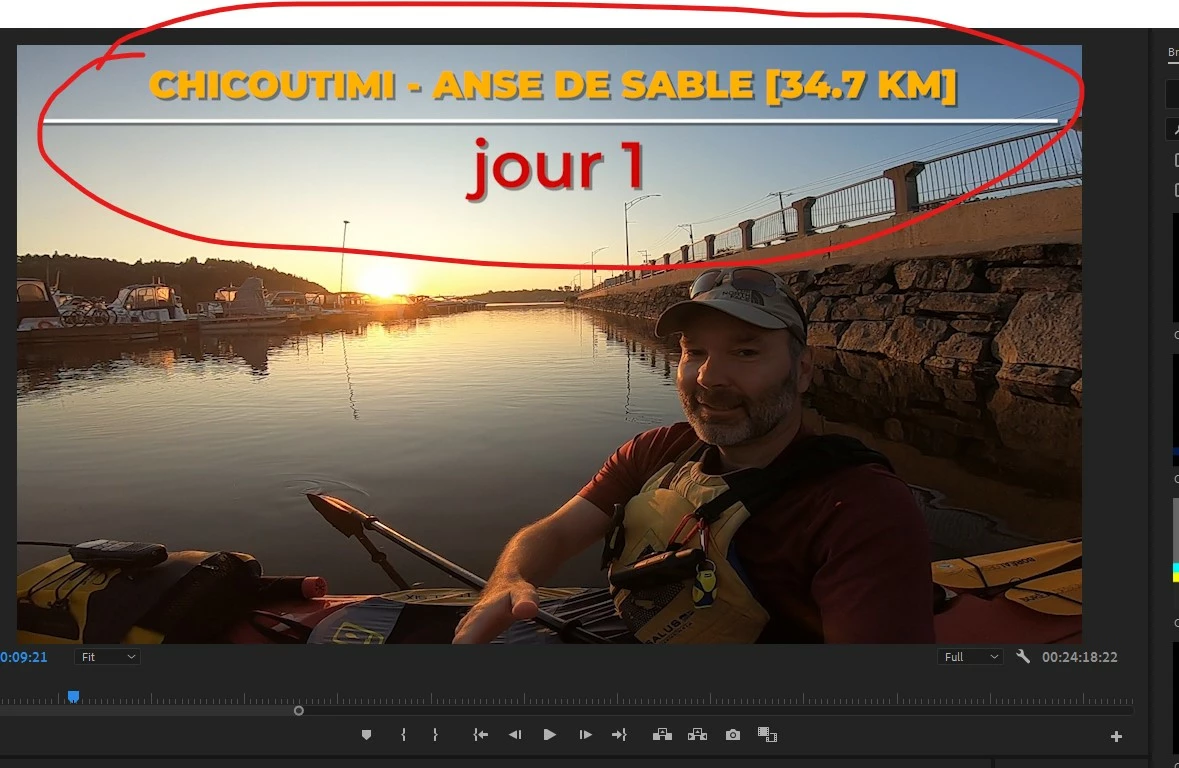
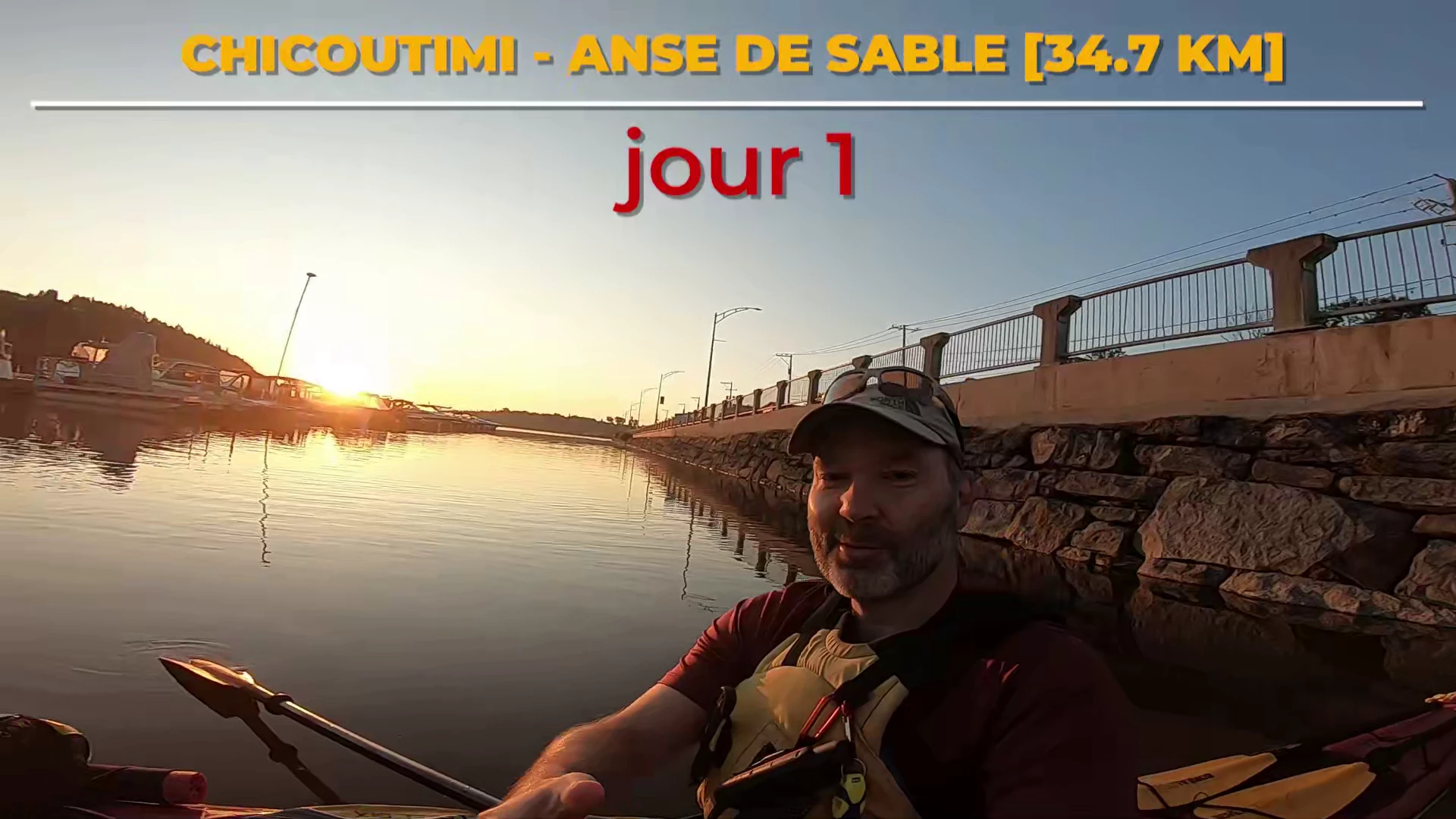
Not sure why but after export, the title looks bad and washed. In the editing screen it look sharp and crisp

This topic has been closed for replies.

4 replies

Community Manager
April 8, 2022

Hi @PatKenoo7 , 


Can you please try the latest beta build once? We have done some export improvements in the latest beta builds. You can download the latest Premiere Pro Beta build from Creative Cloud --> Beta apps --> Premiere Pro (Beta)

https://helpx.adobe.com/x-productkb/global/creative-cloud-public-beta.html

Please try and let us know how it goes in the beta build. If you still see this issue in beta builds, please share your original footage/Project file & export settings. We will check it at our end.


Thanks,
Mayjain

PatKenoo7Author
Known Participant
April 10, 2022

Not sure that this will help. I never done that before.

Peru Bob
Community Expert
Community Expert
April 6, 2022

Jut a guess:

Try a different font?

PatKenoo7Author
Known Participant
April 8, 2022

Did, but nothing. This is the first time its doing that. The text has some artifact or color degradation

nishu_kush
Community Manager
Community Manager
April 8, 2022

Can you try switching to Software Encoding instead of Hardware Encoding in the Export Settings and export?

Let us know if it brings any change.


Thanks,

Nishu

Peru Bob
Community Expert
Community Expert
April 6, 2022

Turn off Maximum Render Quality and increase the bit rate.

PatKenoo7Author
Known Participant
April 6, 2022

didnt do much more difference

FlyingFourFun
Inspiring
April 10, 2022

so, what bit rate did you increase it to?  I suspect based on the response; all you did was turn off 'max render quality'.


I disagree with turning off max render quality, there is no impact other than performance, and even then, in rare circumstance such as rescaling video (which I can't tell if you have, as you may have a 4k video dropped into a 1080p sequence with a 1080p export.  If you have in fact done this, keep max render quality on as it improved the rescale math dramatically (hence slower but looks much better).


Details are important, please provided them if you would like enhance your success with this issue.

Peru Bob
Community Expert
Community Expert
April 6, 2022

Please post screenshots of your sequence and export settings.

How did you make the title?

PatKenoo7Author
Known Participant
April 6, 2022

I actually bought the title template in adobe stock


FlyingFourFun
Inspiring
April 10, 2022

First of all, 7mbps for 60 fps video is almost half the recommended bitrate from YouTube; they suggest 12 (if HDR 15).

Recommended upload encoding settings - YouTube Help (google.com)


I would change the bit rate to at least 12, but you can go higher....  It seems you're recording with a Go Pro Hero, which if memory serves me correct is a significantly higher bit that 8, its like 78mps depending on the model.


I look forward to hearing back after you try the recommended settings from YouTube.  To me the text looks like bit rate artifacts, it should be correctable with the higher bit rate.  The way the system calculates where to provided the highest portions of bir rate are based on motion, and the text has the least motion, so it will be starved of the bir rate it needs to keep the edges sharp.  in convinced bumping that bit rate will solve your problem.